Keep track of tax claims
Updated 18 November 2026 · iPhone and Android · about 6 minutes · Daybook Pro
Mark the spending you can claim against tax — medical bills, school fees, donations, work costs — in buckets you name, each with the most you can claim a year. The receipt photo stays with each claim, and Daybook shows what you have not looked at yet, so the year’s review can be finished. At the end, seal the year into one file for your tax return.
Tax rules differ in every country, so Daybook comes with no list of them. You name your buckets, set their limits and say when your tax year starts. Daybook counts what you mark; it does not decide what your tax office allows.
Set it up
Open Tax claims
Tap More, then Tax claims, under Manage.
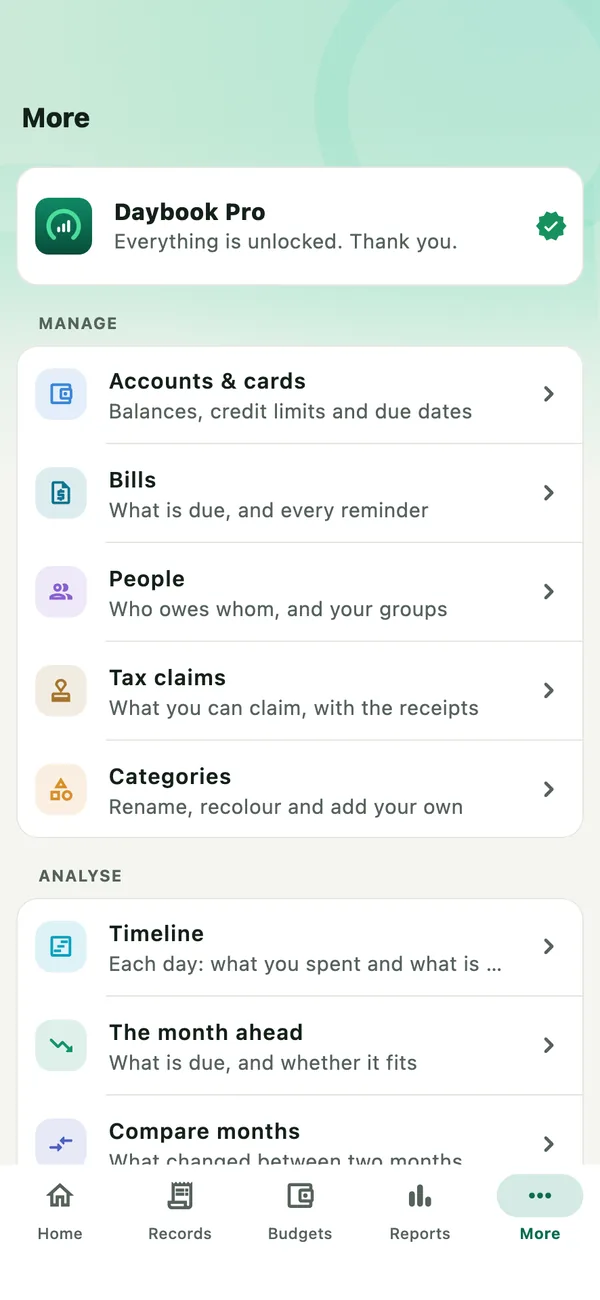
It also opens from Reports › Year, on the What you can claim card near the bottom, and from See Tax claims under Tell Daybook’s answer when you ask about your claims, such as How much have I claimed for tax this year?
Say when your tax year starts
Tap the gear at the top of Tax claims to open Tax claim settings. Tap Your tax year starts and choose the day your tax office counts the year from: 1 January, 6 April, 1 April, 1 July, 1 October, or Another date… for any other day.
A year that does not start on 1 January is named by both years, like 2026–27. Changing the start moves which year a record falls in, never what you marked.
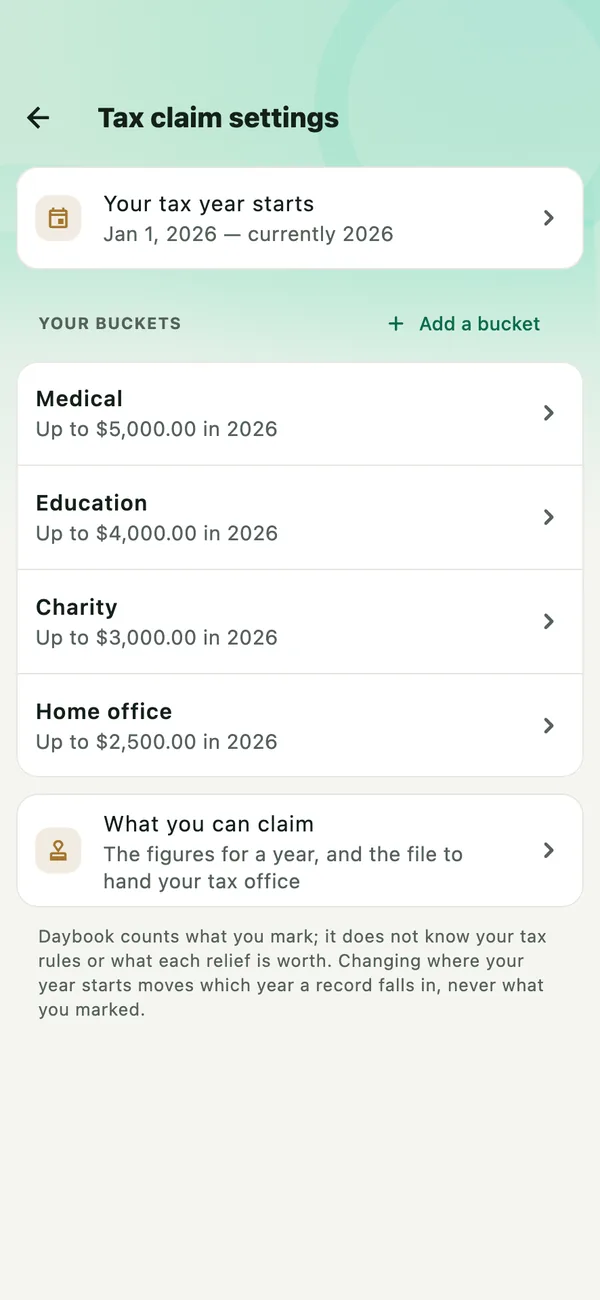
More › Settings › Backup and data › Sealed tax-claim files opens Tax claim settings too.
Name your buckets
A bucket is what you claim under — whatever your tax office calls it. Tap Add a bucket. Type its Name and, if there is a limit, the Most you can claim a year. Leave that empty if there is no limit. Tap Add it. Each set of books has its own buckets.
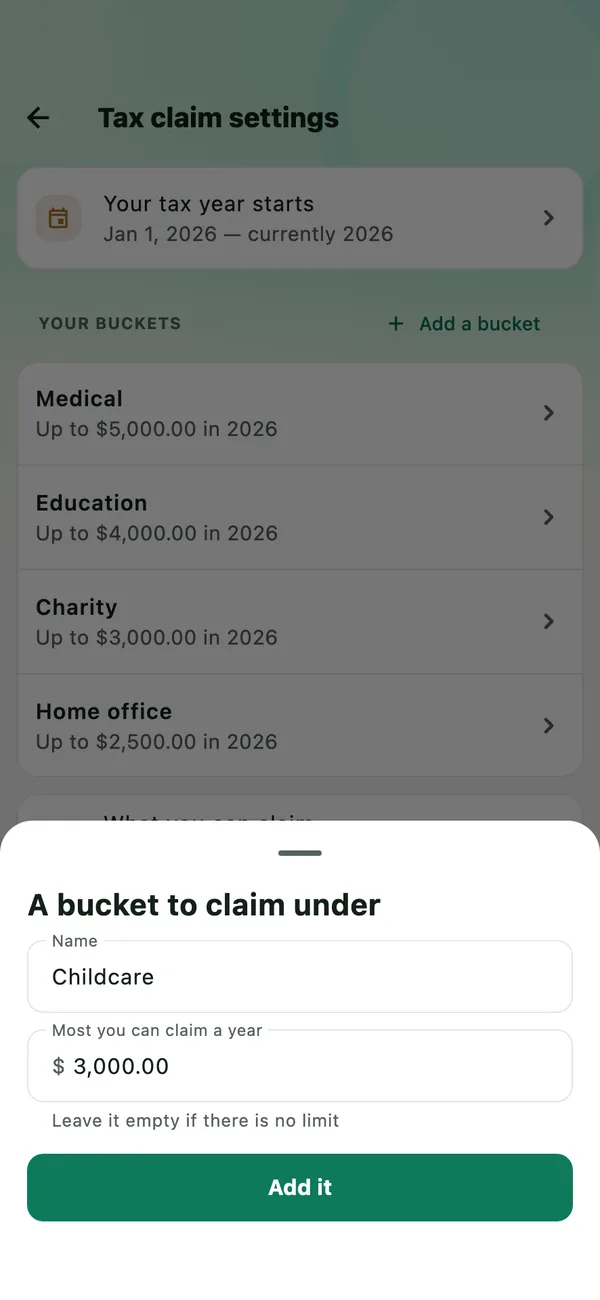
To change a bucket, tap it. A new limit applies from that tax year on; earlier years keep the limit they had. Stop using this bucket takes it off the list you choose from. What is already claimed against it keeps its figure, and Use this bucket again, in Tax claim settings, brings it back.
Mark what you spent
Mark a record
Open the record. Under Claiming this, tap Tax claim. The same row is at the bottom of the form when you add or edit spending, or check a scan.
Under Claim this against, choose the bucket and tap Claim it. If only some of it counts — an insurance premium, or a bill shared with someone — turn on Only part of it qualifies and type the Amount that qualifies.
Not something you can claim? Tap Not claimable. That is an answer too: the record no longer waits to be looked at.
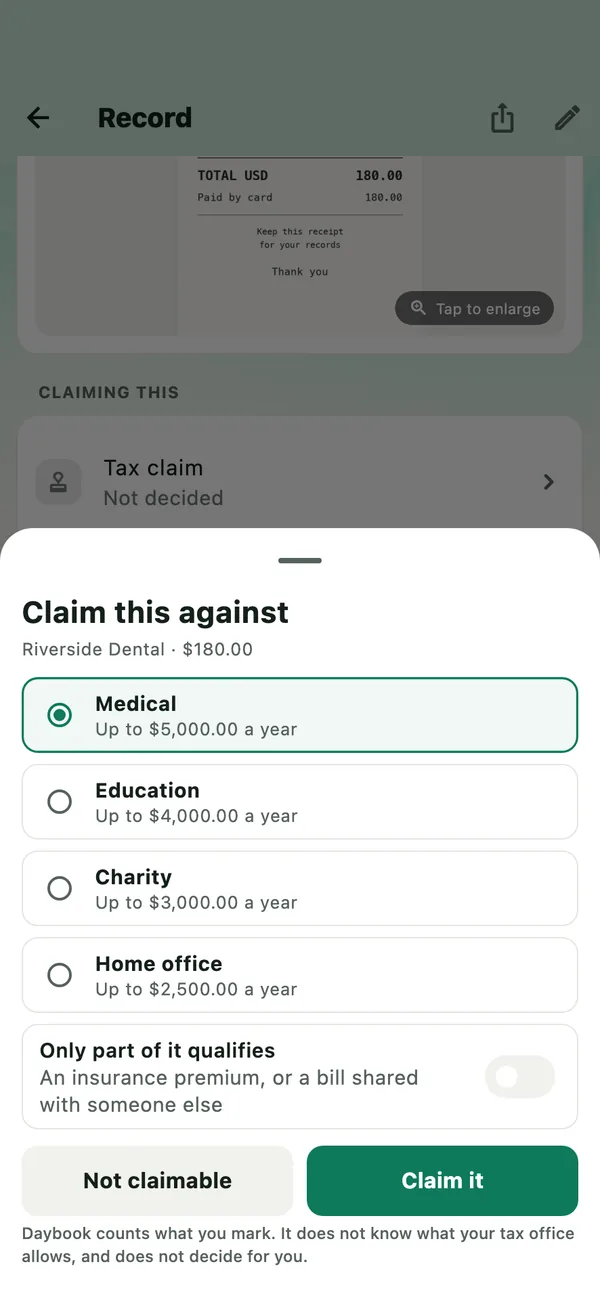
On a bill you split with other people, only your share is claimed, unless you type the part that qualifies. No buckets yet? The sheet has Add your first bucket.
Mark several at once
In Records, tap Select, or press and hold a record, and tick the records. Tap More in the bar at the bottom, then Tax claim, and choose as above.
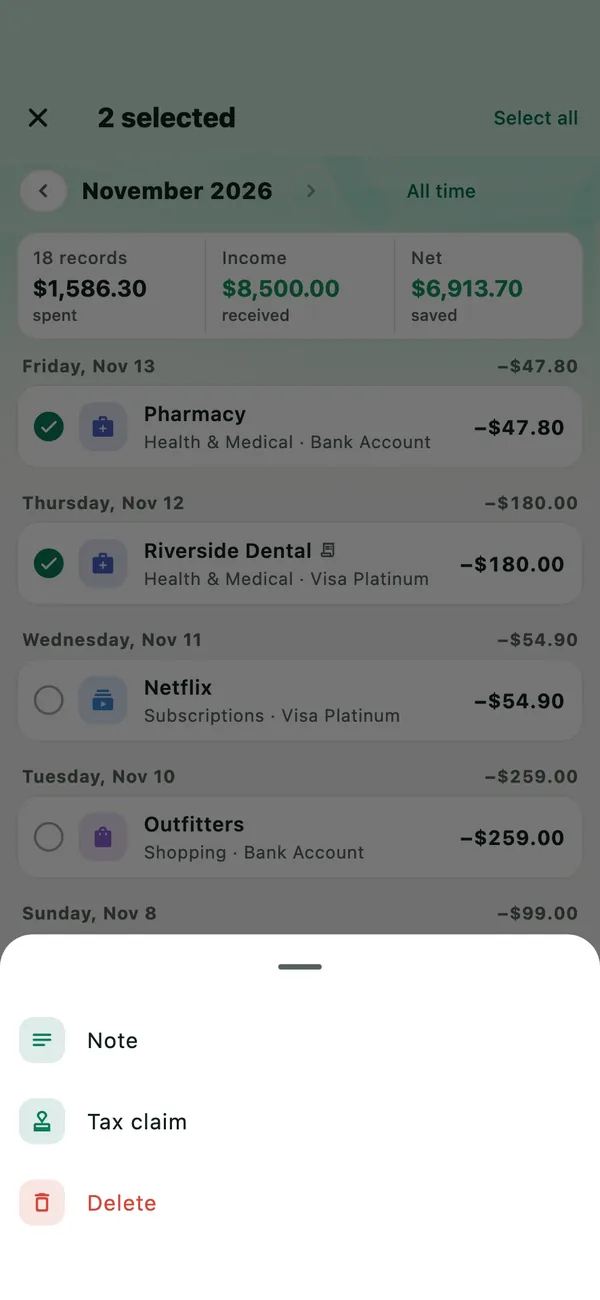
Before anything changes, Daybook says what will: Change 2 records? Tap Change; Undo follows. Each record is claimed in full — a part that qualifies is for one record at a time. Only spending can be claimed, so money in and transfers stay as they are.
To take a claim back, open the sheet again and tap Put it back to unreviewed: the record waits to be looked at again. Or tap Not claimable.
See the year
Read each bucket
Tax claims shows one tax year at a time. The arrows step back through earlier years, and forward as far as this one.
Marked for 2026 is the total you marked, with each bucket counted no higher than its limit. Under Your buckets, each one shows how many records are in it, its limit and what it comes to, with a bar that fills as you near the limit. Tap a bucket to change it for the year on screen.
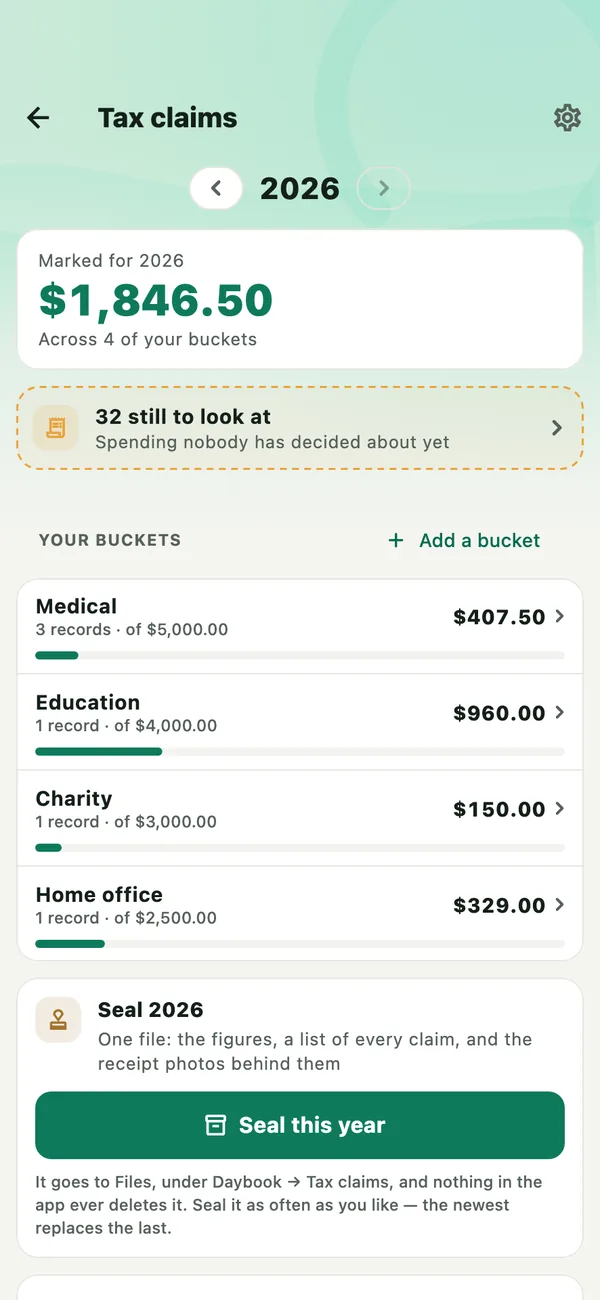
A refund recorded with Record a refund on a claimed purchase comes off its bucket, and the bucket says how much was refunded.
Go through what is left
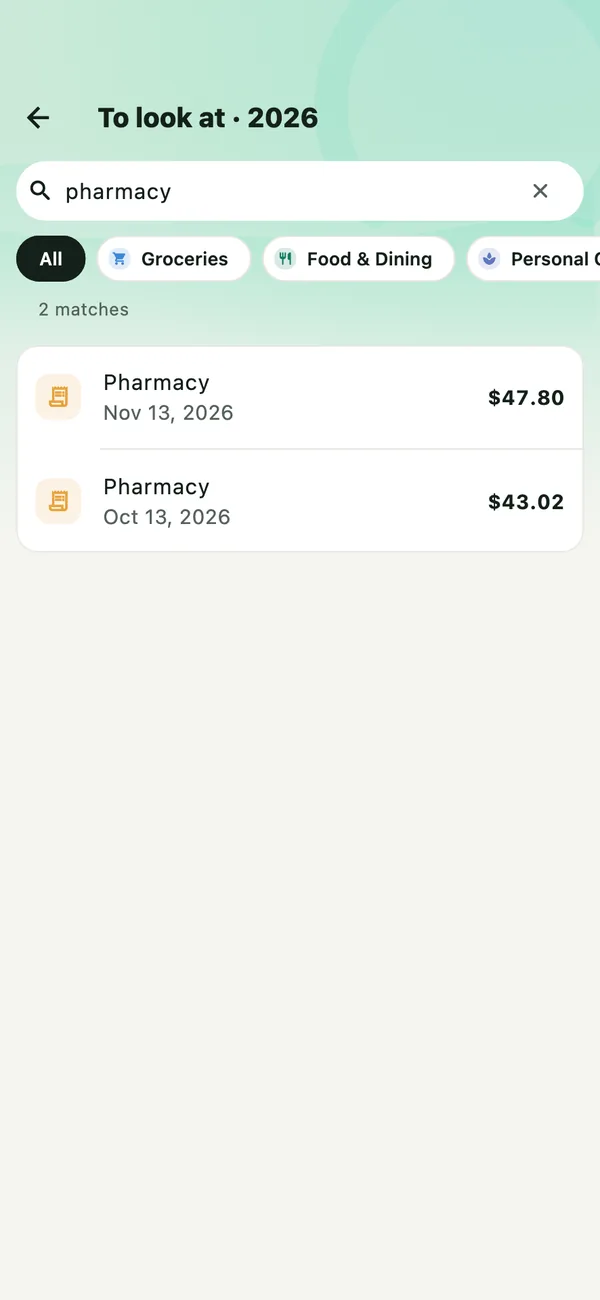
The dashed card — 32 still to look at here — is the spending in that year nobody has decided about. Tap it. Tap a record to claim it or mark it not claimable, and it leaves the list.
To find something quickly, search a shop or a category, or tap a category above the list. When the list is empty, the year is done: Nothing left to look at.
When a tax year has ended with records still to look at, Needs attention (the bell at the top of Home) says so: Tax claims for 2025. Tap it to open that year’s list.
Get it out for your tax return
Seal the year
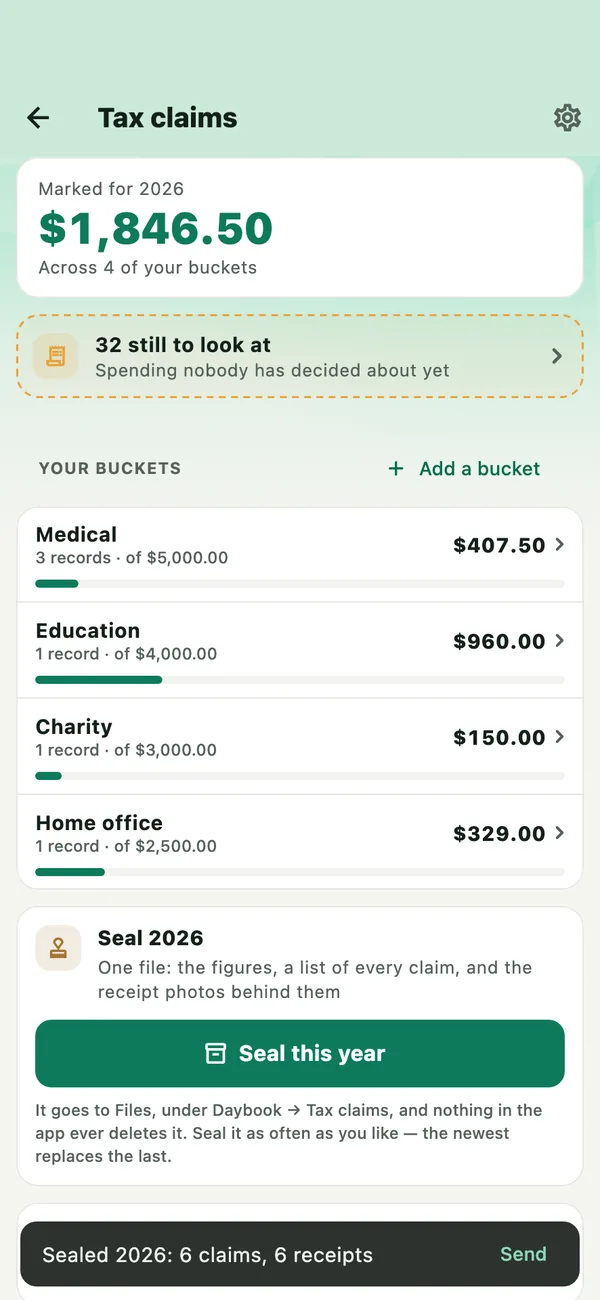
Near the bottom of Tax claims, under Seal 2026, tap Seal this year. (With nothing marked in that year, the button says Nothing marked yet.) Daybook writes one zip file with:
- summary.pdf — each bucket with its records, what you marked, its limit and what counts after the limit, and the total.
- manifest.csv — every claim: its date, shop, bucket, amount, the part claimed, and its photo. It opens in any spreadsheet app.
- a receipts folder — the photos.
Daybook then says what it sealed — Sealed 2026: 6 claims, 6 receipts — or how many claims have no receipt. Seal a year as often as you like; the newest file replaces the last.
Find the file
Where the file is kept depends on the phone:
- iPhone — in the Files app, under On My iPhone › Daybook › Tax claims, named for the year and the set of books:
claims-2026-Personal.zip. Nothing in Daybook deletes it, not even Erase all data. Deleting the Daybook app from the iPhone does, so keep a copy somewhere else too. - Android — kept inside Daybook, where your file manager cannot see it. It goes if you remove the app, and with Erase all data. Tap Send after sealing to keep a copy.
- iPhone — in the Files app, under On My iPhone › Daybook › Tax claims, named for the year and the set of books:
Send it
Tap Send on the message after sealing. The phone’s share sheet opens: choose where it goes — your email, a cloud folder, or your files. Missed it? Seal the year again: the file is replaced, and the message comes back.
Sealing writes the file on your phone, and nothing is sent. It leaves the phone only when you tap Send and choose where it goes. It goes there with the shops, dates, amounts and receipt photos in it, and from then on that service’s terms apply. It is never sent to us.
Receipt photos stay
With Daybook Pro, every receipt photo stays as long as its record, and Daybook never offers to clear old ones.
Without Pro, Daybook may offer to clear old receipt photos to free up space, in More › Settings › Backup and data. Nothing goes unless you tap Free up space and confirm. Even then, a photo on a record marked as claimed is never offered, and neither is any photo from this tax year or the last one, counted from the start you set in Daybook.
What needs Pro
Tax claims is part of Daybook Pro: the buckets, marking records, the year’s screen and sealing.
- Without Pro, every way into Tax claims — More, Reports › Year, a record’s Tax claim, Tell Daybook’s link — opens the Daybook Pro page instead, with a note at the top: Marking what you spent against a tax claim only works if the receipt is still there when the tax office asks. With Pro, every receipt photo stays as long as its record, and Daybook never asks you to clear old ones. Tax claim in Records’ More, and Sealed tax-claim files in Backup and data, carry a Pro badge. Asked about tax claims, Tell Daybook answers Tax claims are part of Daybook Pro.
- If Pro ends, nothing you marked is cleared or hidden. Each record still says which bucket it is claimed under, and the What you can claim card in Reports › Year still shows the year’s total. Changing claims, the year’s screen and sealing need Pro again. A claimed photo is never offered for clearing. Files already sealed stay where they are: in Files on iPhone, and wherever you sent them.
If something goes wrong
- A bucket says “… over”
- What you marked against it is more than its limit for that year. Only the limit counts towards the total, and the amber line says how much is over. If the limit is wrong, tap the bucket and change Most you can claim in 2026.
- “2 claims have no receipt photo behind them”
- Those claims were marked without a photo. The bucket says how many of its claims have none, and a sealed file lists them in manifest.csv as receipt no longer on file. Open each record, tap the pencil (Edit), add the photo with Scan receipt or From photos, and tap Save changes.
- A claim was paid in another currency
- It counts in your own currency, at the converted amount saved on the record; the record’s page shows what you paid and at what rate. The part that qualifies is typed in your own currency too.
- The year covers the wrong months
- Set when your tax year starts: Your tax year starts, at the bottom of Tax claims or in Tax claim settings. Your marks stay as they are; only which year each record falls in changes.
All guides · Scan a receipt · Record and ask with Tell Daybook · Keep your records safe · Privacy