Scan a receipt
Updated 18 November 2026 · iPhone and Android · about 6 minutes
Take a photo of a receipt and Daybook fills in the record for you: the shop, the date, the total, the tax and what you bought, read on your phone. You check it, then save.
Scan a receipt
Open the scanner
Tap + on Home, Records or Budgets. At the top, tap Scan receipt to use the camera, or From photos for a receipt you have already photographed.
You can also touch and hold Daybook’s icon on your home screen and choose Scan a receipt.
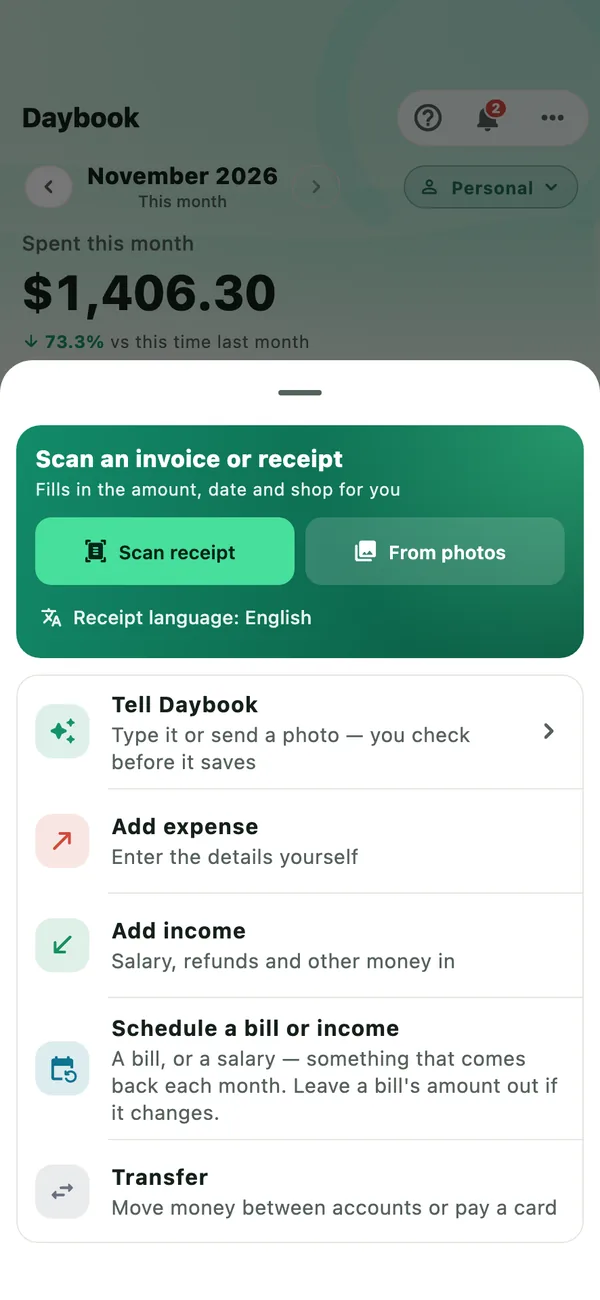
Typing an expense already? Scan receipt and From photos under its amount add the photo to that record, and leave what you typed as it is.
Check the receipt language
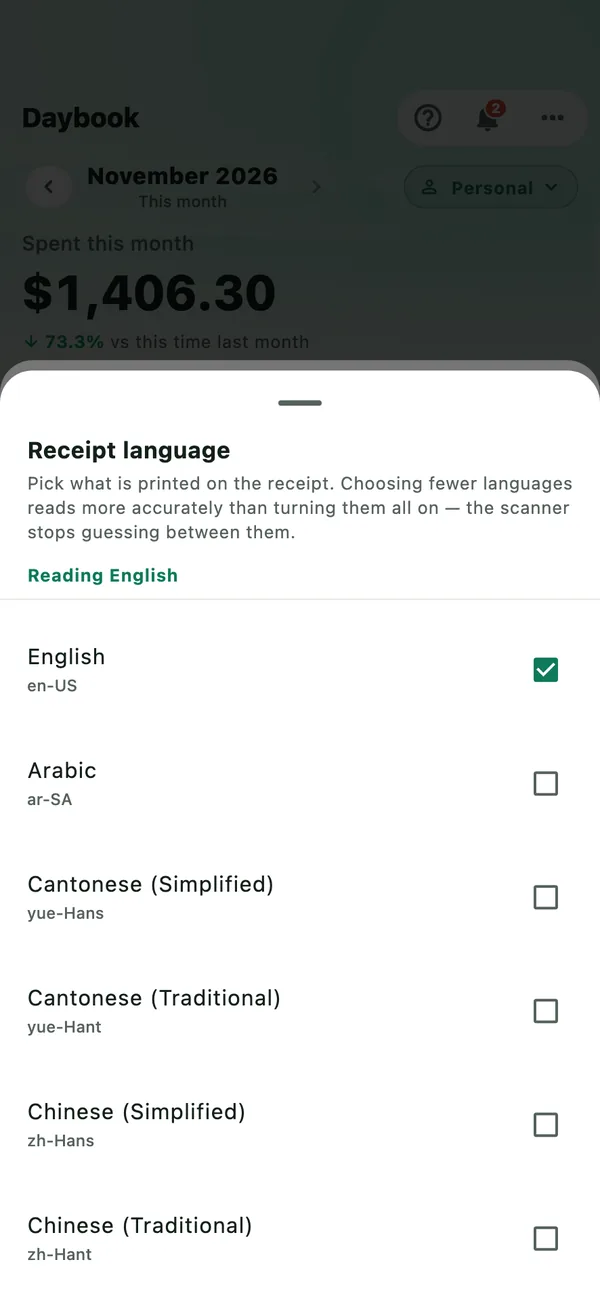
Under the two buttons, Receipt language shows what the scanner reads. If your receipts are printed in another language, tap it and tick that language too.
- iPhone: tick what is printed on your receipts. A few languages read better than all of them: the scanner stops guessing between them.
- Android: the phone reads Latin-alphabet languages always, plus one of Chinese, Japanese, Korean or Hindi at a time.
The same list is in More › Settings › Receipt scanning › Receipt language.
Take the photo
Lay the receipt flat, in good light, with all of it in view, down to the total.
- iPhone: Apple’s document scanner opens. It finds the receipt’s edges, straightens it and crops it. A long receipt can take more than one shot: Daybook puts them together, top to bottom, as one picture.
- Android: Google’s document scanner opens, from Google Play services. It finds the edges, straightens and crops the receipt, and lets you take it again. On a phone without Google Play services, Daybook takes an ordinary photo instead.
Daybook then reads it, on the phone.
Check the total
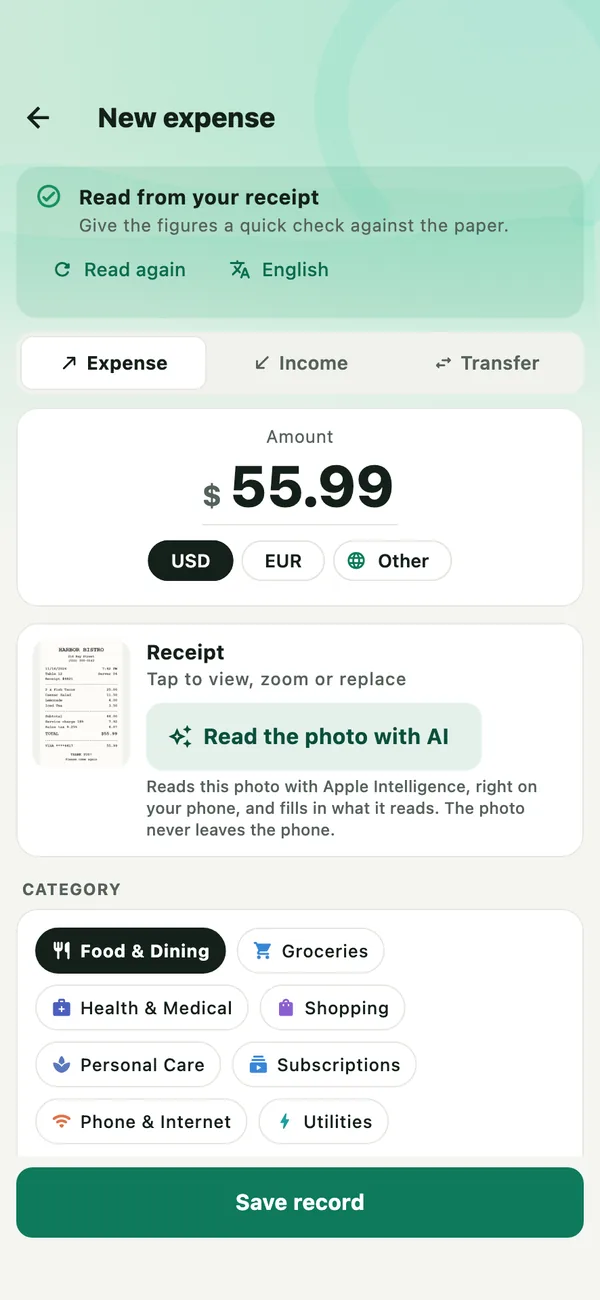
The expense form opens, filled in. Amount is the receipt’s total, and the photo is under it: tap it to see it larger. A category is picked for you: the one you chose for that shop before, or one that fits the shop and what is on the receipt.
The note at the top says how sure the reading is: Read from your receipt, Please double-check or Hard to read.
Check the details and the lines
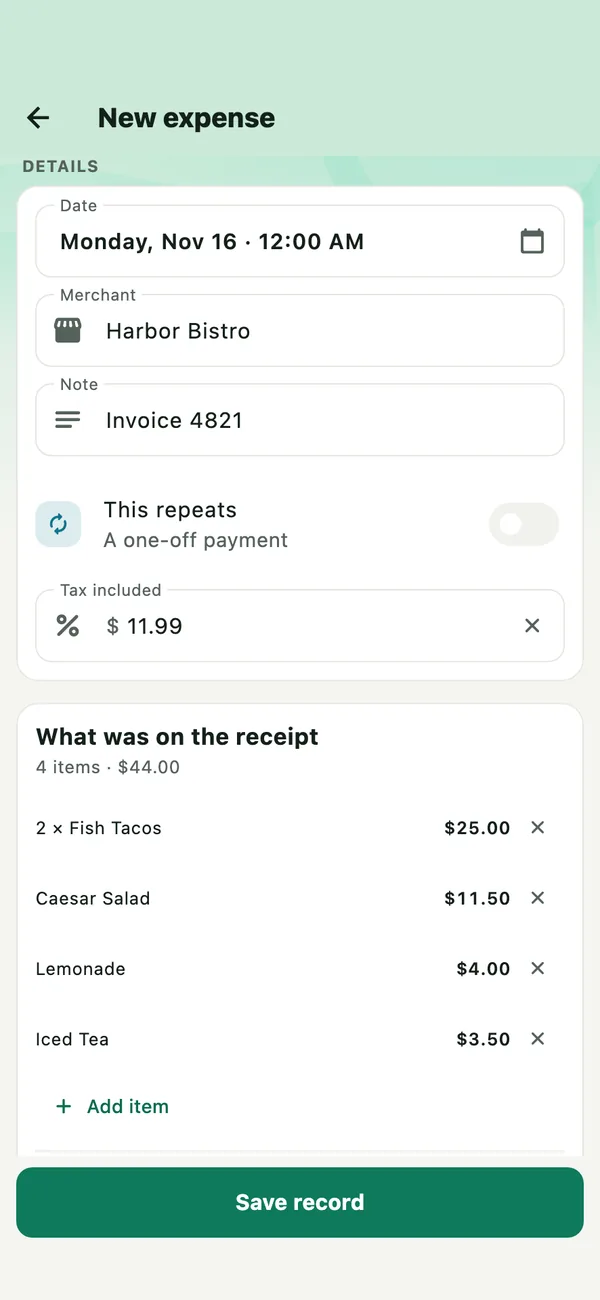
Further down, Date is the day on the receipt, Merchant the shop’s name, and Tax included the tax, with any service charge added in. A receipt or invoice number goes into Note.
What was on the receipt lists the lines bought and what they come to. They rarely add up to the total: tax and service sit between them, and the line under them says by how much.
A receipt in another currency opens the form in that currency, and a message says so. Add the rate, or tap to look up today’s.
Save it
Choose the card or account under Paid from, then tap Save record. Saved appears with Scan another: tap it for the next receipt.
The record keeps the photo. Open it in Records to see the receipt, and the lines further down.
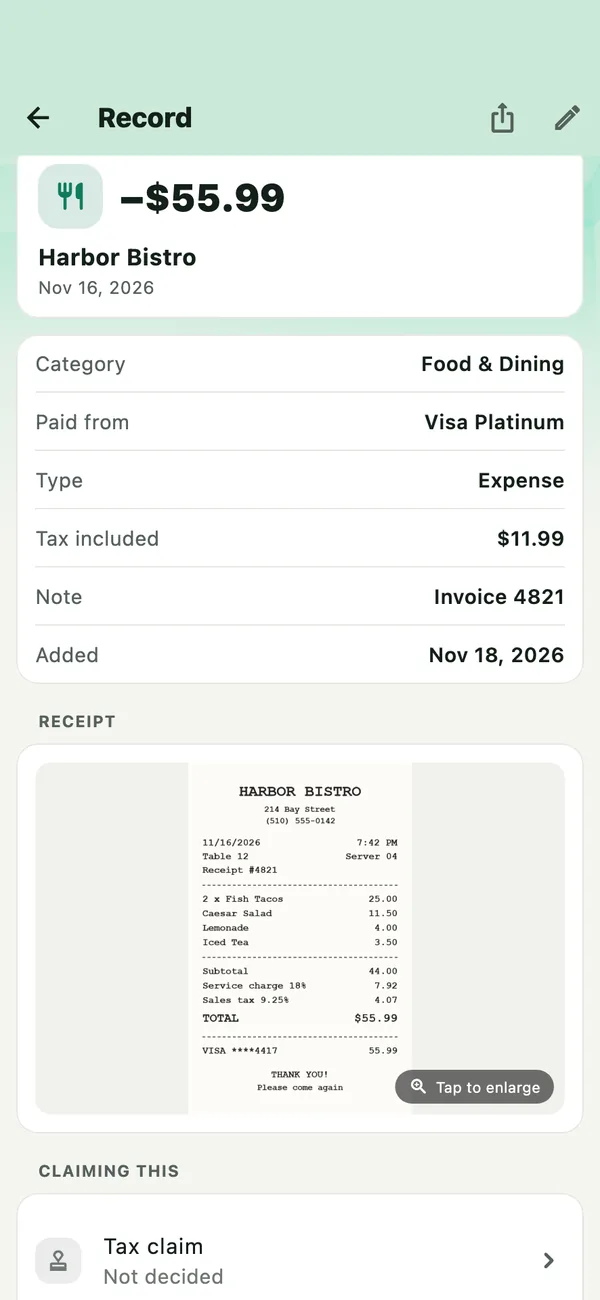
Nothing is saved until you tap Save record. Leave the form without saving, and the photo is deleted too.
When a receipt reads wrongly
A crumpled, faded or folded receipt can come back with the wrong total. You can always type the right one. Or let Daybook read it again:
Read it again on the phone
Tap Read again on the note at the top. It reads the same photo again, in the receipt language shown beside it: tap the language first to change it.
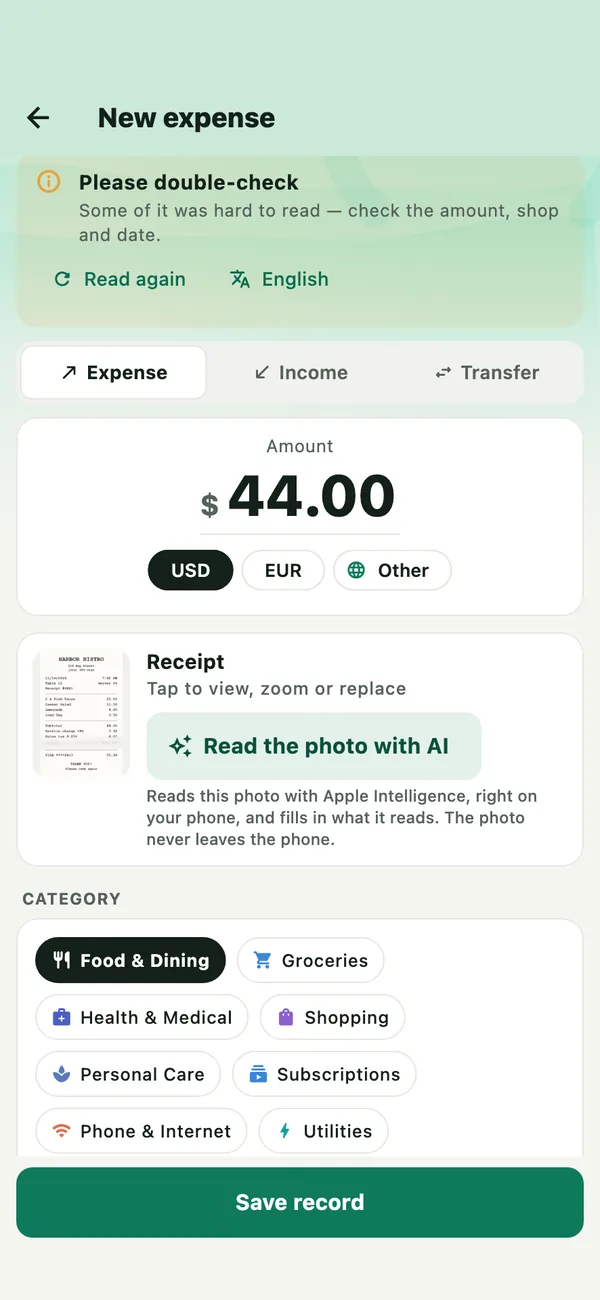
Read the photo with AI
Under the receipt, tap Read the photo with AI. The line under the button says who reads it:
- Apple Intelligence, on an iPhone 15 Pro or newer with iOS 26, once it is turned on. It reads the receipt again on the iPhone, and the photo never leaves it. See Turn on Apple Intelligence.
- Gemini Nano, on an Android phone that has it. It reads on the phone too.
- Google Gemini, with your own key, on any other phone. The photo is sent to Google: see What leaves your phone, and Get a free Gemini key. If you chose Google Gemini as the Provider, it reads your receipts even on a phone with its own AI.
The amount, shop, date, tax and lines are filled in from the reading, and the note says These figures were worked out by AI. Check them against the paper before you save.
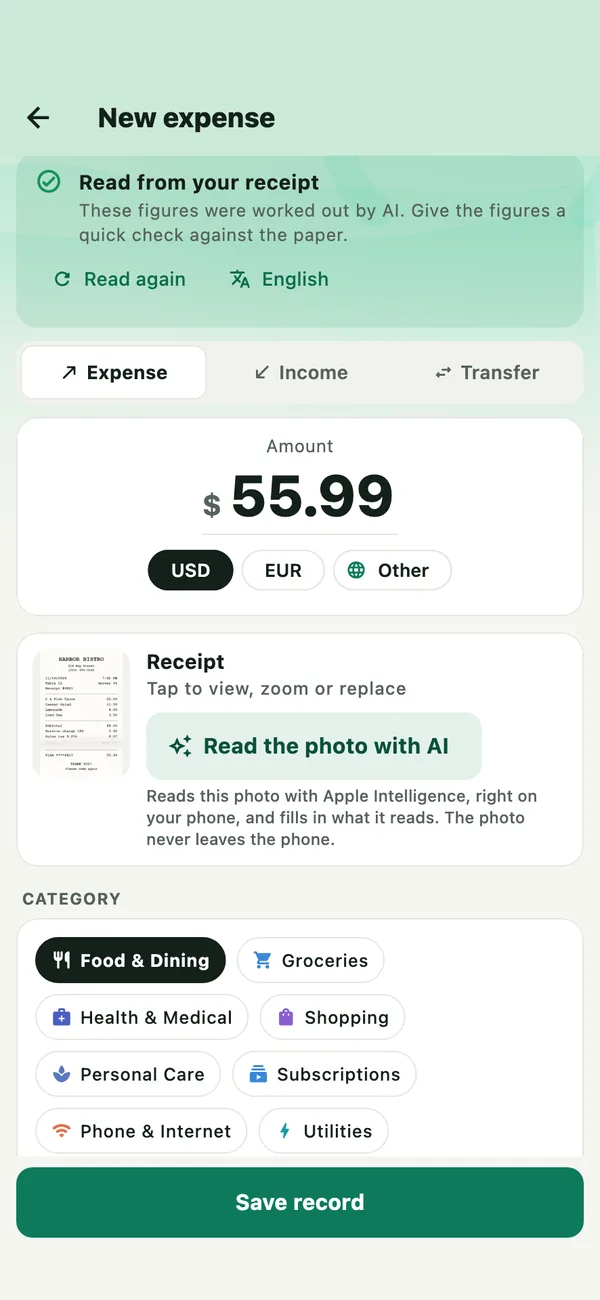
With no AI ready and no key, you see Set up AI reading instead, which opens Receipt scanning. A saved record has the button too: open it, tap Edit, and it is under the receipt.
The automatic second reading
In More › Settings › Receipt scanning, Also try automatically reads an unclear scan again by itself, before the form opens. A scan that read well is left alone.
- With Apple Intelligence or Gemini Nano as the Provider, it is on unless you turn it off. Nothing leaves the phone.
- With Google Gemini, it is off until you turn it on, and works once your key is added.
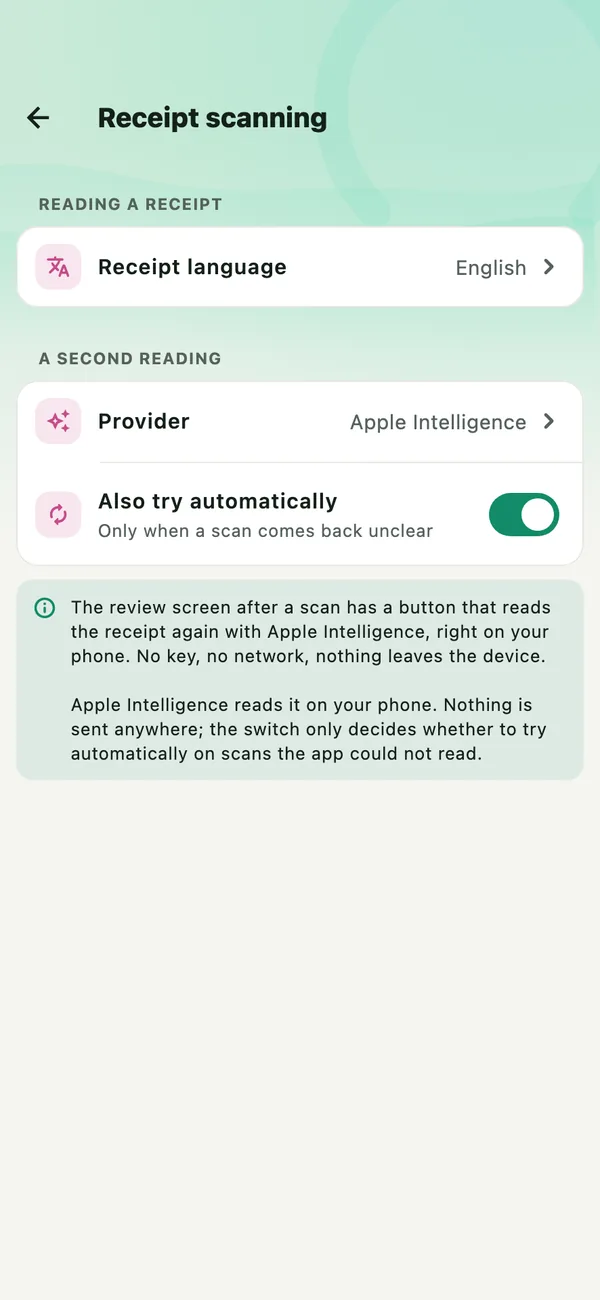
What leaves your phone
- Scanning happens on the phone: Apple’s text recognition reads the receipt on an iPhone, Google’s ML Kit on Android. Nothing is sent.
- Apple Intelligence and Gemini Nano read on the phone too, with no key and no account. If Gemini Nano is not on the phone yet, Receipt scanning offers Download: the model comes from Google, and no receipt goes with it.
- With your own Gemini key, two things can send a receipt, both only to Google, under your key:
- Read the photo with AI sends that receipt’s photo, with the names of your expense categories and your category notes. Only when you press it.
- Also try automatically, if you switch it on, sends an unclear scan’s words and numbers, not the photo, with the same names and notes, without asking.
Keeping the photos
Each photo is kept with its record, inside Daybook on your phone. On the record, tap it to see it larger. The share button at the top sends a copy wherever you choose.
The daily automatic backup is records only. A full backup keeps the photos too: the (everything) copy in iCloud Drive or your backup folder, or Save a full backup file. See Keep your records safe.
Without Pro, Daybook may offer to clear old receipt photos to free up space. A card in More › Settings › Backup and data says how many photos there are from before a date, and how much room they take. Nothing goes unless you tap Free up space and confirm. Photos from this tax year and the last always stay, and the records keep every figure. With Daybook Pro, every photo stays as long as its record, and Daybook never asks.
What is free
- Scanning with Scan receipt or From photos has no limit.
- Reading on the phone, Read again, and reading with Apple Intelligence or Gemini Nano are free. With a Gemini key, Google’s own terms apply.
- Keeping every photo for good, with no offer to clear old ones, needs Daybook Pro.
A receipt photo or PDF in another app can be shared to Daybook too: choose Tell Daybook when asked what it is for. It is read into a card for you to check and, without Pro, counts towards what Tell Daybook reads each month. See Record and ask with Tell Daybook.
If something goes wrong
- “Camera is turned off”
- Daybook is not allowed to use the camera. Tap Open Settings. On iPhone, turn on Settings › Daybook › Camera; on Android, Permissions › Camera.
- “Could not read that image. Try again in better light.”
- The photo could not be read. Scan it again, flat, in good light, with the whole receipt in view.
- The total or the shop is wrong
- Check the receipt language and tap Read again, or tap Read the photo with AI. Or type the right figure.
- “Your API key was refused”
- Google did not accept your Gemini key. Copy it again and paste it in More › Settings › Receipt scanning. See Get a free Gemini key.
All guides · Record and ask with Tell Daybook · Turn on Apple Intelligence · Get a free Gemini key · Keep your records safe · Privacy