Get a free Gemini key
Updated 13 October 2026 · about 5 minutes · iPhone and Android
Daybook reads your receipts on your phone first. On an iPhone with Apple Intelligence, or an Android phone with Gemini Nano, its own AI does the rest — free, with nothing sent anywhere. This guide is for everyone else: a Gemini key lets Daybook ask Google to read a hard receipt, or to understand a message you type to Tell Daybook.
Before you start
- You need a Google account (a Gmail address is fine) and about five minutes. No credit card.
- It is free if the key belongs to a Google project that has no billing account. Step 3 shows you how to check — it is the one thing in this guide worth getting right.
- You may not need it. Open Daybook › More › Settings › Receipt scanning. If the Provider says Apple Intelligence or Gemini Nano, your phone does this by itself.
- The key is yours. Daybook has no account and no server. Receipts go from your phone to Google under your key, and nowhere else.
Part 1 — Get the key from Google
Open Google AI Studio and sign in
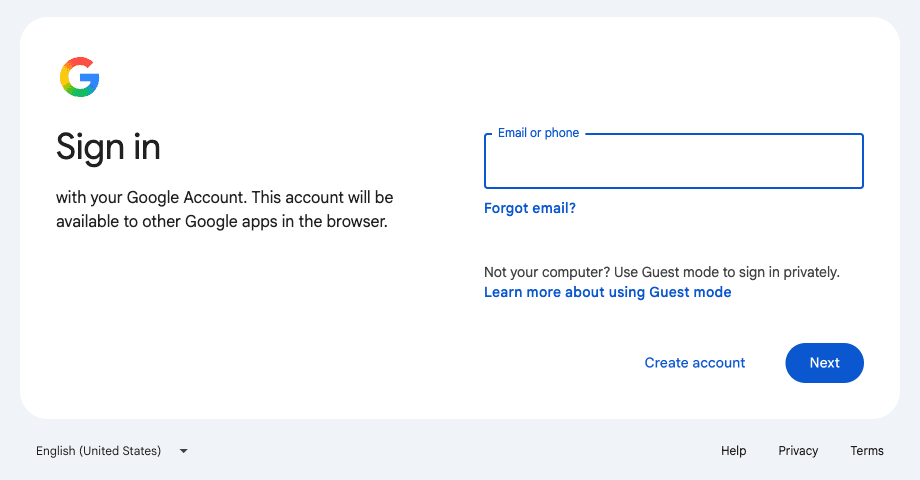
Go to aistudio.google.com/apikey, or in Daybook tap Open Google AI Studio in the key box. Sign in with your Google account. If this is your first visit, accept Google’s terms when asked.
Find the API keys page
You should land on API Keys. If you see something else, choose API Keys in the menu on the left. You may already have keys here from other things you have tried; that is normal.
Each key is listed with its Project and a Billing Tier column. Remember that column — it is how you check a key is free.
Choose a project with no billing
Tap Create API key. Google asks you to name the key and choose a project.
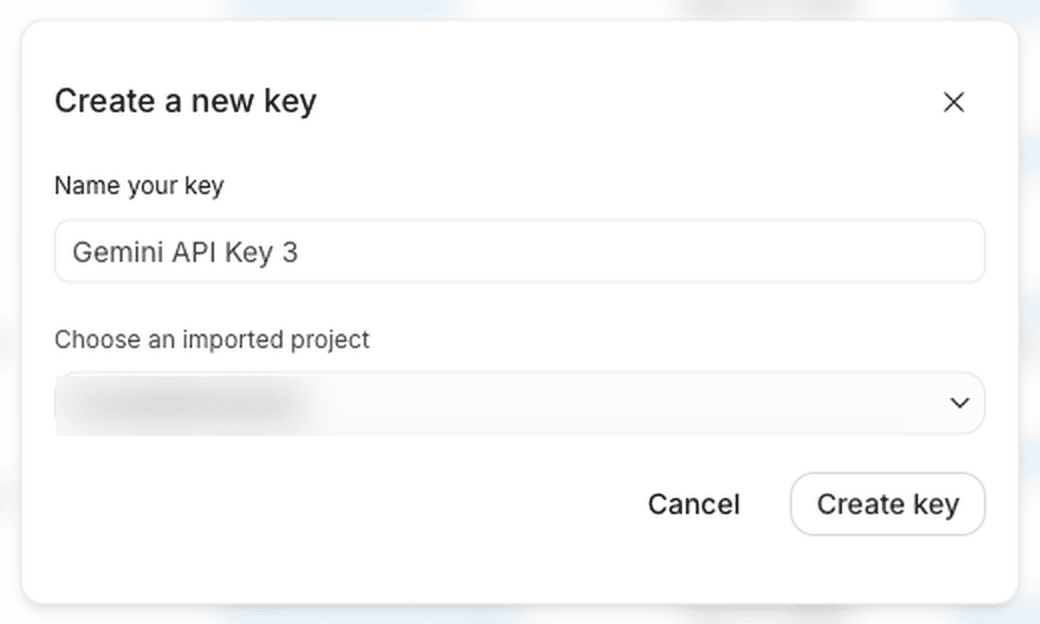
Watch the project. Google may offer one that already has a billing account — often the first in the list. A key in that project is not free: it can be charged, and Google handles what you send under its paid terms. Pick a project whose Billing Tier reads Free tier on the API Keys page. If you have none, create a new project from Projects in the menu, and do not link a billing account to it. (Google moves its buttons now and then; the idea is always the same: a project with no billing.)
Name the key something you will recognise, such as Daybook, then tap Create key.
Copy the key
Google shows the new key, a long string of letters and numbers beginning
AIza. Tap the copy button beside it. On the API Keys page you can always copy it again later.Treat it like a password. Anyone who has it can use your allowance. Do not post it, screenshot it or paste it into chat. If it ever leaks, delete it on this page and make a new one.
Check that it is free
Back on the API Keys list, find your new key. Its Billing Tier should say Free tier. If it says a numbered tier such as Tier 1, or names a billing account, the project has billing: delete that key and make one in a project without it.
Part 2 — Add it to Daybook
Open Receipt scanning
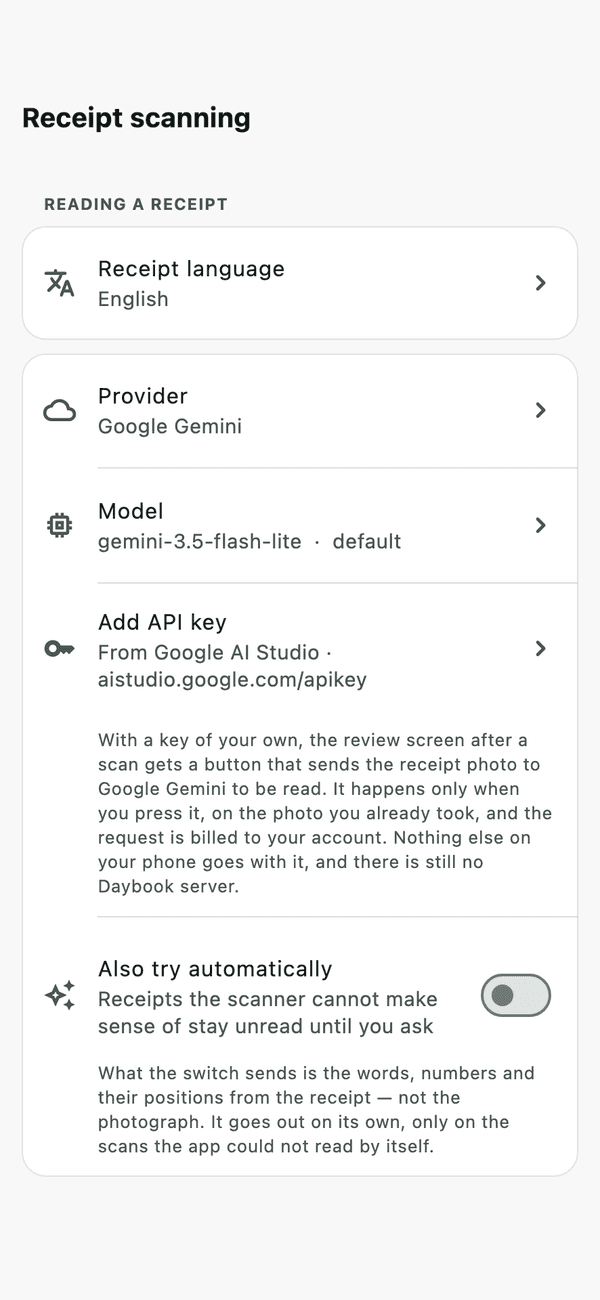
In Daybook go to More › Settings › Receipt scanning and tap Provider. Choose Google Gemini. (On a phone with its own AI, Daybook uses that unless you change it here.)
Leave Model on its default. It is one of Google’s free models, and it is what Daybook is tested with.
Paste the key
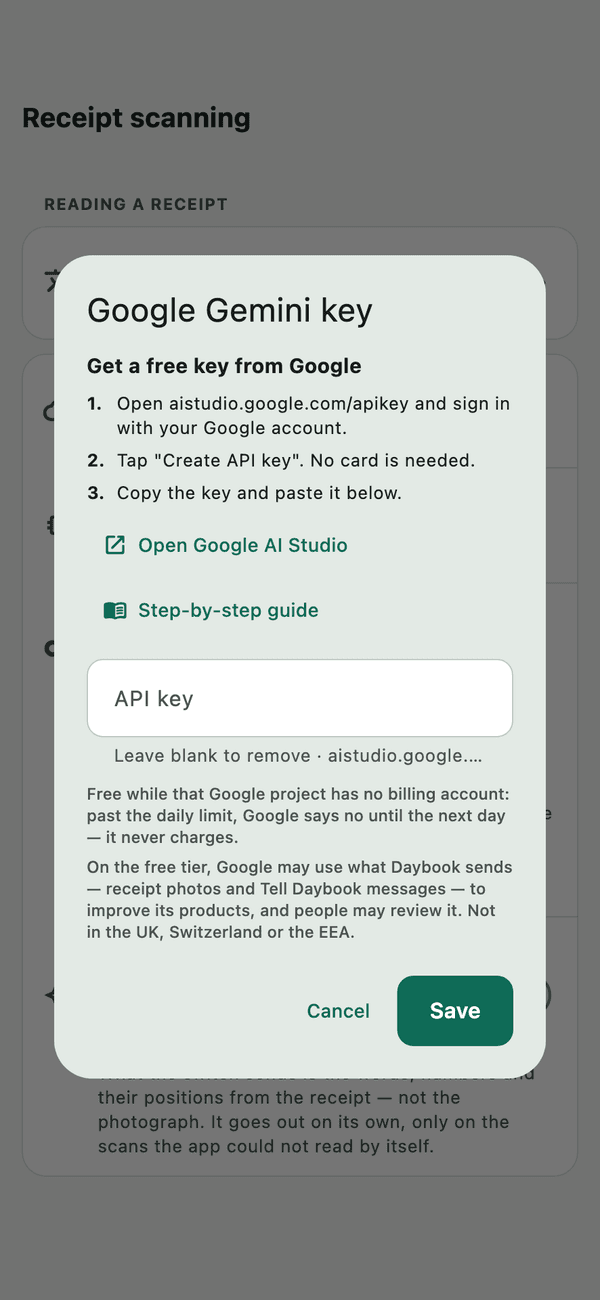
Tap Add API key. Long-press the field and choose Paste, then tap Save. The row changes to API key added. The key is kept in your phone’s secure storage.
Try it
Scan a receipt. When the form opens, tap Read the photo with AI. Daybook sends that one photograph to Google, and fills in what it reads. Or open Tell Daybook from the + button and type lunch 15 with Ali.
Keeping it free, every month
- Never add a billing account to the project the key belongs to. With none, Google cannot charge you.
- Google gives a free key a daily allowance. Past it, Google refuses requests until the next day — it does not start billing. Google does not publish one fixed number; AI Studio shows your project’s own limits.
- A person scanning their own receipts, now and then, is very unlikely to reach it. If you do, Daybook says so and you can try again tomorrow.
- To see what you have used, open Usage in AI Studio.
What Google does with what Daybook sends
On Google’s free tier, Google’s own terms let it use what it is sent — receipt photos and Tell Daybook messages — to improve its products, and people at Google may review it. This does not apply in the UK, Switzerland or the EEA, or for a project with billing. If you would rather it never happened, use your phone’s own AI where it has one, or no key at all: Daybook works fully without one. Daybook sends a photograph only when you tap Read the photo with AI. If you also switch on Also try automatically in Receipt scanning, it sends the receipt’s text (not the photo) when a scan comes back unclear. That switch is off until you turn it on.
If something goes wrong
- “Your API key was refused”
- The key was copied with a character missing, or has been deleted. Copy it again from the API Keys page and paste it in. Check there is no space before or after it.
- “Over its rate limit or out of credit”
- The day’s free allowance is used up. It comes back by itself; nothing was charged.
- “That model is not available any more”
- Google retires old models. In Receipt scanning, tap Model and choose the default.
- “That model cannot look at pictures”
- You chose a text-only model. Choose the default, or any model marked as able to read pictures.
- It cannot connect
- Check you are online, then try again.
- I do not want it any more
- In Daybook, tap API key added, clear the field and save — the key is removed from your phone. To make it stop working everywhere, delete it on Google’s API Keys page.
All guides · Privacy · Information on Google’s plans is from ai.google.dev, October 2026; Google changes these terms, so check them if it matters to you.