Notification assistant for Android
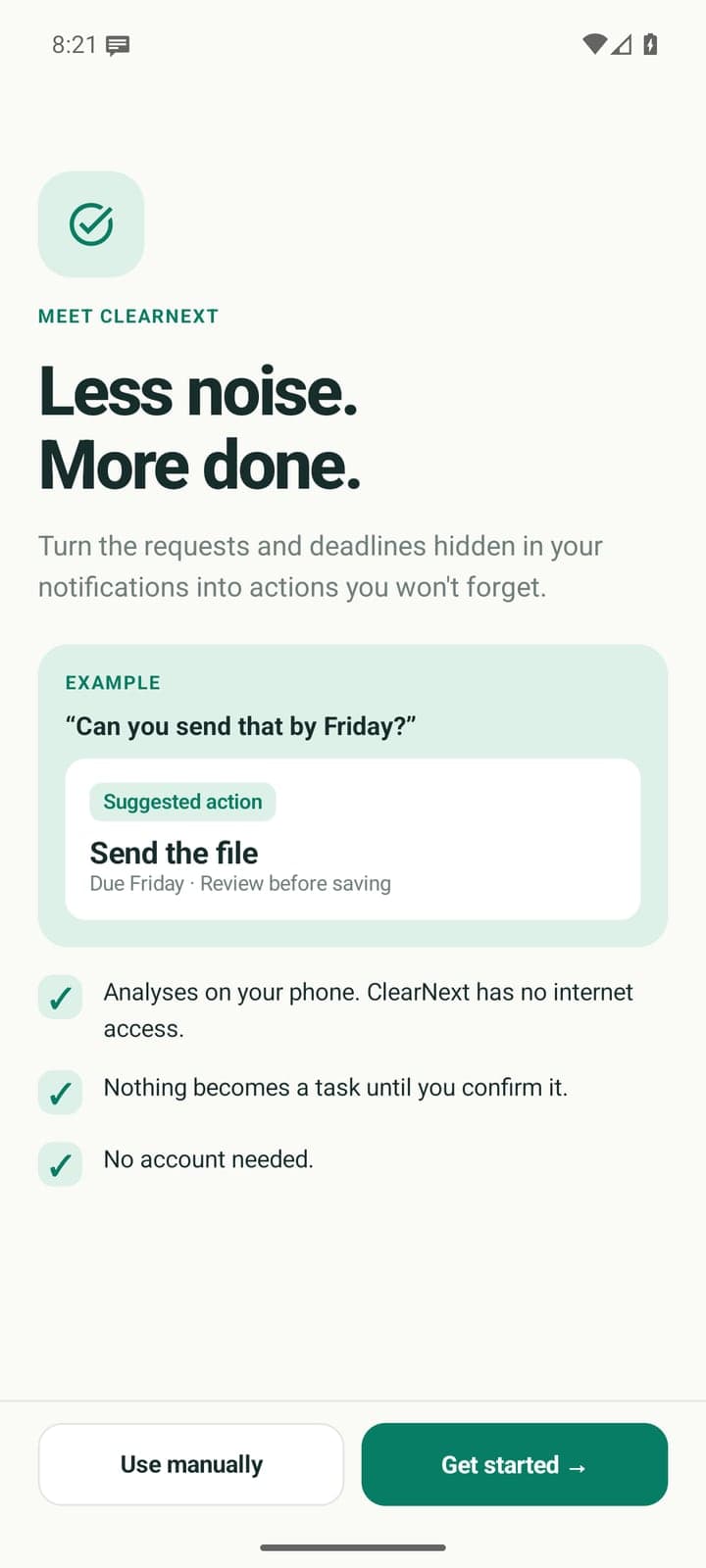
Less noise. More done.
ClearNext spots the requests, deadlines and schedule changes hidden in your notifications and turns them into tasks, but only the ones you confirm. It all happens on your phone.
Coming to Google Play · Android 10 or newer · No internet permission
How it works
Choose. Review. Confirm.
ClearNext reads only the apps you pick, suggests what looks like an action, and waits for you. Try it with the messages below.
01 · CHOOSE
Pick the apps worth checking
Nothing is switched on at first. Choose the chat, email and calendar apps that bring you requests. Banking, payment and security apps can't be chosen.
02 · REVIEW
See what it found
When a message asks for something, sets a deadline or moves a meeting, ClearNext suggests an action, with the words that led to it.
03 · CONFIRM
Keep only what matters
Confirm a suggestion and it becomes a task with a reminder. Dismiss it and it won't be suggested again.
1 · A notification arrives
Fictional messages. Tap one to see what ClearNext does.
2 · ClearNext, on your phone
Suggested action: Send the revised report, due Tomorrow · 5:00 PM.
Suggested action
Send the revised report
Due Tomorrow · 5:00 PM
Reminder
Why ClearNext suggested this
“Can you send the revised report by tomorrow 5 PM?”
Maya · Chat
Nothing is added to your tasks without your confirmation.
Your choice
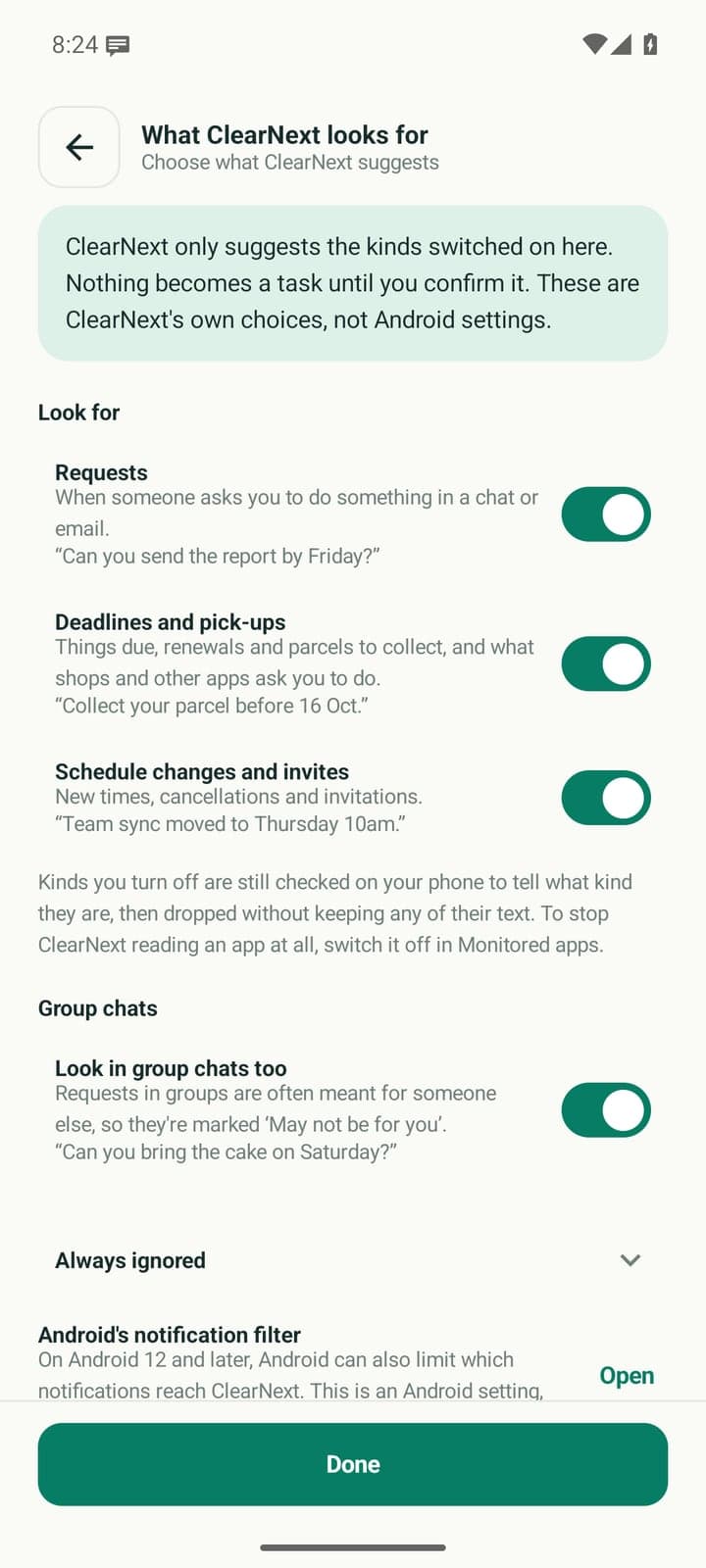
You decide what it looks for
Three kinds of action, each with its own switch. Kinds you turn off are still checked on your phone, then dropped without keeping any of their text.
- RequestsWhen someone asks you to do something in a chat or email. “Can you send the report by Friday?”
- Deadlines and pick-upsThings due, renewals and parcels to collect. “Collect your parcel before 16 Oct.”
- Schedule changes and invitesNew times, cancellations and invitations. “Team sync moved to Thursday 10am.”
Requests in group chats are often meant for someone else, so ClearNext marks them “May not be for you”, or leaves group chats out if you prefer.
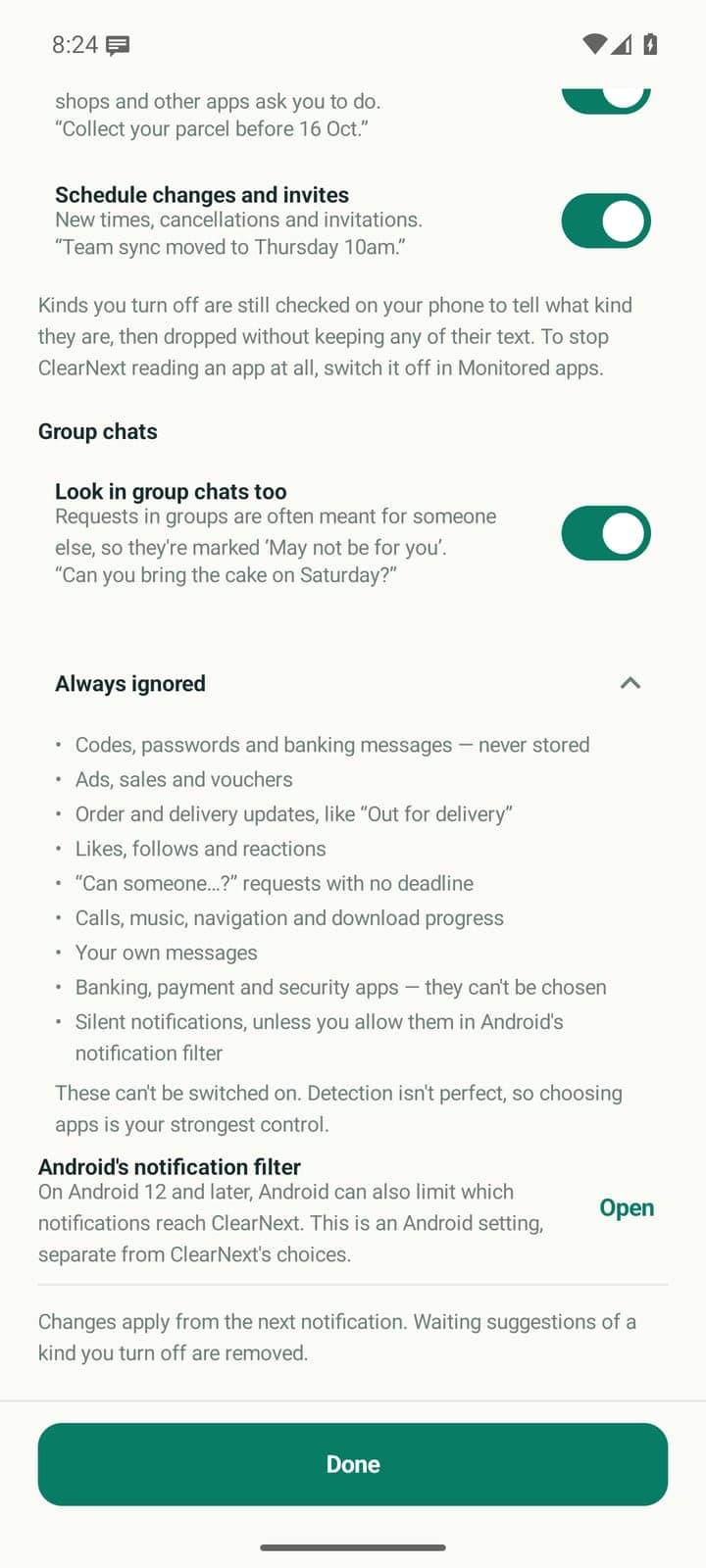
Always ignored
These can't be switched on. Detection isn't perfect, so choosing apps is your strongest control.
- Codes, passwords and banking messages, which are never stored
- Ads, sales and vouchers
- Order and delivery updates, like “Out for delivery”
- Likes, follows and reactions
- “Can someone…?” requests with no deadline
- Calls, music, navigation and download progress
- Your own messages
- Banking, payment and security apps, which can't be chosen
- Silent notifications, unless you allow them in Android's notification filter
Features
A short list, not another inbox
ClearNext keeps the few messages that need something from you, and lets the rest go.
A smart action inbox
Today shows what may need your attention, what is due and what is waiting for review. Everything else stays out of the way.
Tasks you confirm
Nothing becomes a task until you tap Confirm task. Change the title or the deadline first if it isn't quite right.
Reminders that fit
At the due time, an hour before or a day before. For a date without a time, the reminder comes that morning or the day before.
Fewer like this
Dismiss a suggestion and it won't come back. Fewer like this goes further: stop that kind, that app or group chats, each with Undo.
Add anything by hand
Paste a message, import a text file or share text from any app. It works without notification access too.
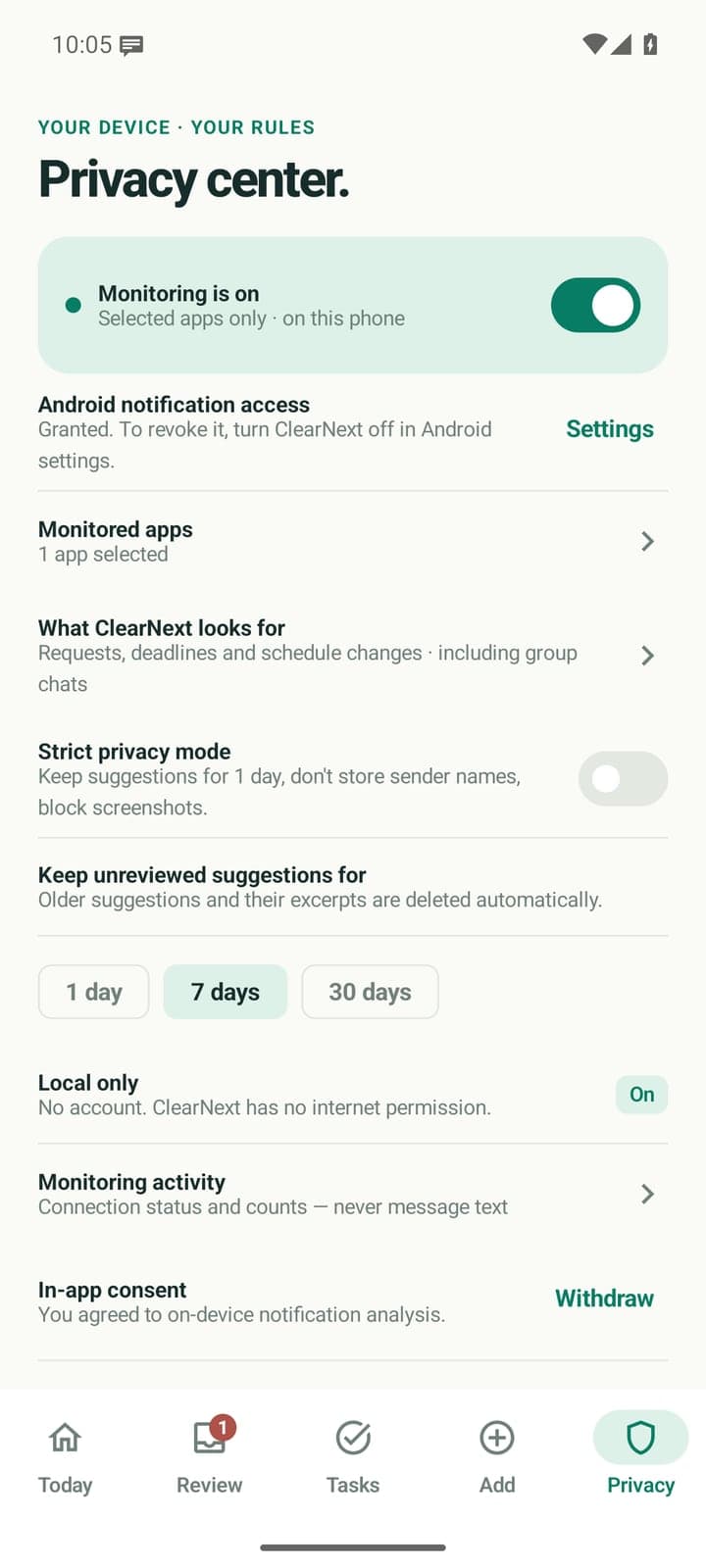
A privacy center
Pause monitoring, change apps and keep suggestions for 1, 7 or 30 days. Strict mode keeps them one day, stores no sender names and blocks screenshots.
Privacy
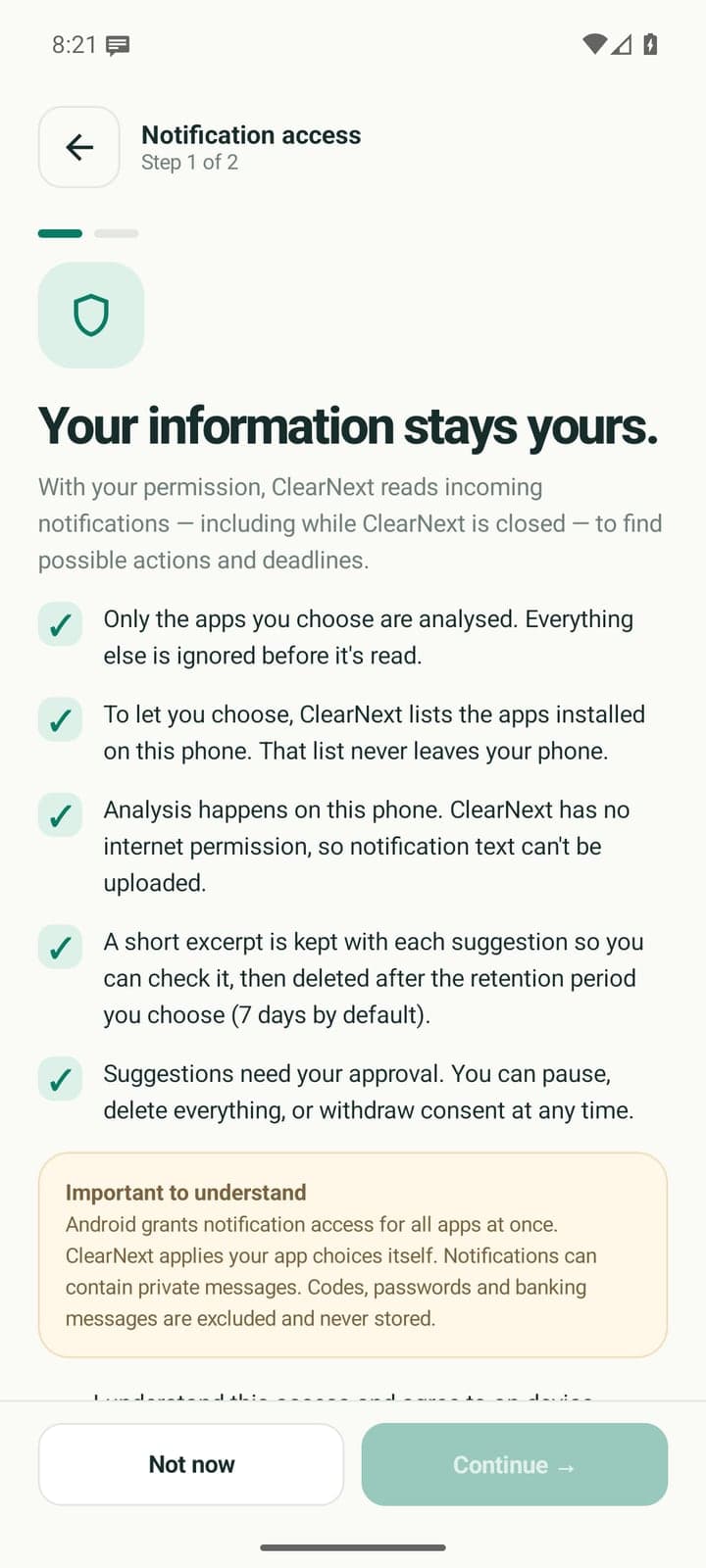
Your messages stay on your phone
No account, no server and no ads. ClearNext asks before it reads anything, and its Privacy center lets you pause it, decide how long it keeps suggestions, or delete everything.
- ClearNext has no internet permission, so Android does not let it go online. What it reads stays on your phone.
- Only the apps you choose are analysed. Everything else is ignored before it's read.
- To let you choose, it lists the apps on your phone. That list never leaves the phone.
- Task titles, excerpts and sender names are encrypted on the phone (AES-256-GCM, with a key held in Android Keystore).
- Codes, passwords and banking messages are never stored.
Add
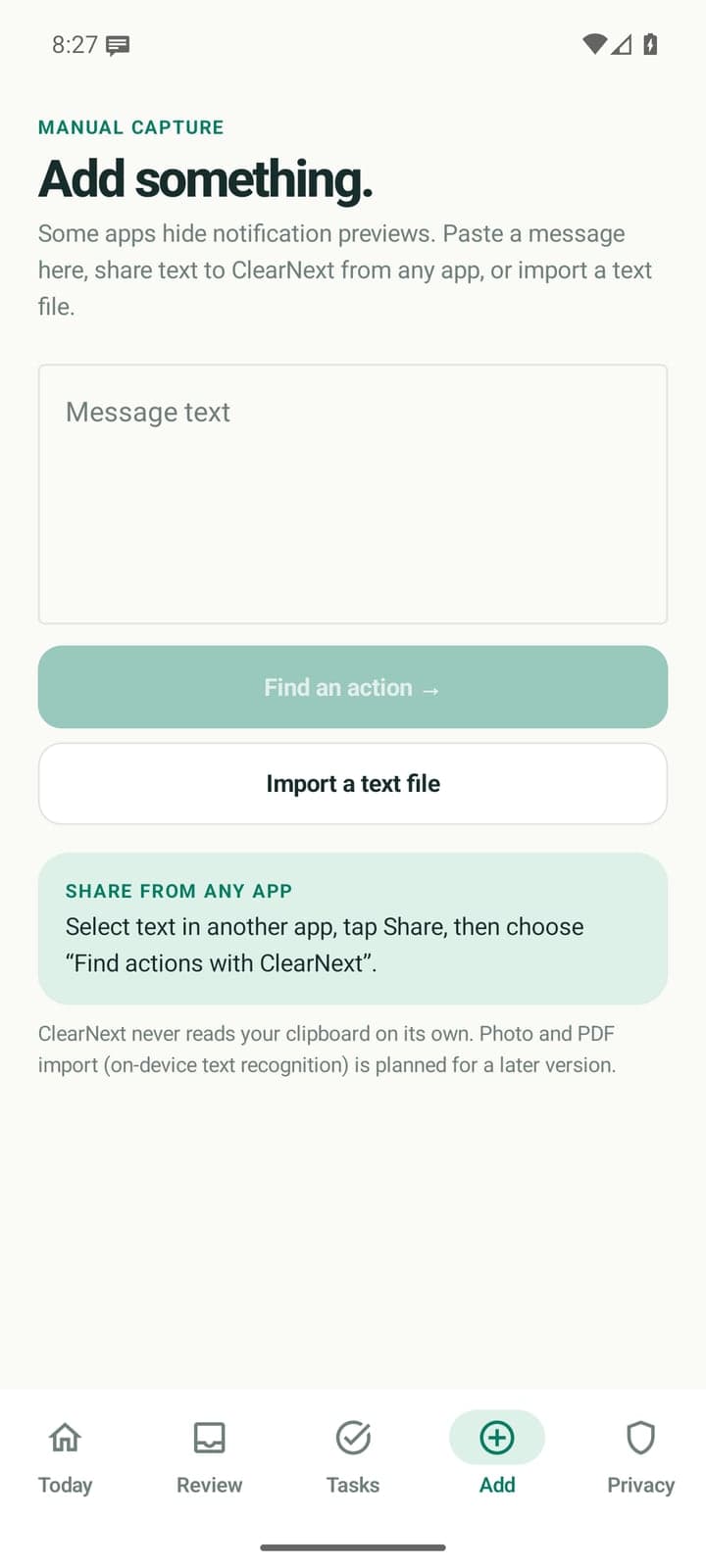
For everything else, add it by hand
Some apps hide notification previews. Paste a message, share text to ClearNext from any app, or import a text file, and it finds the action the same way.
- Works without notification access: choose Use manually on the first screen.
- What you add is never filtered by your choices of what to look for.
- ClearNext never reads your clipboard on its own.
Questions
Frequently asked
Does ClearNext read all my notifications?
No. It only analyses the apps you switch on, such as a chat or email app. Notifications from every other app are ignored before they're read, and banking, payment and security apps can't be chosen at all.
Can anything I receive leave my phone?
No. ClearNext has no internet permission, so Android does not let it go online. There is no account and no server: the analysis happens on your phone.
What does it keep, and for how long?
A short excerpt with each suggestion, so you can see why it was suggested. Excerpts are deleted after 1, 7 or 30 days (7 by default), and titles, excerpts and sender names are encrypted on the phone. Codes, passwords and banking messages are never stored.
Will it add tasks without asking?
Never. Every suggestion waits in Needs review until you tap Confirm task. Dismiss one and it won't be suggested again.
Will it catch every notification?
Not always. Android, work profiles, hidden previews and the apps themselves limit what ClearNext can see, and notifications that arrive while it is disconnected aren't recovered. For anything it missed, paste or share the text into Add. On Huawei phones, set ClearNext to Manage manually under Settings › Battery › App launch so it stays connected.
Can I use it without notification access?
Yes. Choose Use manually on the first screen, then paste a message, share text from another app or import a text file. ClearNext never reads your clipboard on its own.
Which phones does it work on?
Android 10 or newer, with no account needed. On Android 12 and later, Android's own notification filter can also limit which notifications reach ClearNext.
How do I stop it?
Turn monitoring off in the Privacy center, or switch off ClearNext's notification access in Android's settings. The Privacy center can also delete everything or withdraw your consent, and uninstalling the app removes its data.
Turn the noise into a short list.
Made by Cortex Solution in Petaling Jaya. Get support · Privacy policy