Record and ask with Tell Daybook
Updated 18 November 2026 · iPhone and Android · about 6 minutes
Write down a payment the way you would say it — dinner 90 with Sam and Maya — or send a receipt or a screenshot from your banking app. Daybook fills in the records, and you check each one before it is saved. You can also ask about your spending.
Record by typing
Open Tell Daybook
Tap + on Home, Records or Budgets, then Tell Daybook, just under Scan receipt.
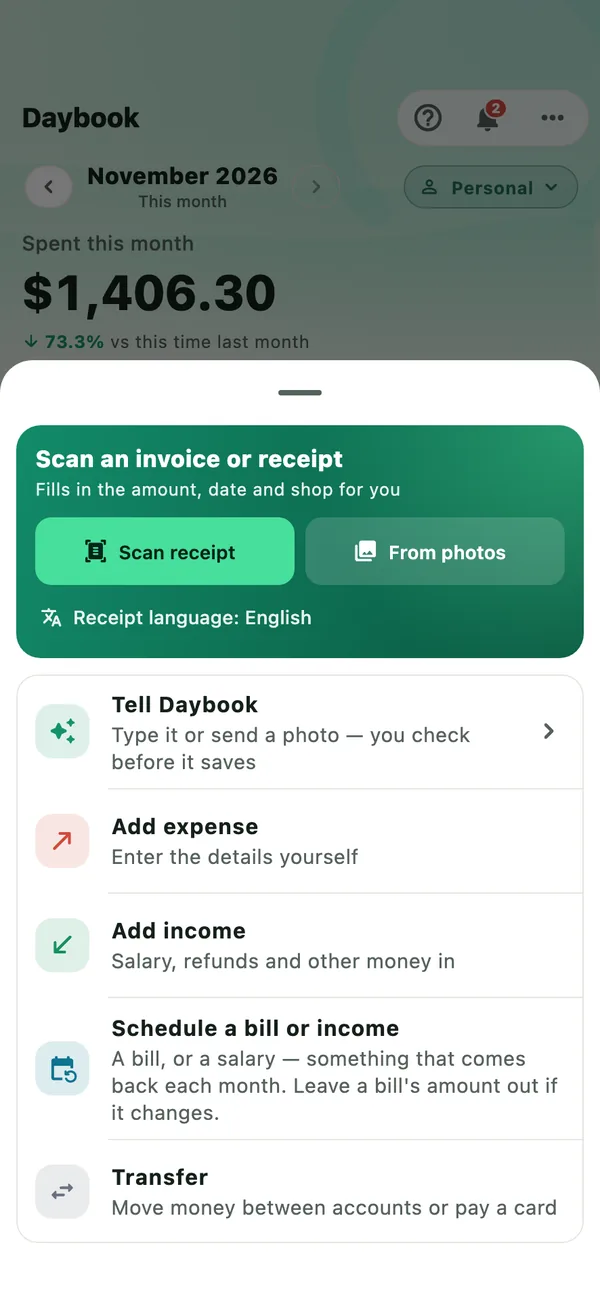
It also opens from the Tell Daybook button on the evening alert, How did today go? (switch it on in More › Settings › Alerts and summaries › Every evening), and when you share screenshots, a PDF or text to Daybook from another app.
Say what you spent
Type it in your own words: Taxi 12.50, Lunch 15 yesterday, Salary 5000. Name the people you shared it with, or who paid: dinner 90 with Sam and Maya, Maya paid 30 for the movie. Tap an example to put it in the box. Then tap Send.
For several payments in one message, put a semicolon between them: Coffee 4.50; parking 3.
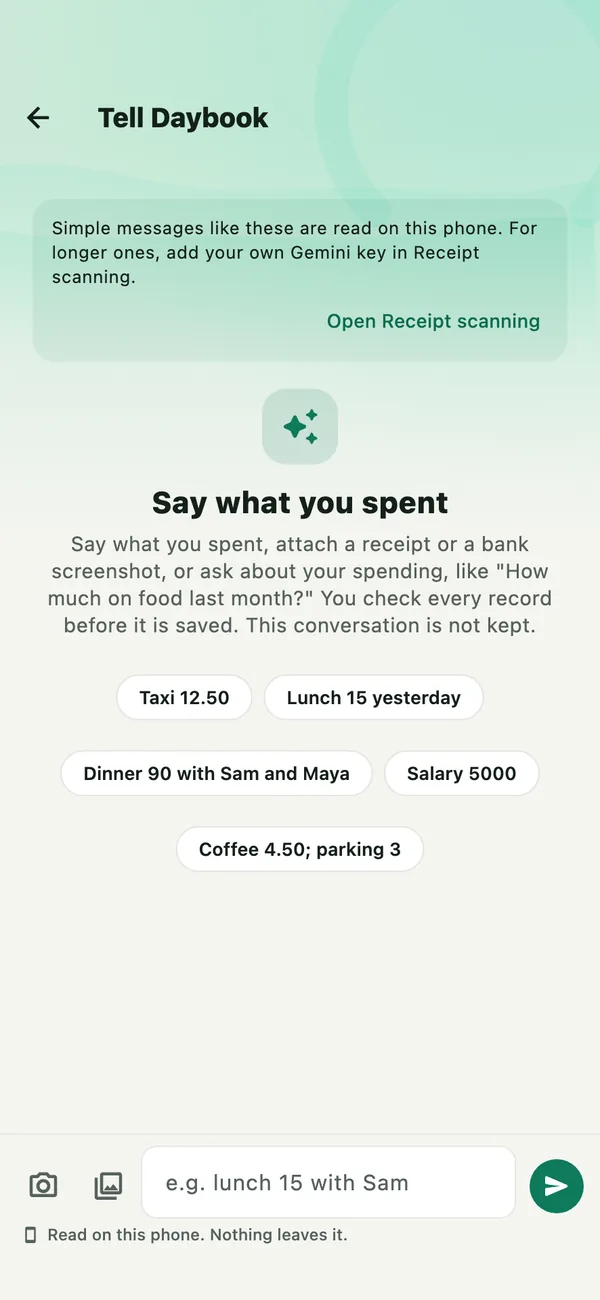
With no AI ready and no key, a note at the top says how to get one — the phone’s own AI where it can have it, otherwise your own Gemini key — with Open Receipt scanning. Simple messages like the examples are still read, on the phone. See Who reads your words.
Check what Daybook understood
Each payment comes back as a card: what it was, the amount, the day, the category, and who it is split with or who paid. Nothing is saved yet.
If it looks like a bill you have a reminder for, the card asks whether to mark the reminder paid when you save. If it looks like someone paying you back, it asks that too.
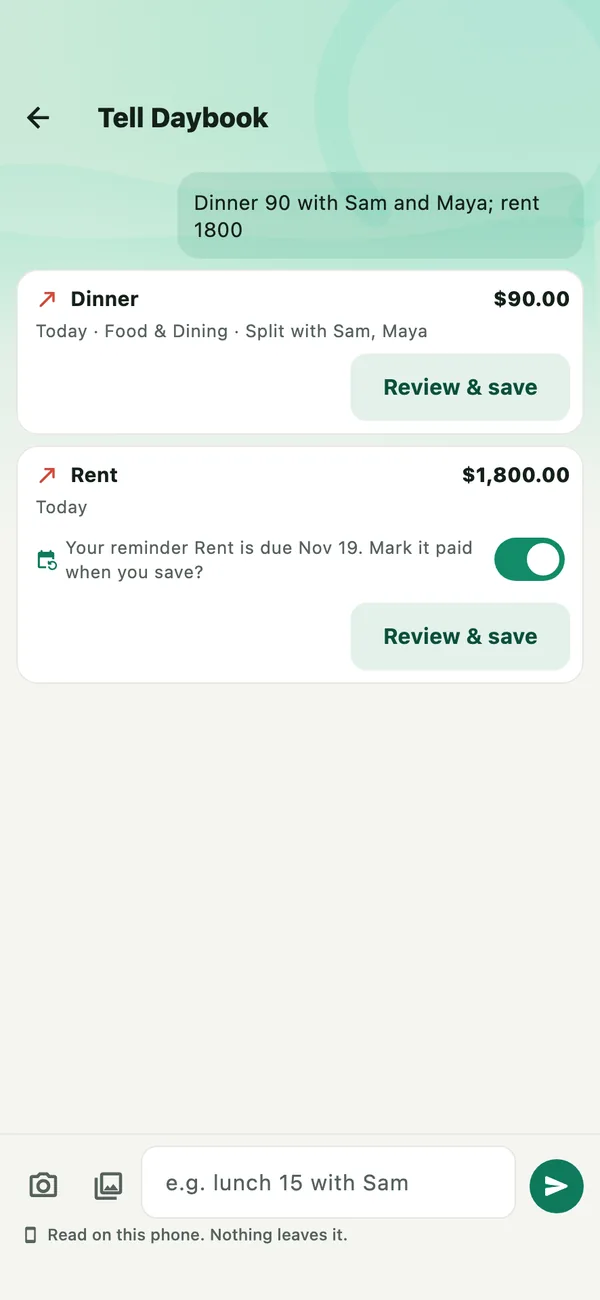
Review and save each one
Tap Review & save. The ordinary form opens, filled in — for the dinner, further down, Split with Sam and Maya at $30.00 each. Change anything that is wrong, then tap Save record. The card then says Saved. For a bill with its switch left on, saving also marks the reminder paid and moves it to its next due date.
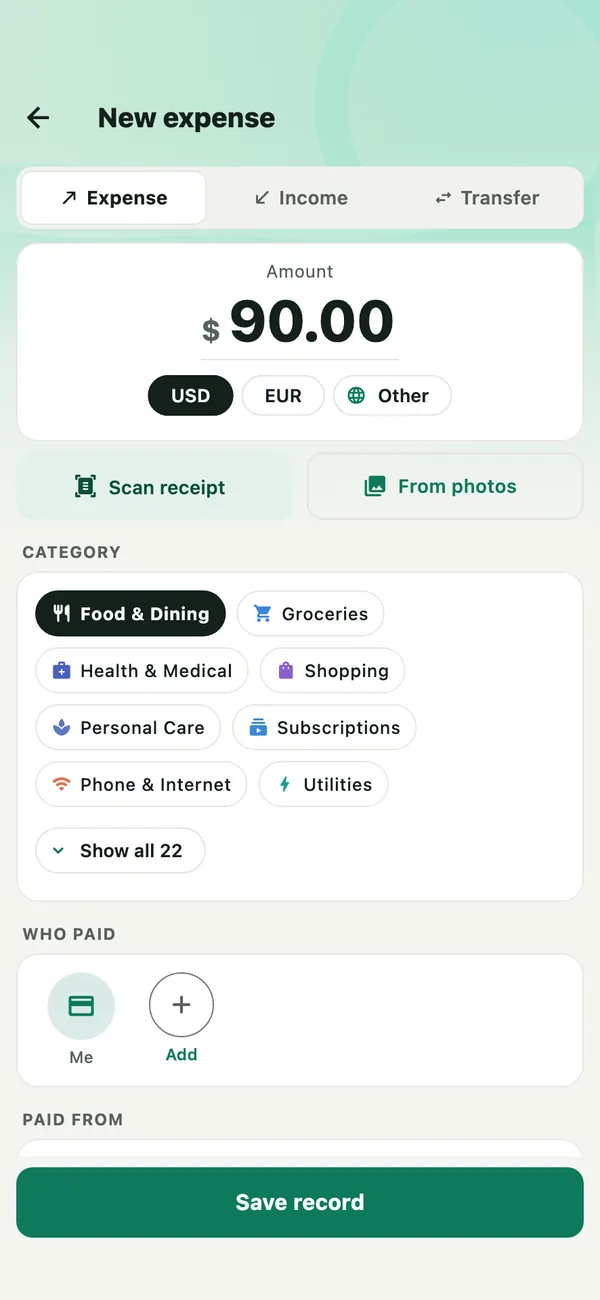
Tell Daybook never saves a record by itself. The conversation is not kept: when you leave the screen it is gone, and so is any photo no saved record kept.
Record from a receipt or a screenshot
Attach it and send
Beside the box, tap the camera to Take a photo, or the photos button to Choose a photo. Copied a screenshot? Paste image appears above the box. You can attach several, then type what to do with them, or just tap Send.
A receipt becomes one card, with the total, date and shop read from it, and the photo is kept as the record’s receipt when you save it. With an AI reading your words, you can add who shared it: split with Sam.
A screenshot of your banking or card app becomes one card for each payment on it. A payment you have already recorded says Already in Daybook.
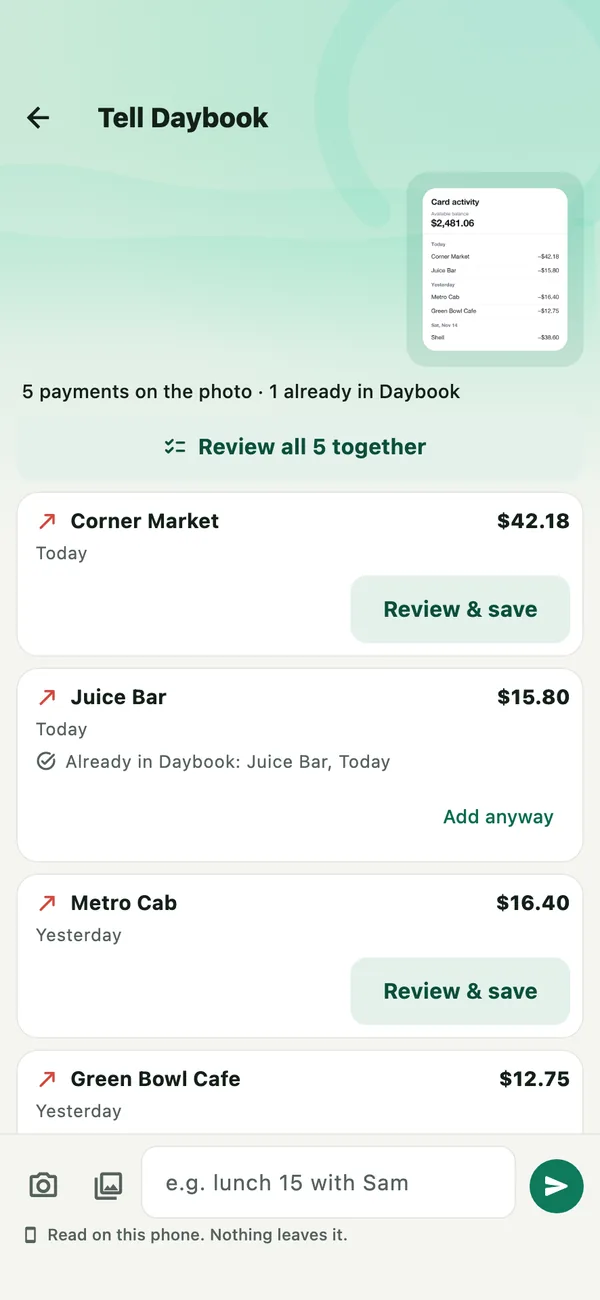
Add them together
Tap Review all 5 together (the number is how many payments were read). Add payments opens, with every payment on one screen. Check Paid from at the top, and tap Change to pick the card or account they were paid from. Tap a line to change its type or category, or untick it to leave it out. Then tap Add 4 records.
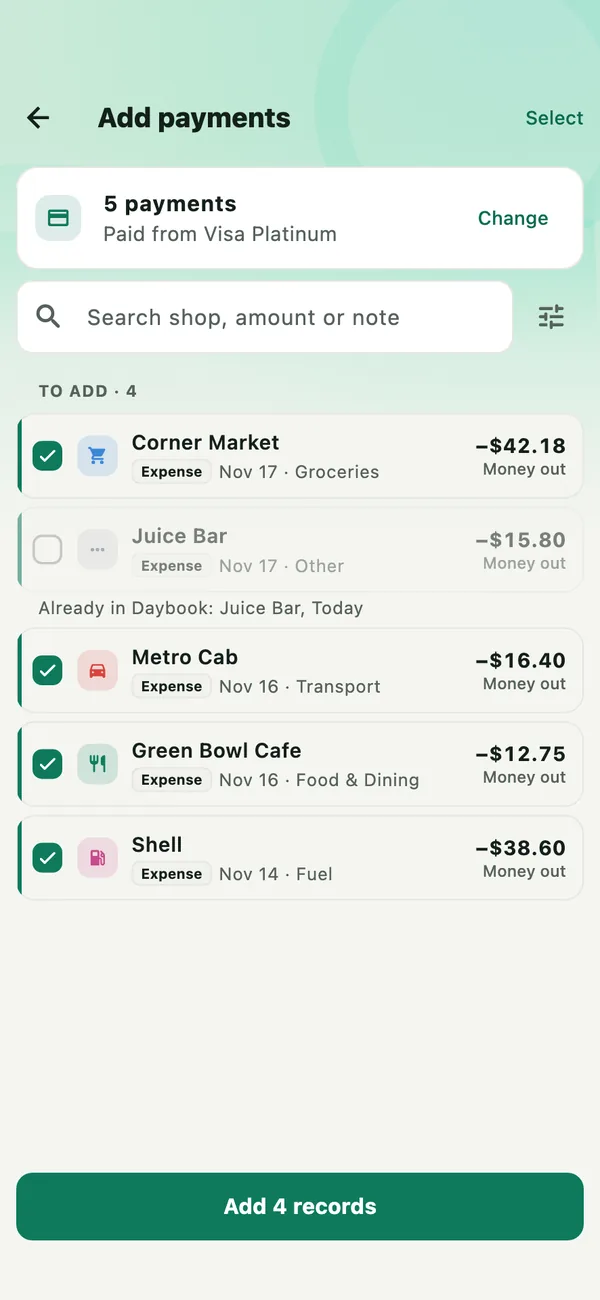
Payments already in Daybook, paying a reminder, or in another currency start left out, and say why. What you add here is kept together: to take it all back, open More › Settings › Backup and data › Imports and tap Undo.
A PDF statement comes in by sharing it to Daybook from your bank’s app, Mail or Files: choose Tell Daybook when asked what it is for. If it is locked, Daybook asks for the password once to open it, and does not keep it.
Ask about your spending
Type a question and tap Send:
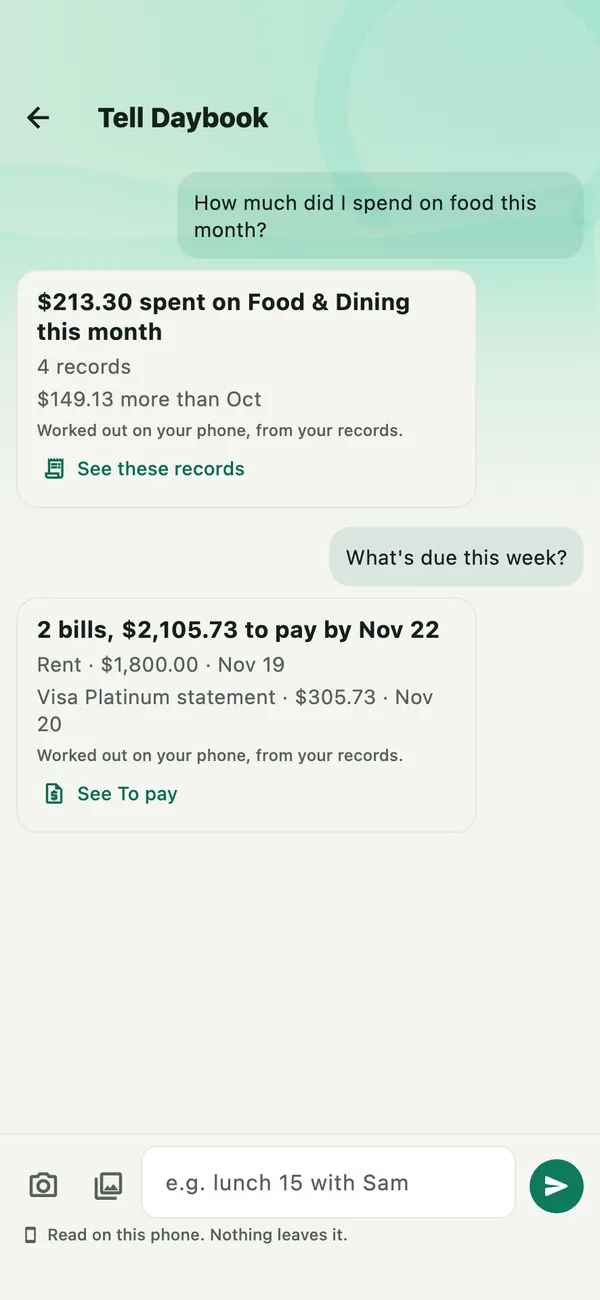
- How much did I spend on food this month?
- What’s due this week?
- How much do I owe? — money you owe people you share bills with. For cards, ask How much do I owe on my cards?
- Who owes me?, How much is left in my budget?, Where can I cut back?, What’s my net worth?
The answer is worked out on your phone from your records, with the same rules as Reports, and the line under it says so. Your words are read only to know what to work out; no AI gives the figure. Tap See these records to open them in Records, or the button for the screen the answer is about, such as See To pay.
Who reads your words
The line under the box always says who reads your message, and whether anything leaves the phone — for example Read on this iPhone by Apple Intelligence. Nothing leaves it. Daybook uses the first of these it can:
- Apple Intelligence, on an iPhone 15 Pro or newer with iOS 26, once it is turned on and ready. It reads on the iPhone, and nothing leaves it. See Turn on Apple Intelligence.
- Gemini Nano, on an Android phone that has it. It reads on the phone, and nothing leaves it. More › Settings › Receipt scanning says whether your phone has it, and offers the download if it needs one.
- Google Gemini, with your own key. See Get a free Gemini key.
- Daybook’s own rules, with no AI and no key. They read simple messages like the examples, on the phone.
If you chose Google Gemini as the Provider in Receipt scanning and added a key, Tell Daybook uses Gemini first, even on a phone with its own AI.
When an AI read your message, the cards say which: Understood by Apple Intelligence. If it does not answer — no connection, or a key that was refused — Daybook’s own rules read the message instead, and that line is not there.
What goes to Google with your own key
- When you tap Send: what you typed, the names of your categories, the names of people you split bills with, your category notes, and the words read off any photo or PDF you attached or shared — not the file itself — with today’s date and your currency. A bank screenshot or statement can include balances and account details.
- When you ask a question: only the question, today’s date and the names of your categories and accounts. Never an amount or a record.
Your saved records are never sent. On Google’s free tier, Google may use what it is sent to improve its products, and people at Google may review it — but not in the UK, Switzerland or the EEA, or once billing is set up for the project. Removing your key in Receipt scanning stops all of it.
What is free, and what needs Pro
- Typing and asking have no limit.
- Screenshots: 15 a month are included, and a photo sent here, such as a receipt, counts as one. With Daybook Pro there is no monthly limit. Any one send reads up to 15.
- PDF statements: 3 a month are included, counted only when something was read from one. With Pro there is no limit.
- Scanning a receipt with Scan receipt or From photos on the + sheet is not counted.
- Questions about tax claims need Pro, as Tax claims does.
Without Pro, what you have used this month shows at the top of More › Settings: This month in Tell Daybook: 3 of 15 screenshots, 0 of 3 PDF statements.
If something goes wrong
- “Nothing to record or answer in that”
- Daybook found no amount to record and no question it knows. Say an amount and what it was for, like taxi 18, or ask the way the examples above do, such as how much on food last month? Without an AI, Daybook’s own rules know the common questions in English, Malay and Chinese.
- Two payments came back as one card
- Daybook’s own rules read it (the cards do not say Understood by), and they need a semicolon between payments: coffee 4.50; parking 3. With a Gemini key, check that you are online.
- A payment says “Already in Daybook”
- A record with the same amount, within three days, is already there. If it really is a second payment, tap Add anyway.
- “This month’s are used”
- This month’s screenshots or PDF statements are used. Daybook offers Pro; without it, it reads as many as are left and says so. Typing and questions still work, and the count starts again on the 1st.
All guides · Get a free Gemini key · Turn on Apple Intelligence · Privacy