Split a bill and get paid back
Updated 18 November 2026 · iPhone and Android · about 7 minutes
Split a bill with the people who were there, and only your share counts as your spending. Daybook keeps track of who owes you and whom you owe, writes the reminder for you to send, and records the money when it comes back.
Split a bill
Enter the whole bill
Tap +, then Add expense. Enter the whole bill, choose its category and Paid from, then tap Split this bill with someone, further down. A saved record splits the same way: open it and tap the pencil (Edit). A card tap you confirm has Split on its sheet.
Add who was there
Under Who was there, tap Add. Tick the people, or open a group and tick who came (Everyone ticks them all). For somebody new, type their name and tap Add “…”. Then tap Add 2 to the bill.
The small ✕ on a face takes that person off the bill. If you paid but had none of it, choose I paid for them.
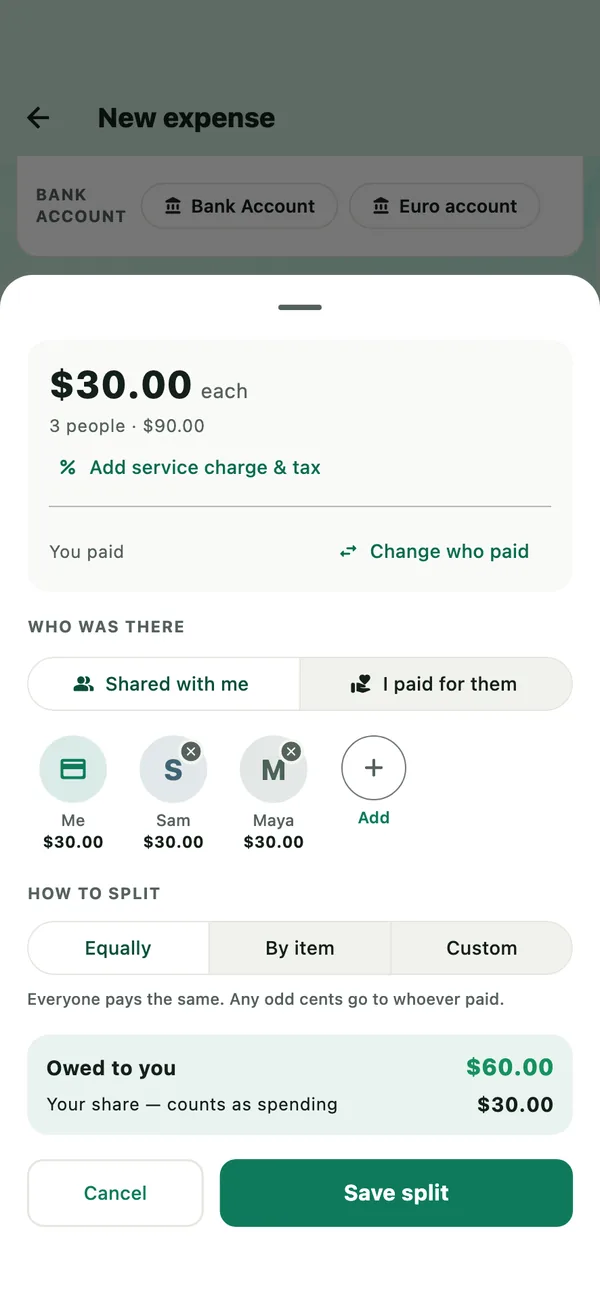
Choose how to split
- Equally — everyone pays the same. Any odd cents go to whoever paid.
- By item — tap who had each line. Lines from a scanned receipt are already there; otherwise tap Add item. Every line needs somebody, and Share the rest between everyone fills in the rest. If the lines come to less than the bill, usually service charge and tax, choose Share in proportion or I’ll cover it.
- Custom — Amounts, Percent or Shares (a couple counts as 2).
Typed the amount before service charge and tax? Tap Add service charge & tax, switch it on and fill in Service and Tax: the bill is worked out from them. The box at the bottom shows what is Owed to you and Your share — counts as spending. Tap Save split.
Save the record
Split with on the form lists every share. Tap Save record. Only your share counts as spending, in your budgets and reports, and the others now owe you.
Splitting a bill you pay from a reminder in Bills? The next time you mark it paid, the same people are filled in, in the same proportions if the amount has changed. You can also tell Daybook dinner 90 with Sam and Maya: see Record and ask with Tell Daybook.
When someone else paid
Say who paid
On the form, under Who paid, tap Add and choose them, or Someone new. Enter the whole bill and tap Work out your share, or enter just your share.
Work out your share
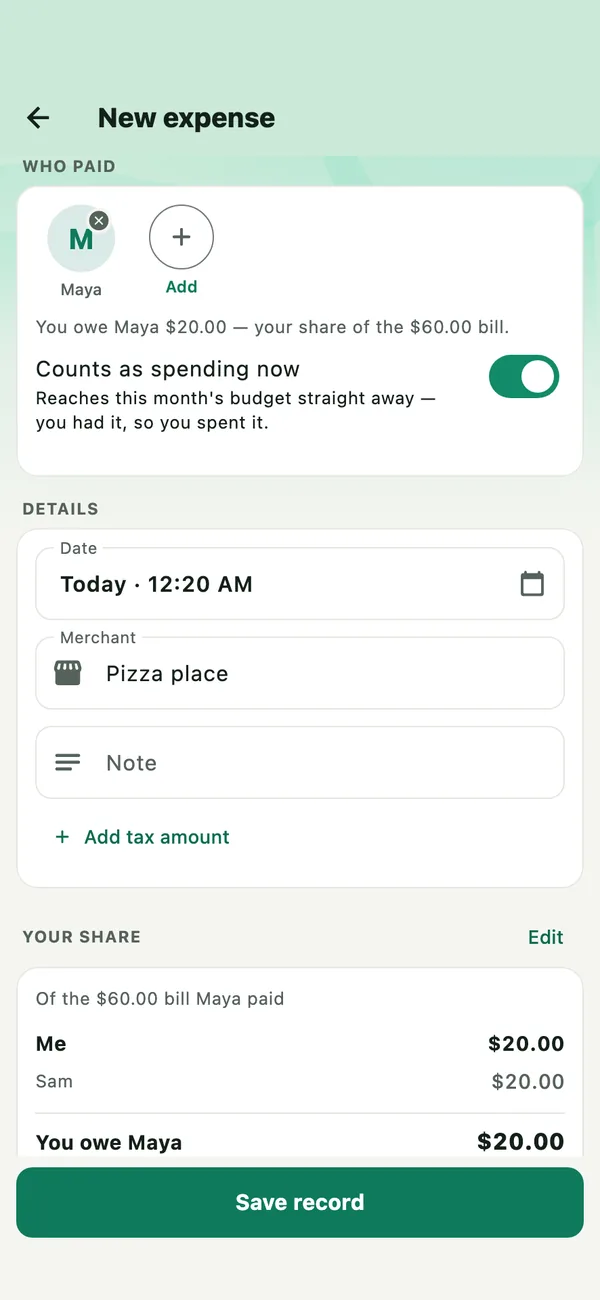
The same sheet opens, with them as the one who paid. Add whoever else was there, choose how to split, and say whether the payer had a share (Maya had a share or Maya only paid). Tap Save split. The form shows Your share and what you owe.
Choose when it counts, and save
Counts as spending now puts your share in this month’s budget. Switched off, it stays out until you pay them back, and lands in the month you settle. Tap Save record. No money leaves your accounts: Daybook notes what you owe.
See who owes what
Tap More › People, or the Owed to you and You owe card on Home. Tap a total to list only those people, and tap it again for everyone. People are under Owes you, You owe and All square, with the groups they are in. Where money runs both ways, both figures are under the name, and the difference is on the right.
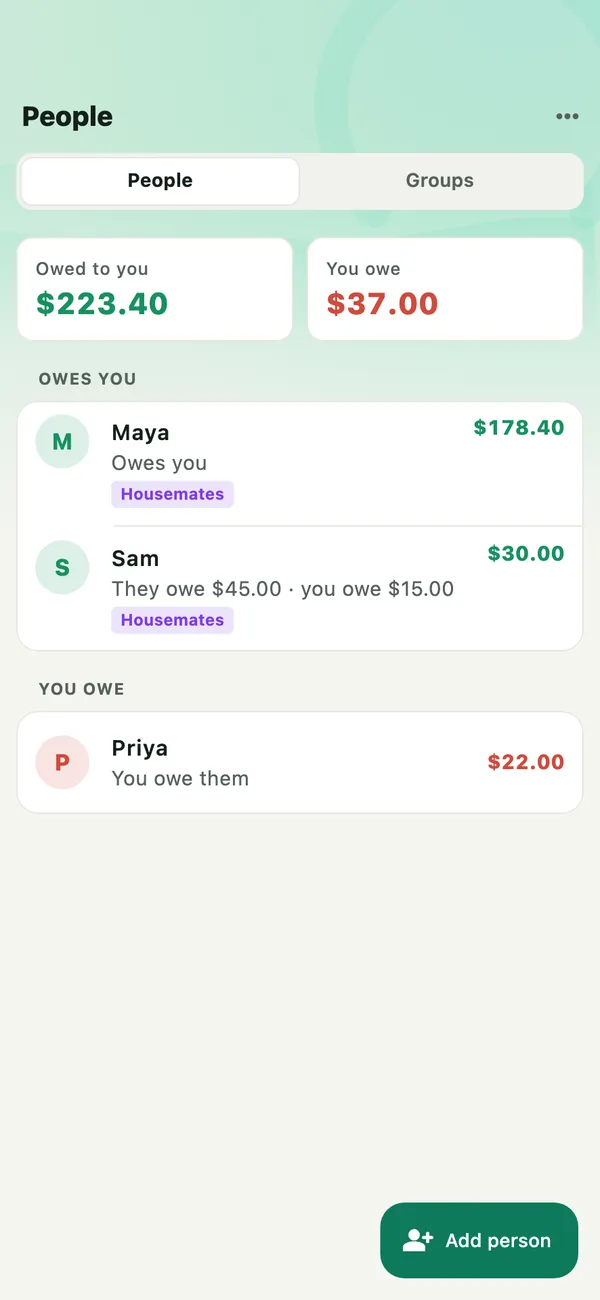
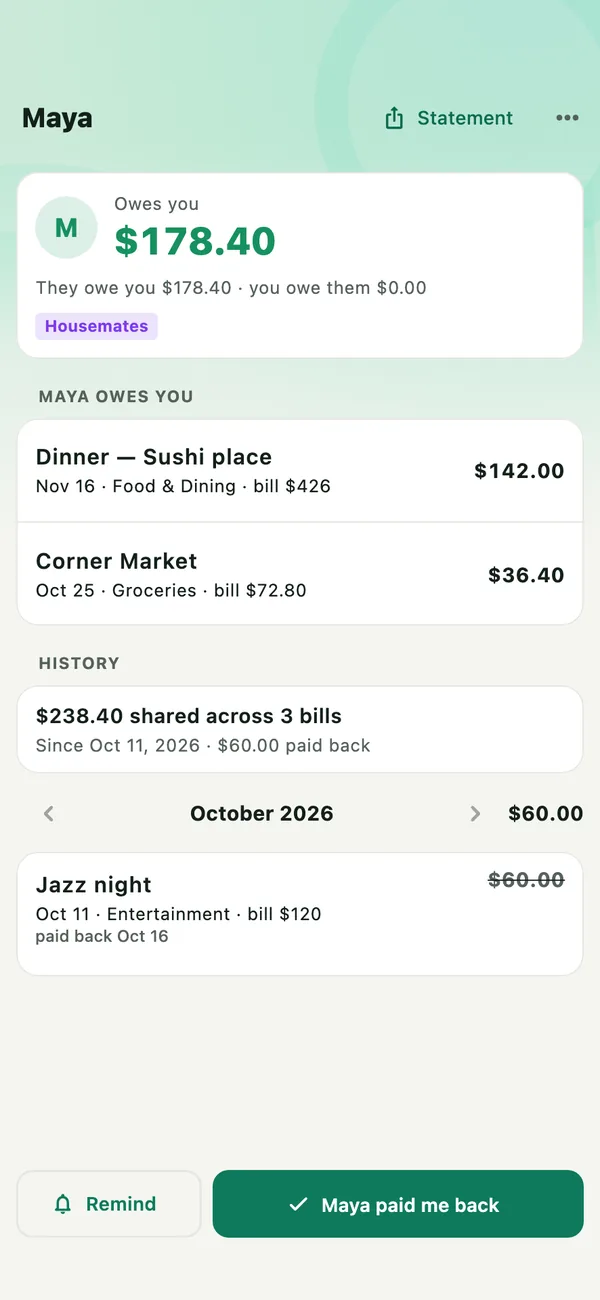
Tap a person for their page: each bill still open, what they paid for you, and their History, a month at a time — paid bills stay there. Tap a bill to open it. ⋯ has Edit (name, phone number and a note), Groups and Remove from list. To add someone before you share a bill, tap Add person on People.
Remind someone
Tap Remind
It is on their page when they owe you more than you owe them. Home’s People card also suggests it once someone has owed you for two weeks; after a reminder, or ✕ (Not now), it waits a week.
Check the message
Daybook lists each bill still open, with its date and their share, then the total and How to pay me — a bank account, a payment ID, anything you type. If you owe them too, it shows both sides. Switch List each bill off to ask for the total only, and Add “Sent with Daybook” off to drop the last line. You can change any of the words; Start again puts them back.
Send it yourself
With their phone number saved, Open WhatsApp or Send a text opens your chat with them, the message typed in, and Other apps… opens the phone’s share sheet. Without a number, Send… opens the share sheet, and Add Maya’s phone number saves one.
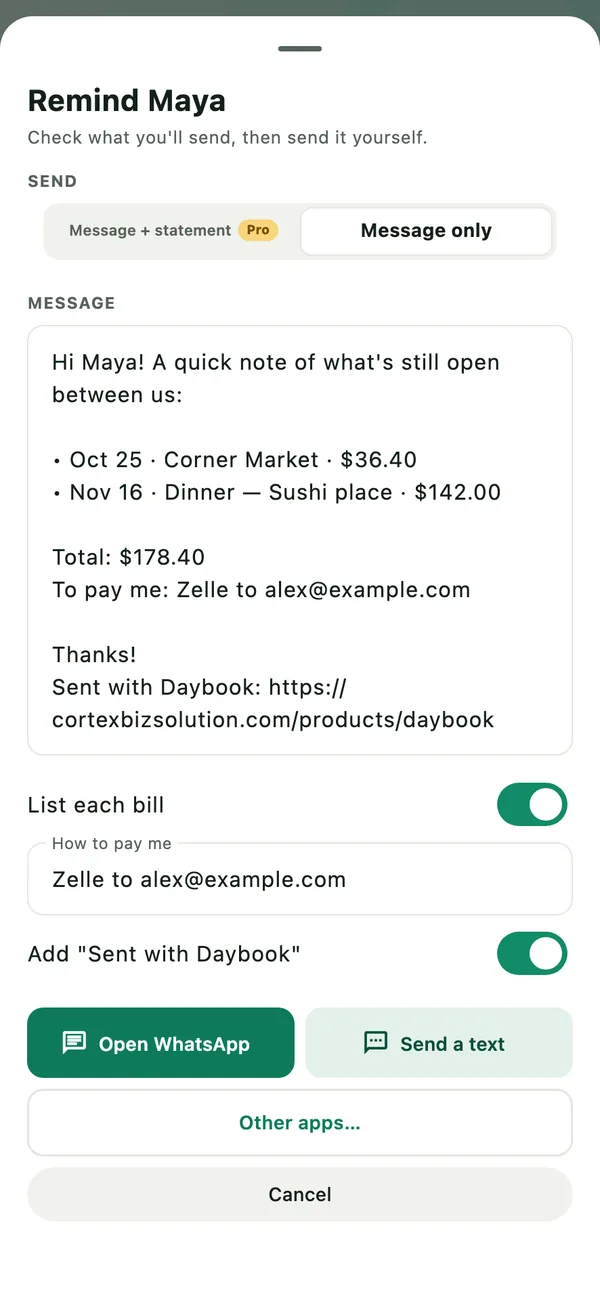
Daybook never sends anything itself, and never reads your contacts. The message goes through the app you pick, to the person you pick, when you press Send there. Their page then shows Last reminded.
With Daybook Pro, Message + statement sends a short message with a PDF statement: every bill still open, their share of each, the total, how to pay you and, if you add one, your Payment QR. Preview shows it. Send message and PDF… opens the share sheet and copies the message too, in case an app sends only the PDF. Without Pro, it opens Daybook Pro.
How to pay you and your payment QR are kept for each profile, and are also in More › Settings › Getting paid back. Use your own QR that never changes, not one made for a single payment.
Record money coming back
They paid you back
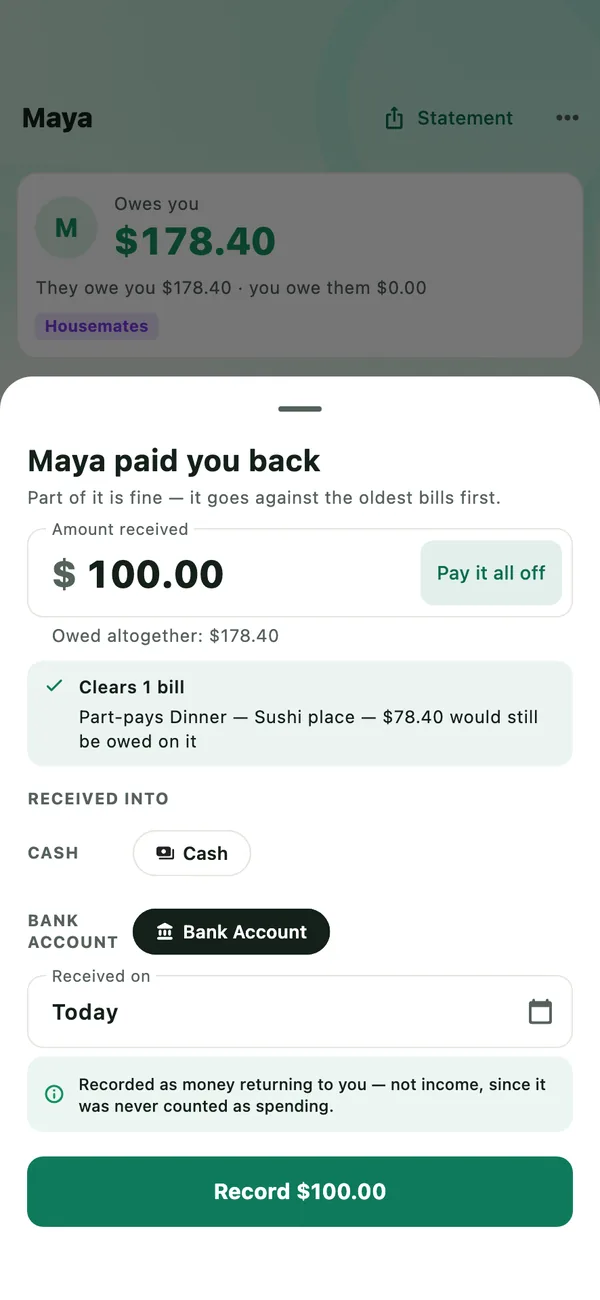
On their page, tap Maya paid me back (with their name). Amount received starts at everything they owe, but part is fine: it goes against the oldest bills first, and the box under it says which bills it clears or part-pays. Choose Received into and Received on, and tap Record. It is money coming back to you, not income: it was never counted as your spending.
From the bill itself: open the record and, under Split with, tap Mark as paid back. If more than one person still owes on it, Daybook asks whose share.
You owe each other: settle up
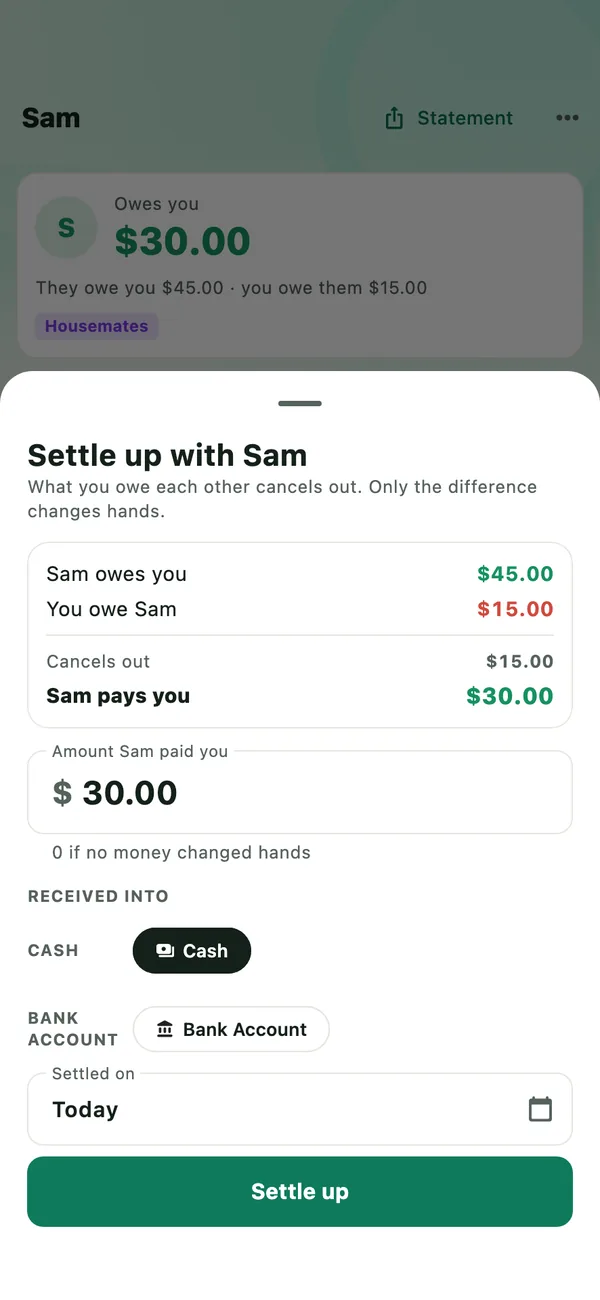
When money runs both ways, their page has Settle up instead. What you owe each other cancels out, and only the difference changes hands. Enter what was handed over (0 if nothing was), choose the account and tap Settle up. It is listed on their page under Settled up, with Undo.
Payments Daybook notices
Add money in that names someone who owes you, in Merchant or Note, or that is exactly what one person owes you, and the form asks above Save record: Maya owes you $178.40. Is this Maya paying you back? Record as paid back opens the sheet above, filled in; anything more than they owed stays on the form, to save as income. Money going out is asked about only when Merchant names someone you owe.
Tell Daybook asks the same on its card, and a statement check asks on the line: Paid back, or It’s income. When a statement check found the person by the amount alone, it offers to remember the name their bank used; remembered names are on their page under Names on bank statements, with a ✕ to forget each. See Check a statement. This matching happens on your phone, and sends nothing anywhere.
When you owe someone
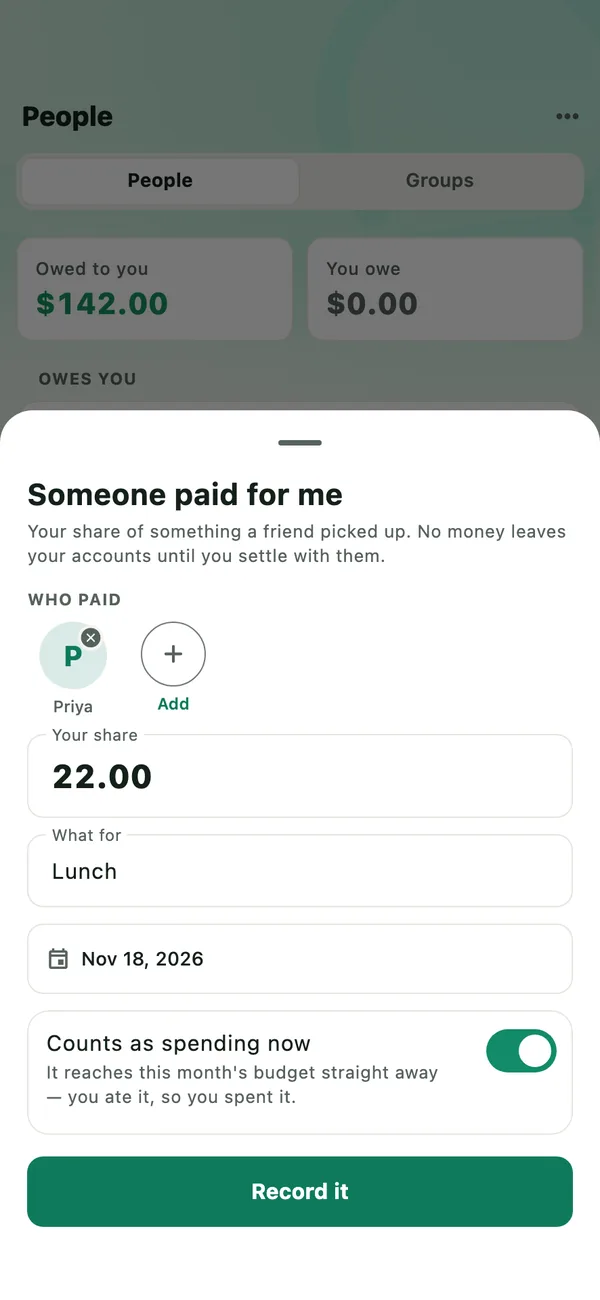
A friend paid for your lunch, with nothing to split? On People, tap ⋯, then Someone paid for me. Choose Who paid, enter Your share and What for, and tap Record it.
To pay them back, tap Pay back on their page, enter the amount, choose Paid from and tap Record payment. The oldest is cleared first, and anything left over stays owing. If they owe you too, Settle up opens instead. A share you kept out of your budget counts as spending in the month you pay it. Until something is paid towards a debt, ⋯ beside it has Edit and Remove.
Groups
On People, open Groups, tap New group, name it and tick who is in it. Somebody can be in several groups, and deleting a group deletes nobody. When you split a bill, open the group and tick who came. A group that owes you has Remind: each member who owes you, in turn, with Skip and Stop. People and groups belong to the profile you are in.
Export shared bills
On People, tap ⋯, then Export shared bills for every split bill so far. For one month, tap Export at the bottom of Reports, then Shared expenses. Choose PDF to send, or Spreadsheet; both have every split bill, each person’s share and who owes whom. Under Who is this for?, anyone you leave out is removed, with the bills they were not on. It goes where you send it, through the share sheet.
What is free, and what needs Pro
- Free: splitting bills, groups, People, reminders as a message, recording money paid back, paying back, settling up, and exporting shared bills.
- Daybook Pro: a person’s Statement (the button at the top of their page: Outstanding, This year or All, as a PDF or a spreadsheet), and Message + statement in a reminder.
If something goes wrong
- There is no Remind button
- They owe you nothing, or no more than you owe them. When money runs both ways, settle up instead.
- “Add a cash or bank account to receive the money”
- Money paid back goes into a cash or bank account in your home currency, never a card. Add one in More › Accounts & cards.
- I marked a share paid by mistake
- On their page, press and hold the bill under History and tap Mark unpaid. They owe it again, and the repayment recorded for it is taken back. A settle-up has Undo under Settled up.
- “The split adds up to more than the bill”
- The amount was lowered after the bill was split. Tap Edit beside Split with, fix the shares, and save again.
All guides · Record and ask with Tell Daybook · Check a statement · Privacy