Check a statement
Updated 18 November 2026 · iPhone and Android · about 5 minutes
Daybook’s figures are only as complete as what you recorded. Check your bank’s or card’s statement against them: Daybook finds the payments you missed and the ones that differ, and you fix them all in one go.
Check a statement, line by line
Open Match your bank
Tap More › Accounts & cards and choose the card or account the statement is for. Under its figures is Match your bank. Tap Check a statement.
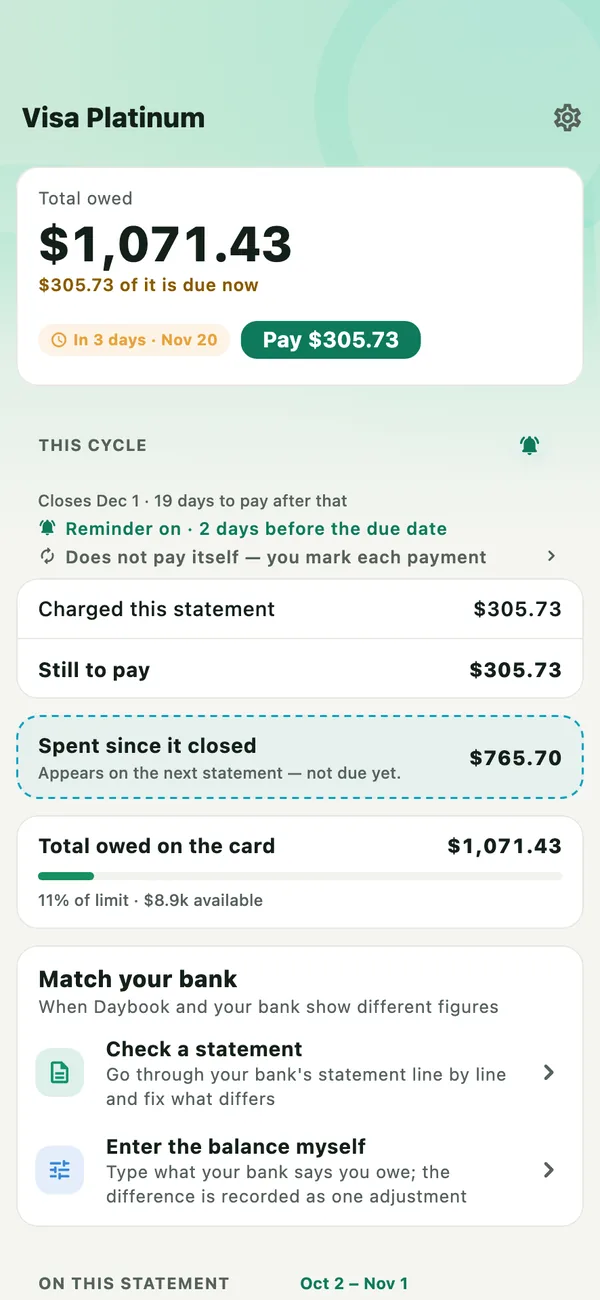
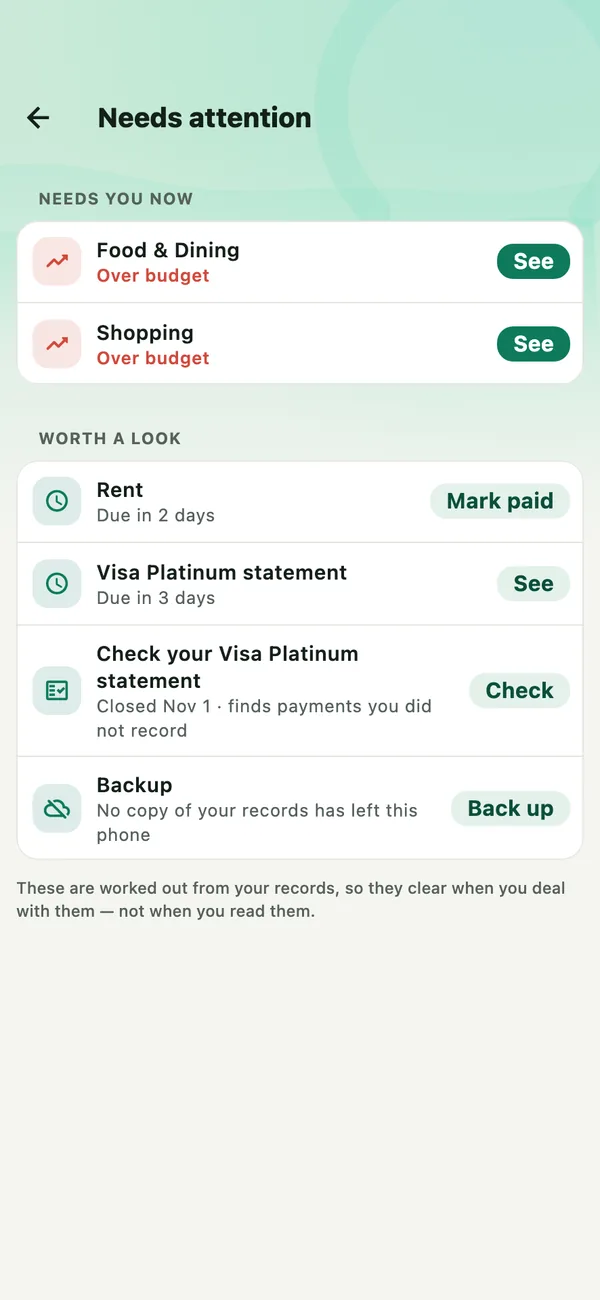
A few days after a card’s statement closes, Daybook suggests checking it, until the bill is due: Check your … statement, on Home and in Needs attention (the bell at the top of Home). Tap Check.
You can also share a statement to Daybook from another app — your bank’s app, Files or an email. Choose Check a statement if asked, then the account.
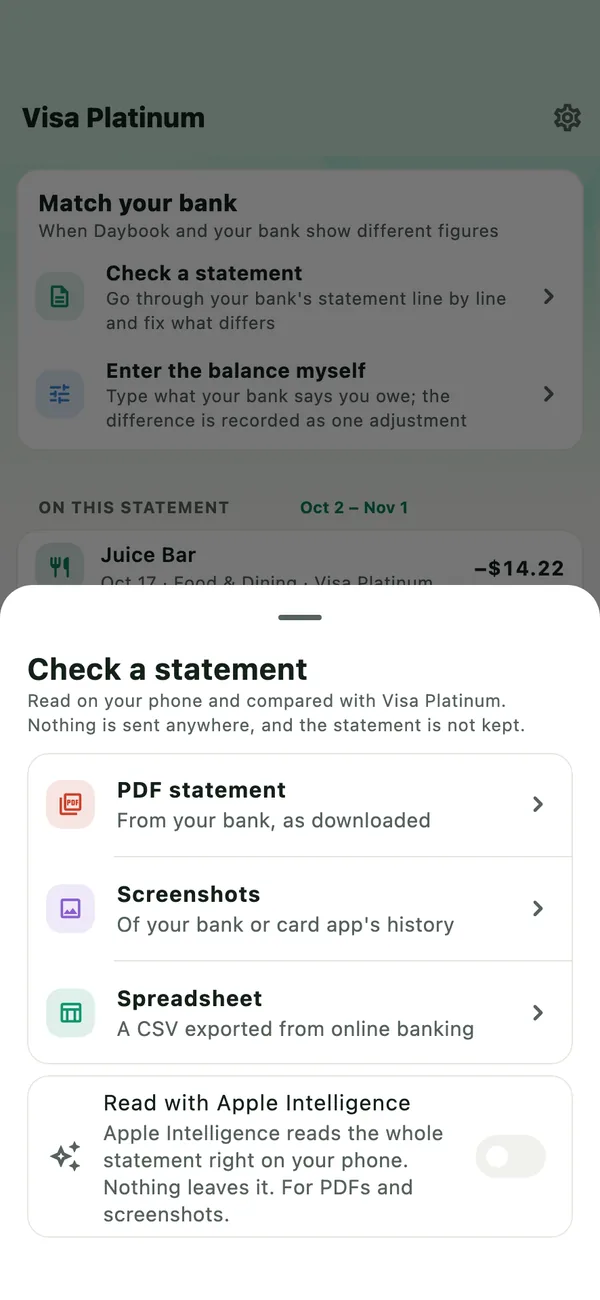
Choose what you have
- PDF statement — from your bank, as downloaded. If it is locked, Daybook asks for its password. The password is used once to open it, and never saved.
- Screenshots — of your bank or card app’s history. They show no closing balance, so there is no balance check.
- Spreadsheet — a CSV file exported from online banking. The first time, Daybook asks Which column is which? and remembers your answer for the next file with the same columns.
The statement is read and compared on your phone, and it is not kept. Nothing is sent anywhere unless you ask Google Gemini to read it or to explain a difference (see below).
Go through the lines
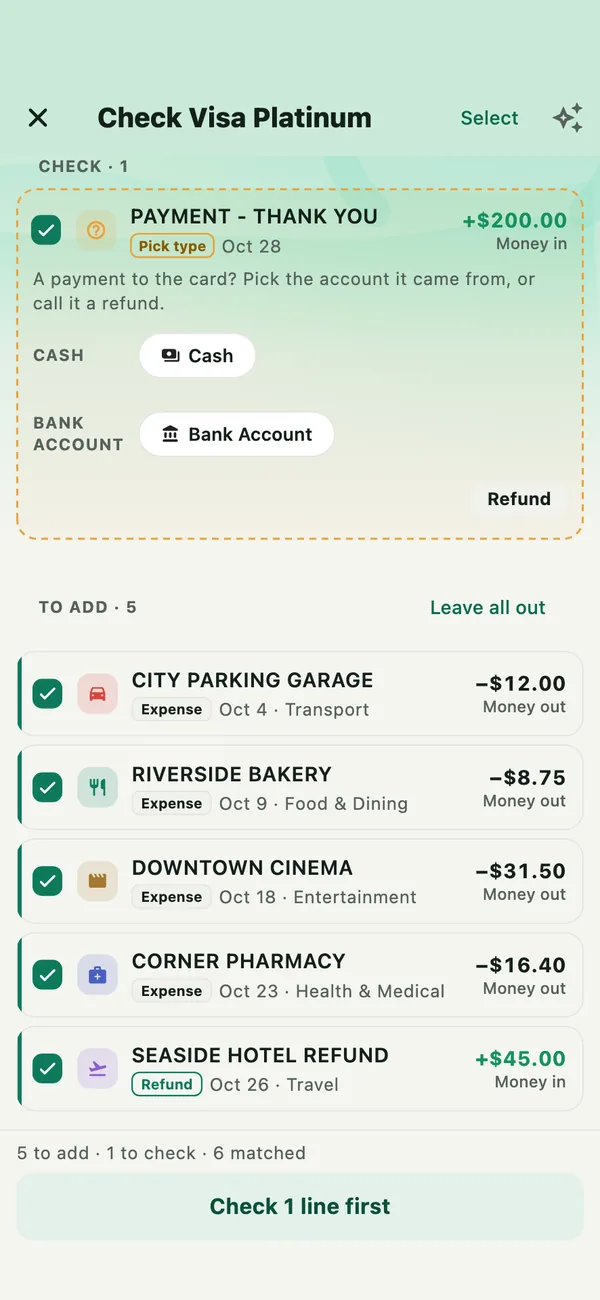
Nothing is saved yet. At the top are the statement’s dates and lines, money in and money out, and the Balance check: the statement’s balance beside Daybook’s, as it will be once you add the lines.
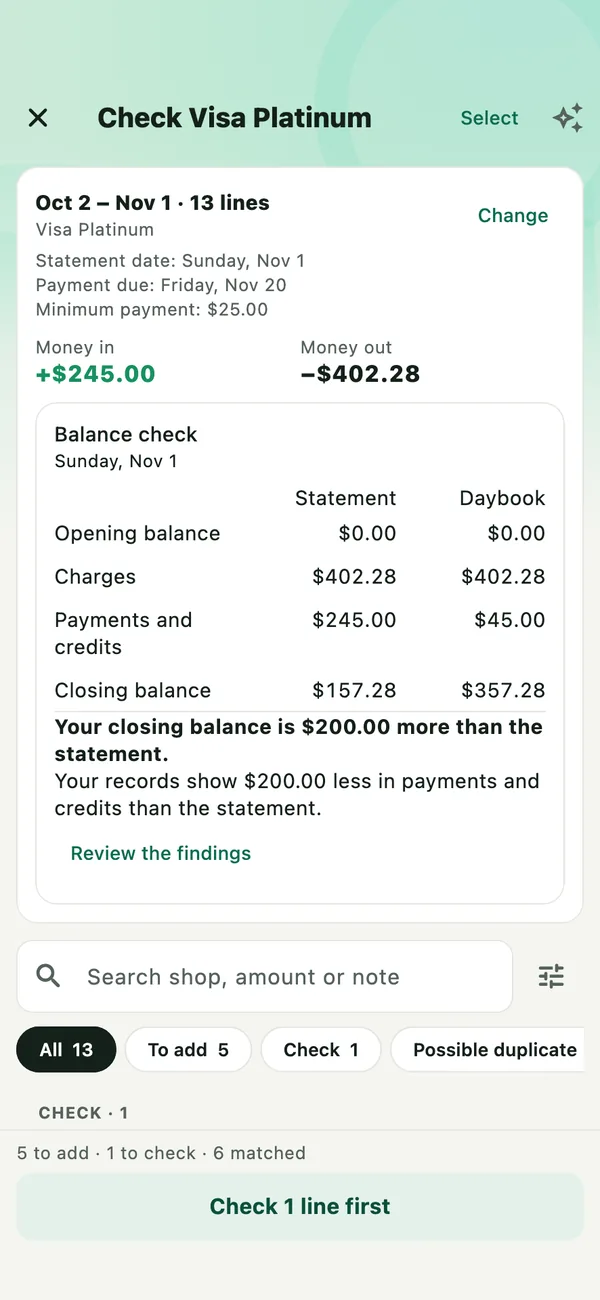
Below is every line. Money in and money out are read for you, and each line says what it will be — Expense, Income, Refund or Transfer — and its category.
- Check — lines Daybook cannot place without you, in a dashed card with the question. A payment to a card may ask which account it came from.
- To add — lines that are not in Daybook. Untick a line to leave it out.
- Possible duplicate, Matched and Only in Daybook — see Lines already in Daybook.
The chips above the lines show one section at a time.
Change a line, or many
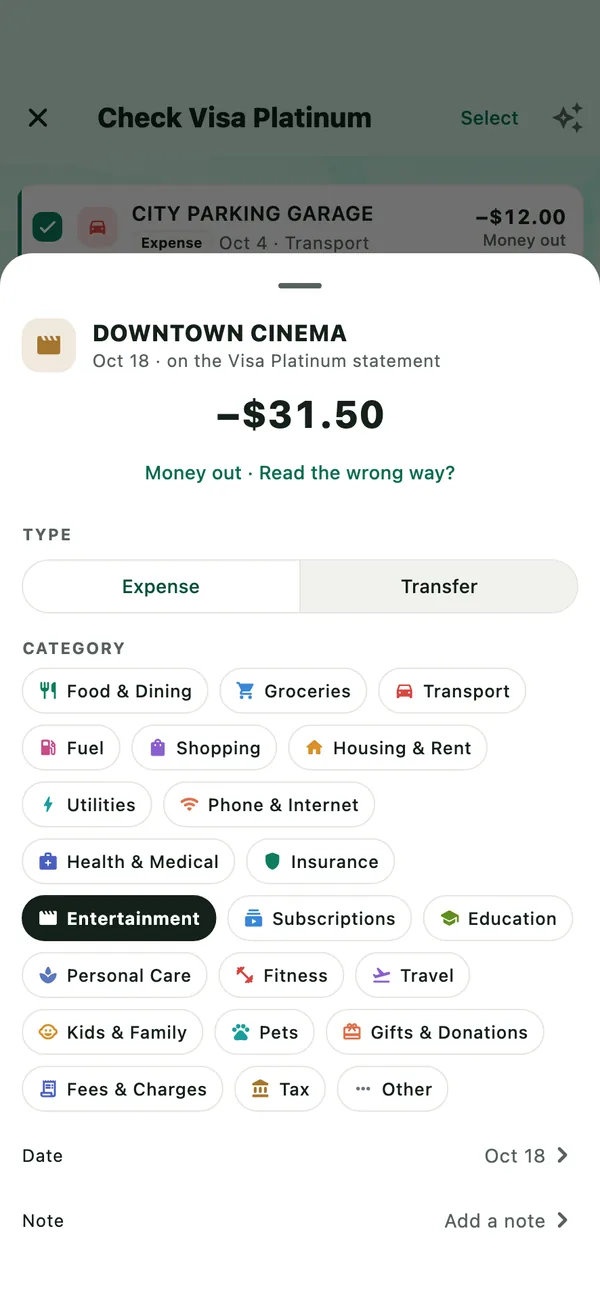
Tap a line to change it: which way the money went, its type, its category — or, for a transfer, the other account — its date and a note. Tap the name or the amount to change those. Turn on Next time too, and Daybook files that shop the same way next time. Then tap Done.
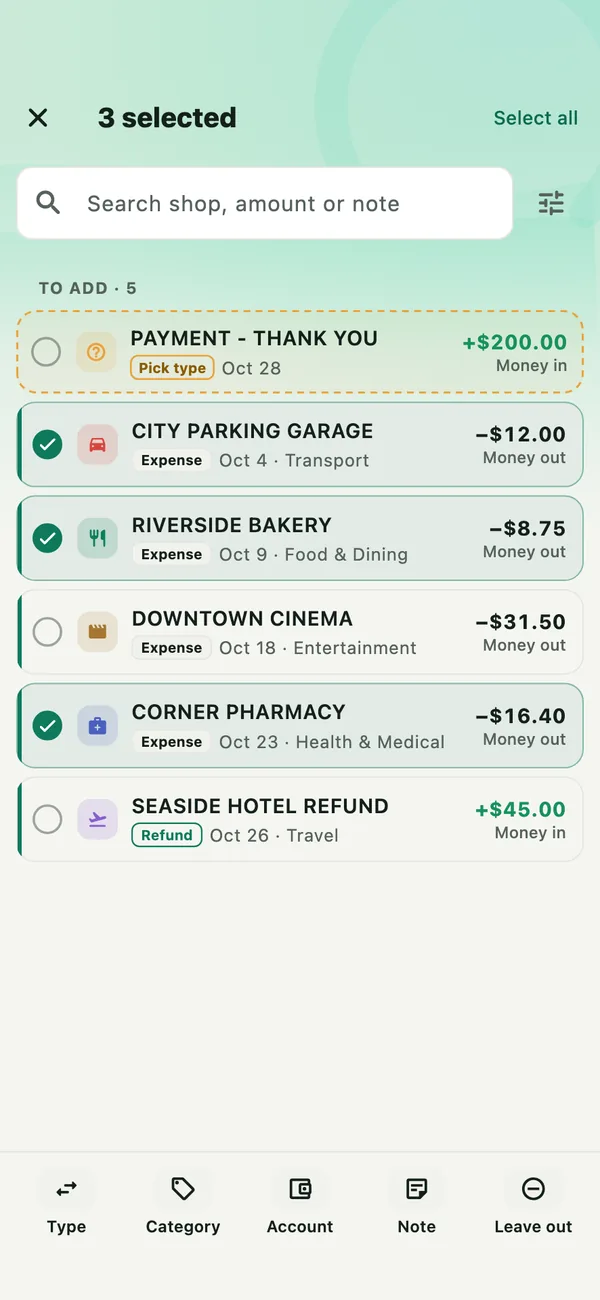
To change several, tap Select, or press and hold a line, and tick the lines. The bar at the bottom sets their Type, Category, Account or Note, or leaves them out (Leave out).
To find lines, search by shop, amount or note, or tap the filter button for type and category. Select all then picks only the lines shown.
Add them
While a line waits in Check, the button at the bottom says Check 1 line first and takes you to it. When nothing waits, it says how many it will add — Add 6 records here. Tap it, and every ticked line is added at once. The lines that matched and the ones you added are marked Reconciled in your records.
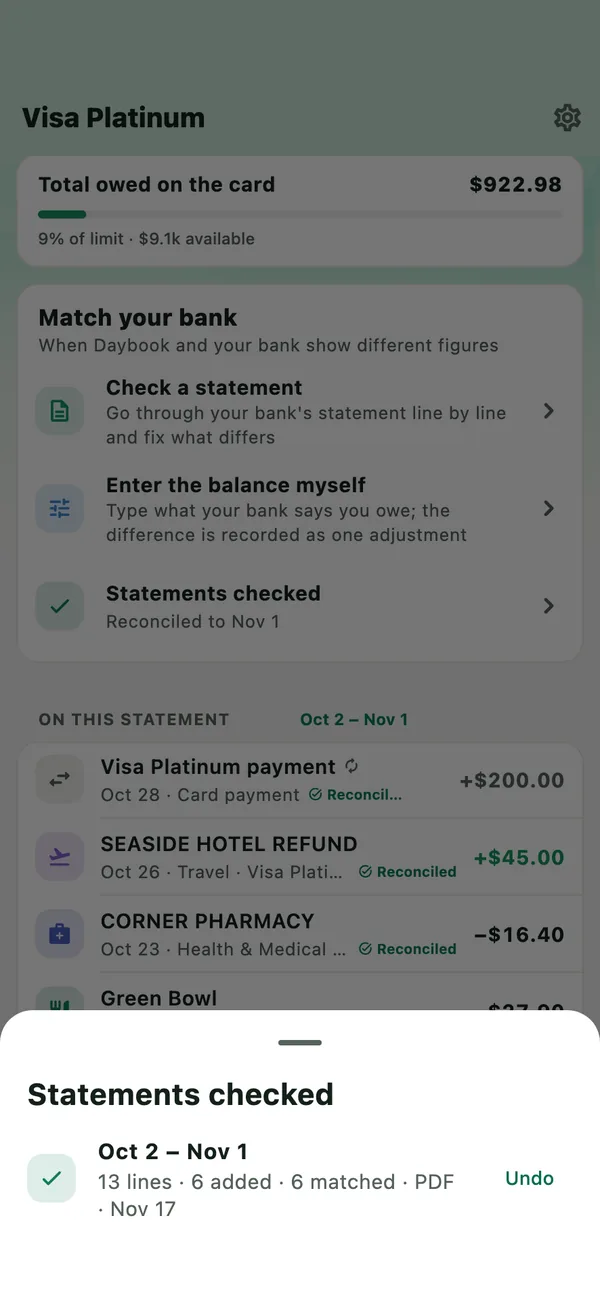
Daybook says what it added, with Undo. The account’s Match your bank now lists Statements checked.
On the To add chip, the button adds the lines there straight away, and asks first; a line still waiting in Check is left for the next check. Nothing new on the statement? The button says Finish check. If a card’s statement shows a different closing day or due day from the card’s, Daybook offers to use them (Use these dates).
One statement a month is included. Checking more than one in a month needs Daybook Pro. A check counts once its review opens, even if you add nothing. Reading it again with AI, or checking it against another account, does not count again. Without Pro, Daybook suggests a check only while this month’s is unused.
Lines already in Daybook
A line with the same amount, going the same way, within three days of a record is Matched. Matched lines are folded away under … lines match your records. If a pair is wrong, open the list and tap the broken-link button beside it (Not a match).
Possible duplicate lines look like a record already in Daybook. They are not added unless you say so:
- The same amount, up to a week apart: Same payment, or Add as new.
- The same shop on about the same day, for a slightly different amount — a tip, or a payment abroad: also Use the bank’s amount, which changes the record when you add.
- A payment recorded on another of your accounts: Move here, which moves that record to this account when you add.
Only in Daybook lists records for these dates that are not on the statement — on the wrong account, perhaps, or not at the bank yet. Tap Open to look at one.
When a statement reads wrongly
Daybook reads a statement with its own rules, on your phone. When a reading looks wrong — lines that do not say which way the money went, running balances that do not add up, small print read as payments — the review says This reading may not be right and offers to read the whole statement with AI. You can also ask for it yourself: tap the sparkle button at the top of the review (Read again with AI), or switch on Read with … on the Check a statement screen before you choose the file. It is for PDFs and screenshots; a spreadsheet is read by its columns.
- iPhone — Apple Intelligence reads it on your iPhone, and nothing leaves it. Or Google Gemini, with your own key.
- Android — Google Gemini, with your own key. Gemini Nano is not used for statements.
The switch and buttons name the one Daybook will use. With a Gemini key, the statement’s text — which can include balances and account details — is sent to Google under your key. The PDF or screenshot itself is not sent, and nothing from your saved records is. How to add a key, and what Google may do with what it is sent: Get a Gemini key.
The new reading takes the place of the first, and anything you changed on the review is set aside. Check its lines against your statement; Use the first reading goes back.
One more thing can leave the phone, and only when you tap it. With Google Gemini as the Provider in More › Settings › Receipt scanning, your own key added and Also try automatically on, a pair whose amounts differ offers Ask Google Gemini why. It sends those two lines’ descriptions, amounts and dates to Google.
Undo a statement
Open the account’s or card’s page and, under Match your bank, tap Statements checked. Tap Undo beside the statement. Every statement checked is also in More › Settings › Backup and data › Imports.
Daybook asks first, and says what happens. The records the statement added are deleted. Records it matched stay, and stop showing as checked; any it moved to the account, or set to the bank’s amount, stay that way. Anything it added that is now shared with people, or paying back a debt, stays too.
If something goes wrong
- “No payments were found on that statement”
- Daybook found no lines with a date, a description and an amount. For a PDF or screenshots it offers to read the whole statement with AI, or to set AI reading up. If your bank lets you download a CSV, try that.
- “This looks like your … statement”
- Its lines are already recorded in another account, or the bank printed at the top is another account’s, or it is a card’s statement opened on an account that is not a card. Tap Check against … to check it there, or It’s this account.
- “A line may be missing”
- The statement’s running balance moves by more than the lines read. Daybook says roughly where and how much. Tap Add it as a line and type what it was, as on the statement.
- Check a statement opens Daybook Pro
- This month’s included check has been used. Next month’s is there from the 1st; more than one a month needs Pro.
All guides · Get a Gemini key · Turn on Apple Intelligence · Privacy