Import from another app
Updated 18 November 2026 · iPhone and Android · about 6 minutes
Moving to Daybook from another money app, or from a spreadsheet of your own? Bring your history with you. Daybook reads a CSV file on your phone, shows you what it found, and saves nothing until you say so.
Before you start: a CSV file
Most money apps can export your records as a spreadsheet. Look in the old app’s settings for something like Export or Download your data, and choose CSV. Then put the file where your phone can open it: on iPhone, in Files or iCloud Drive; on Android, in your files or a cloud folder. Emailing it to yourself and saving the attachment works too.
- Daybook takes CSV files, and spreadsheets saved as .txt or .tsv text. Columns split by commas, semicolons or tabs all work.
- Excel or Numbers? Daybook cannot open those files. Open yours in a spreadsheet app and save or export it as CSV first.
- The first line is the column names — Date, Amount and so on — and every line under it is a record. Daybook reads up to 5,000 rows from one file. For a longer history, split it into files and import each one.
No export, or records you keep by hand? On the import screen, tap Download a blank template. Your phone’s share sheet opens: save the file, or send it to yourself. Fill it in on a computer, one record per line; only the date and amount are needed. For a transfer between your own accounts, add a column called Transfer to. Delete the two example rows and the notes under them, the lines that start with # — notes left in are listed as rows Daybook will skip.
Import your history
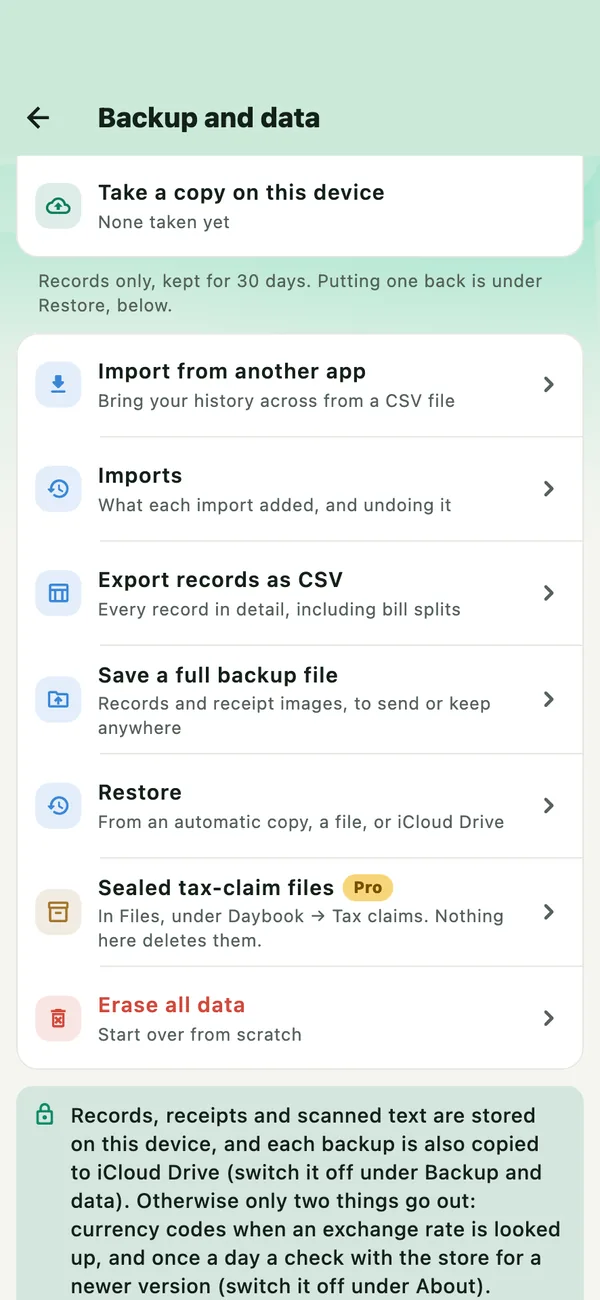
Open Import from another app
Tap More › Settings, then Backup and data, under Your data. Tap Import from another app.
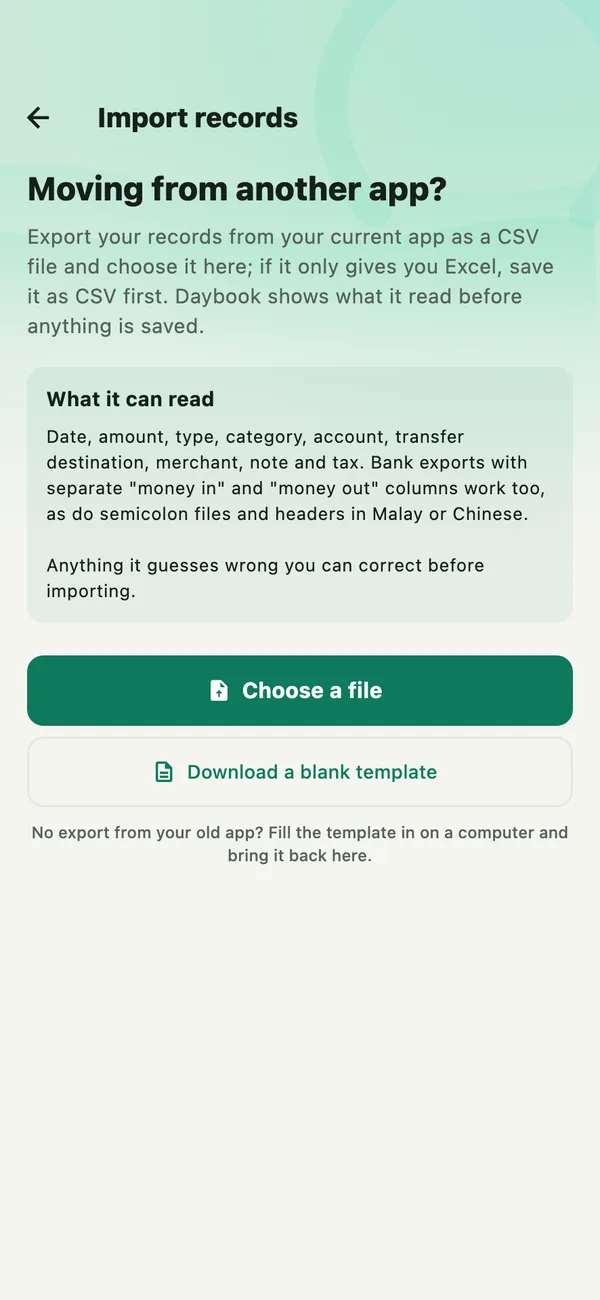
Choose the file
Tap Choose a file and pick your CSV file. Daybook reads it straight away. Nothing is saved yet.
Check the dates
At the top are the file and how many records Daybook can read: 10 records ready here. To choose a different file, tap Change.
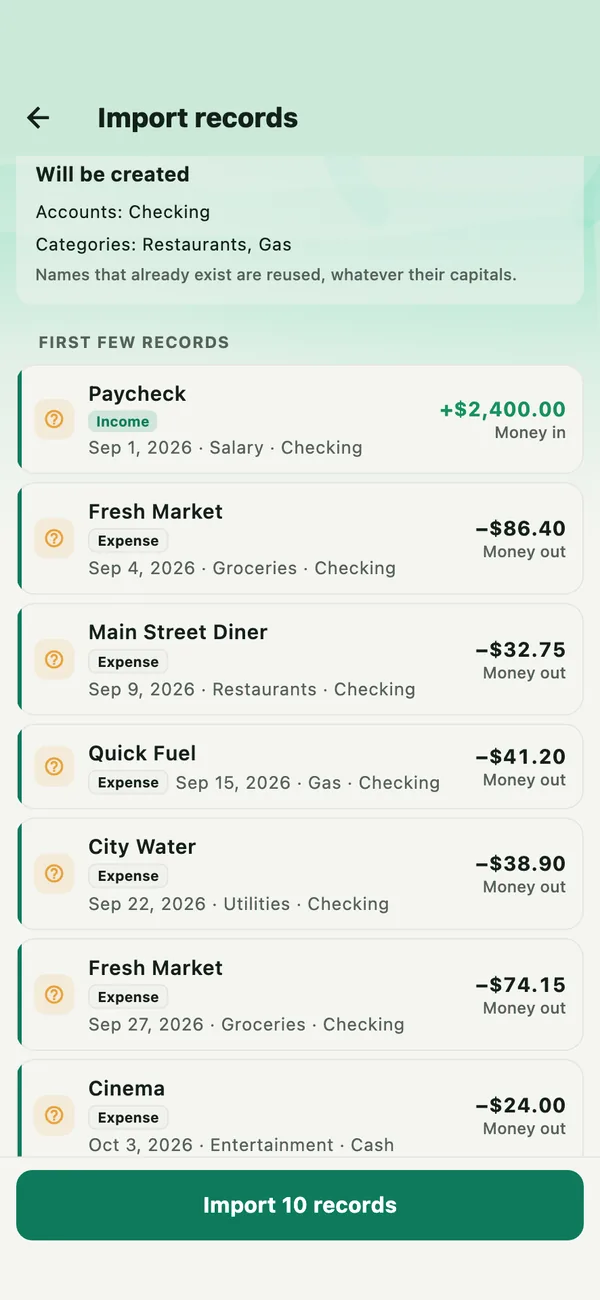
Date order says how a date like 10/03/2026 is read: Day first (10 March) or Month first (October 3). Daybook works it out from the dates themselves — 09/15/2026 can only be month first. When every date could be read either way, it reads them day first. Look at the dates under First few records, further down. If they are in the wrong months, tap the other order.
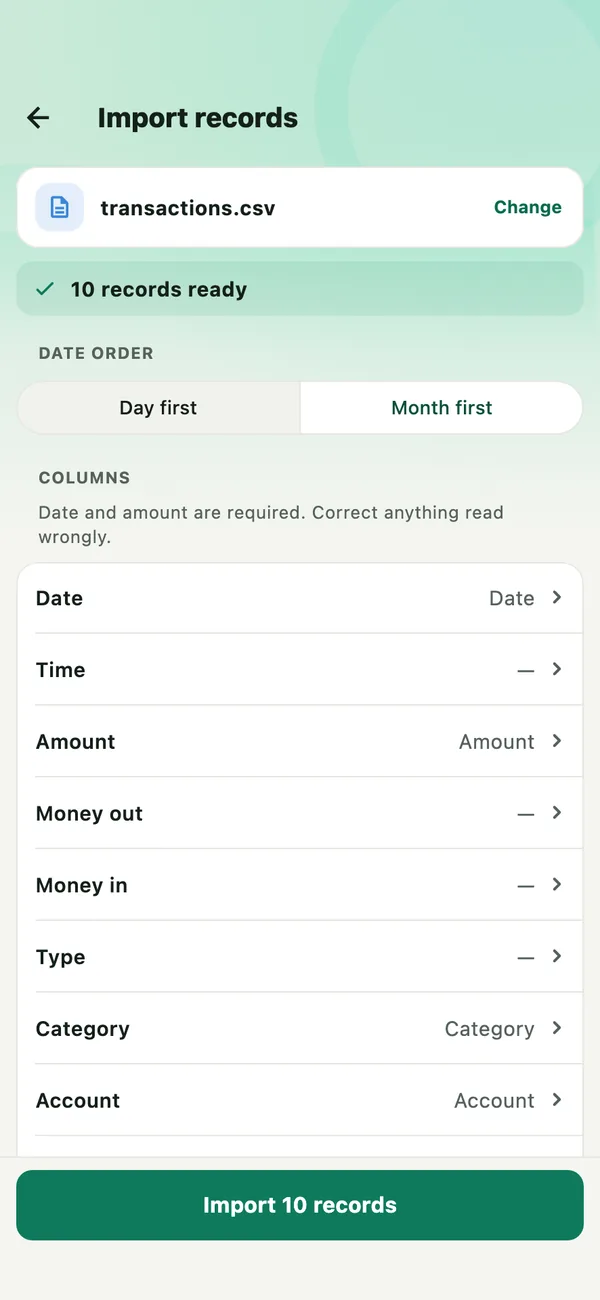
Check the columns
Under Columns, each thing Daybook can read is on the left, and the column of your file it comes from is on the right. A dash means none. A date and an amount are needed — the amount from one Amount column, or from Money out and Money in. Everything else is optional.
To change one, tap it and choose the column. Here the shop names are in a column called Description, which Daybook read as a note. Tap Merchant and choose Description. A column can do only one thing, so Note goes back to a dash.
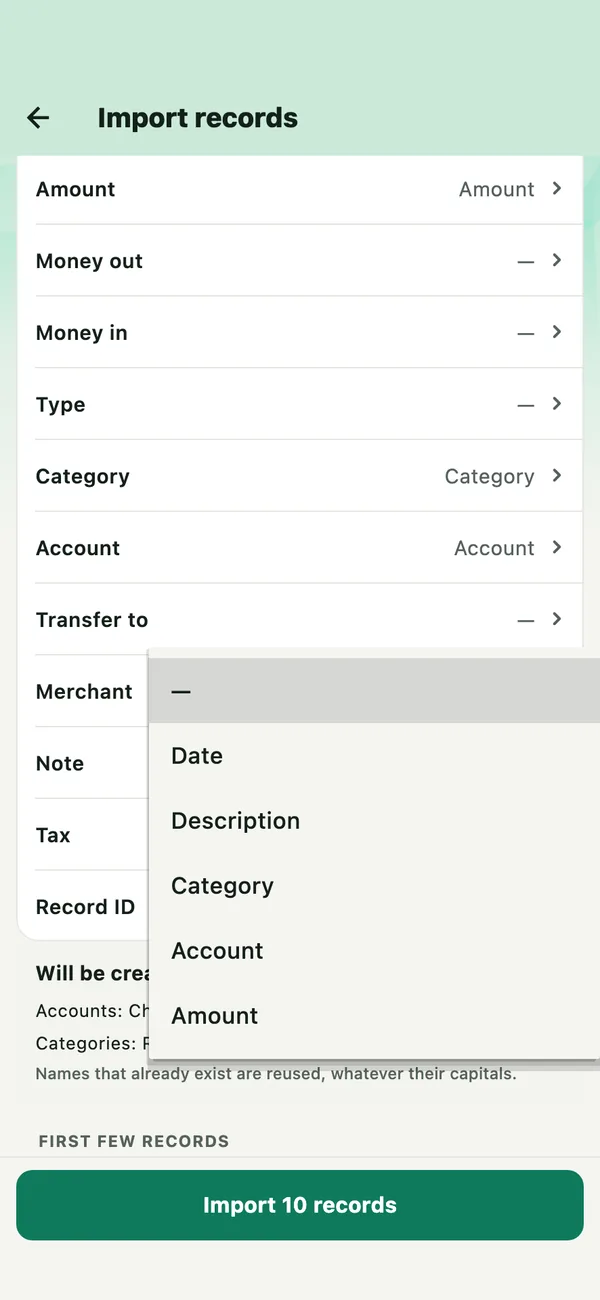
It matters because Records names each record by its shop. A shop kept as a note shows only in small print, under the category.
See what you will get
Will be created lists the accounts and categories your file names that Daybook does not have yet. Names Daybook already has are used, whatever their capitals. First few records shows the first eight as they will be saved: the shop, date, category, account and amount, and whether each is an Expense, Income or a Transfer.
Rows Daybook cannot read are listed under … rows will be skipped, each with its line and why — Could not read the date, for example. Fix them in the spreadsheet and choose the file again.
Import
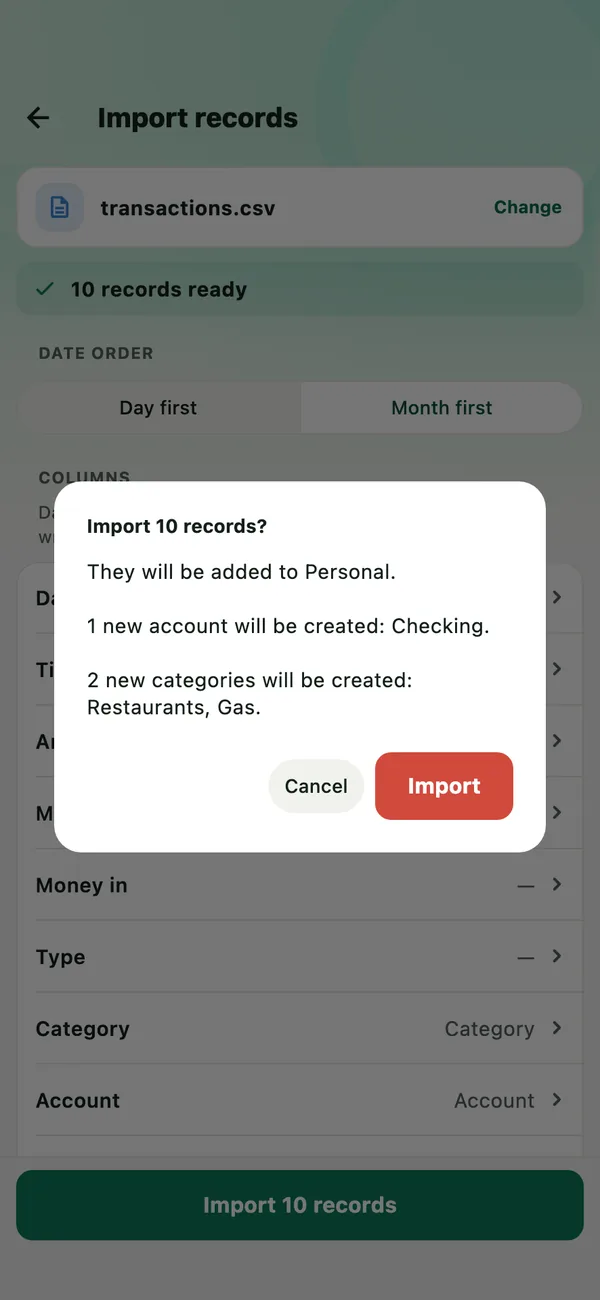
Tap Import 10 records. Daybook asks first, and says which books the records go into and which accounts and categories it will make. Tap Import.
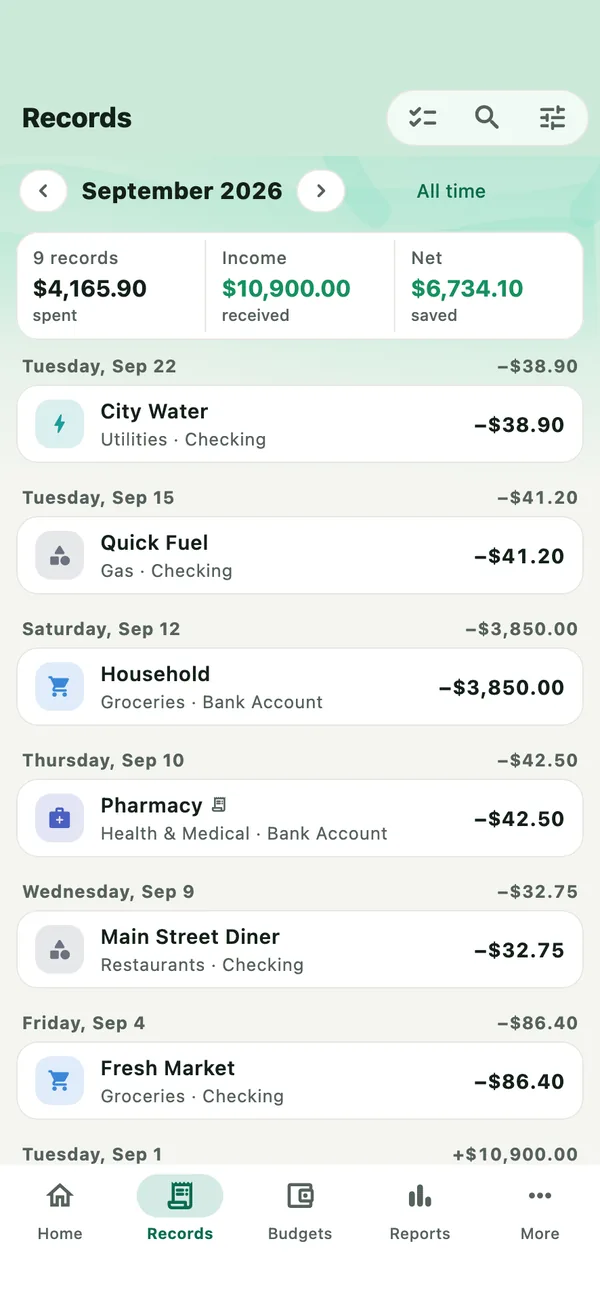
Daybook goes back to Backup and data and says how many it imported. Your history is in Records, under its own dates. The records are saved as they are: unlike card payments, they are not waiting for you to confirm them, because you checked them on the way in. They count in your reports and budgets for their months, and in your account balances (see Accounts, below).
Your file is read on your phone, and nothing is sent anywhere — no AI reads it. The records you import are then kept like any others: in Daybook on your phone, and in your backups.
How Daybook reads your file
- Money out and money in. In one Amount column, a minus sign means money out — so do brackets, as in (12.50), and DR after the figure. A figure without one is money in. Files with separate columns for money out and money in, such as Debit and Credit or Withdrawal and Deposit, work too.
- Type. A column saying Expense or Income on each row decides it, whatever the sign. Choose it under Type if your old app writes spending without a minus sign; otherwise that spending is read as income.
- Transfers. A row that names the account the money went to, in a column such as Transfer to, is a transfer between your own accounts: from its Account to that one. It has no category, and it is neither spending nor income. Keep each transfer on one row, with both accounts: Daybook does not join two rows, one for each account, into one transfer.
- Categories. One your file names that Daybook does not have is made, with a plain grey icon; change it in More › Categories. To use one of Daybook’s own instead, rename it in the spreadsheet before you import — Restaurants to Food & Dining, say.
- Accounts. One your file names that Daybook does not have is made as a Cash account in your Daybook currency, starting at zero: its balance is what your file’s records add up to. For the right type and balance, add your accounts first, in More › Accounts & cards › Add account, with the names your file uses and what is in each today. Records from before the day you add an account do not change the balance you give it. Changing an account in its settings later? Check Balance as at before you save: only records from that day on count towards the balance.
- Currency. Every amount is read in your Daybook currency, and nothing is converted. If the file has a currency column with another currency in it, Daybook warns: This file is not all in USD. Convert those rows in the spreadsheet first, or take them out and add them by hand. Rows for an account Daybook holds in another currency are not imported; Daybook names that account when it finishes.
Records already in Daybook
Started Daybook before you left your old app? The two will overlap. Daybook marks a row already recorded when you have a record with the same amount, going the same way, within two days of it — at the same shop, when both name one. A row that repeats one earlier in the file is marked too.
A dashed card then says … already in your records, with a switch. While it is on, those rows are left out. Switch it off to import them as well — two identical coffees on the same day, say. If every row is already in Daybook, the button says Everything here is already recorded.
A file from Daybook’s own Export records as CSV has a Record ID column: its rows correct the records they came from, instead of adding copies.
Undo an import
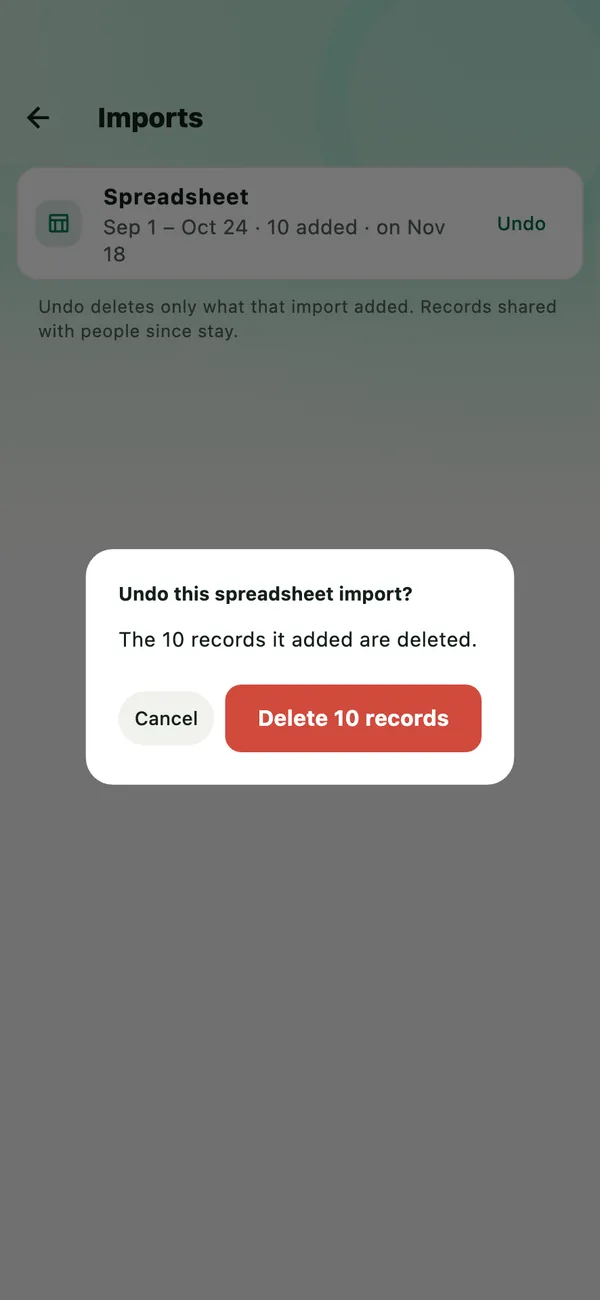
Tap More › Settings › Backup and data › Imports. Every import is there, newest first — spreadsheets, statements checked and payments added with Tell Daybook — with its dates, how many records it added, and when. Tap Undo beside the spreadsheet.
Daybook asks first — Undo this spreadsheet import? — and says what will happen. The records it added are deleted, including any you have changed since. Any that are now shared with people, or paying back a debt, stay. The accounts and categories it made stay too.
Importing is free, and so is undoing an import: nothing here needs Daybook Pro. With Pro you can keep more than one set of books; the records go into the set that is open, which the question before importing names.
If something goes wrong
- “Nothing readable yet — check the columns below”
- Daybook found no date or amount it could use. Under Columns, choose your file’s column for Date, and for Amount — or for Money out and Money in. The first line of the file is read as the column names: if your file starts with a record, add a line of names above it.
- The dates are in the wrong months
- Under Date order, tap the other order, then check the dates under First few records again.
- Spending shows as Income
- Your file writes spending without a minus sign. If it has a column saying Expense or Income, choose it under Type. If not, put minus signs on the spending in the spreadsheet and choose the file again.
- My file cannot be chosen
- Only CSV, TXT and TSV files can be chosen: save an Excel or Numbers file as CSV first. And start from Import from another app — a spreadsheet shared to Daybook from another app opens Check a statement instead, which checks one account against a bank statement.
All guides · Check a statement · Keep your records safe · Privacy