Choose a card tap’s category
Updated 14 October 2026 · iPhone · about 3 minutes · needs the shortcut from Record a card tap
You do not have to do anything here. Every card payment already arrives with a category, and you check it when you check the payment. This guide is for getting it right from the very first tap.
How Daybook picks a category
For each card payment, in this order:
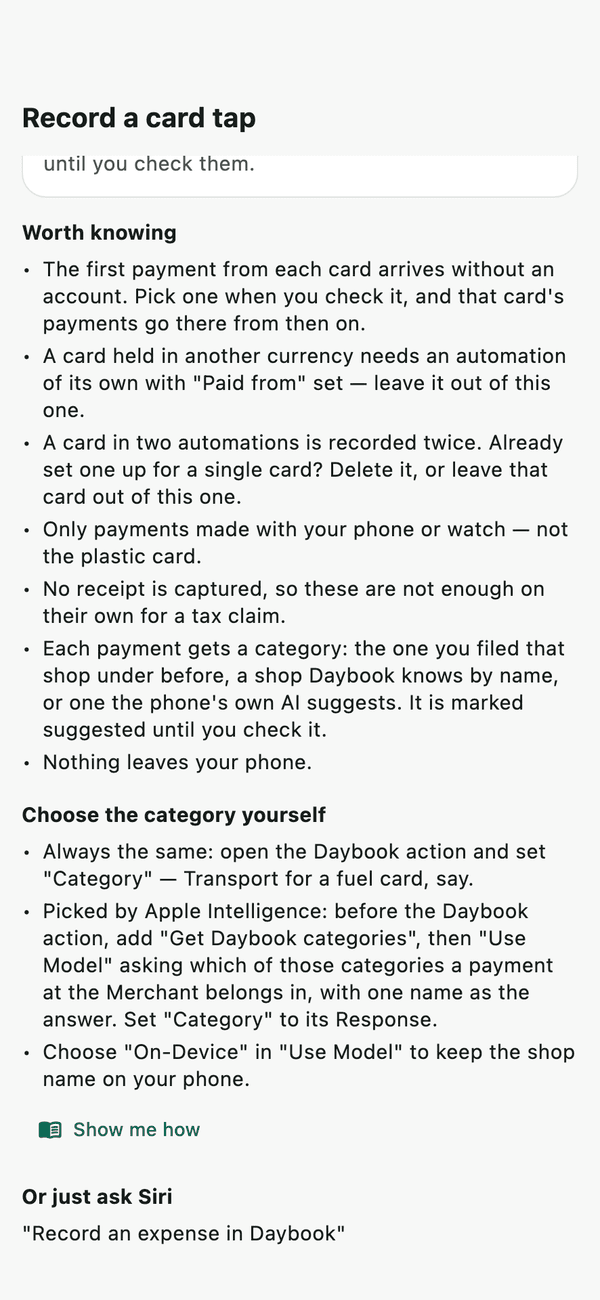
- The shortcut’s own choice — a category you set in Shortcuts (this guide).
- What you chose for that shop before. Check a payment once and the shop is remembered.
- A shop Daybook knows by name — Starbucks, Shell, Grab and many more.
- Your phone’s own AI, on an iPhone with Apple Intelligence or an Android phone with Gemini Nano. It guesses from the shop’s name, on the phone; nothing is sent.
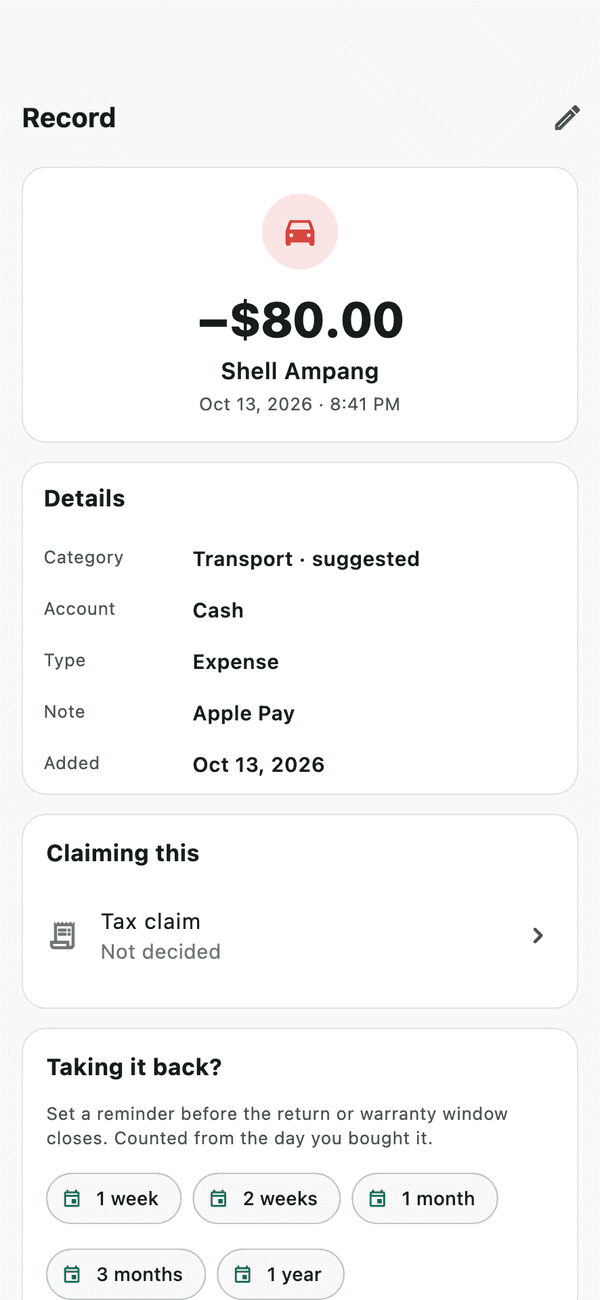
Whatever it picks, the payment stays to check and its category reads suggested until you confirm it. Daybook never files a payment under a default category it made up: if nothing fits, it is left without one.
Set a fixed category
Best for a card you use for one thing: a fuel card, a card kept for groceries, a company card. It works on any iPhone.
Open your card-tap shortcut
In Shortcuts, tap the shortcut you made in Record a card tap.
Open the Daybook action
Tap the Daybook action (Record an expense without opening) to show its fields.
Set Category
Tap Category. Your Daybook expense categories are listed — choose one, Transport for a fuel card, say. Tap Done.
If the list is empty, open Daybook once so it can share your categories with Shortcuts, then try again.
One card, one thing. A card that is used for different things should stay in the general shortcut, where Daybook works out each shop. To give a card its own fixed category, make a separate shortcut for that card, and keep it out of the general one — a card in two shortcuts is recorded twice.
Check it
Make a small payment, open Daybook, and look at the payment. Its category is shown with suggested beside it. Open it and change it if it is wrong — that shop is then filed correctly from then on.
If something goes wrong
- The Category list in Shortcuts is empty
- Open Daybook once; it shares your categories when it opens. If you rename or add a category later, open Daybook again.
- Every payment gets the same category
- A fixed Category is set on the shortcut that covers every card. Open the Daybook action and clear Category, so Daybook picks it shop by shop.