Record a card tap
Updated 14 October 2026 · iPhone · iOS 26 · about 6 minutes
Pay with your iPhone or Apple Watch, and Daybook writes it down. You set it up once in Apple’s Shortcuts app, and it covers every card.
Before you start
- You need an iPhone with cards in Wallet, and Daybook opened at least once, so that its actions appear in Shortcuts.
- What it records: payments made with your phone or watch — not the plastic card. Each is written down with the shop and the amount, and listed in Daybook to check.
- What it does not do: capture a receipt, so on its own it is not enough for a tax claim. Nothing leaves your phone.
- Android: not offered. Android has no equivalent trigger.
- The screenshots are from iOS 26, where automations are built as shortcuts. On an older iOS the screens differ — Shortcuts has an Automation tab there — but the pieces are the same: a Wallet trigger, then the Daybook action with the payment connected to it.
Part 1 — Build it
Start a new shortcut
Open Shortcuts. In All Shortcuts, tap + at the bottom to start a New Shortcut. (Shortcuts says “Your automations are now saved as shortcuts” — that is why.)
Tap the search box at the bottom, then the Automation button under it. That lists the things that can start a shortcut.
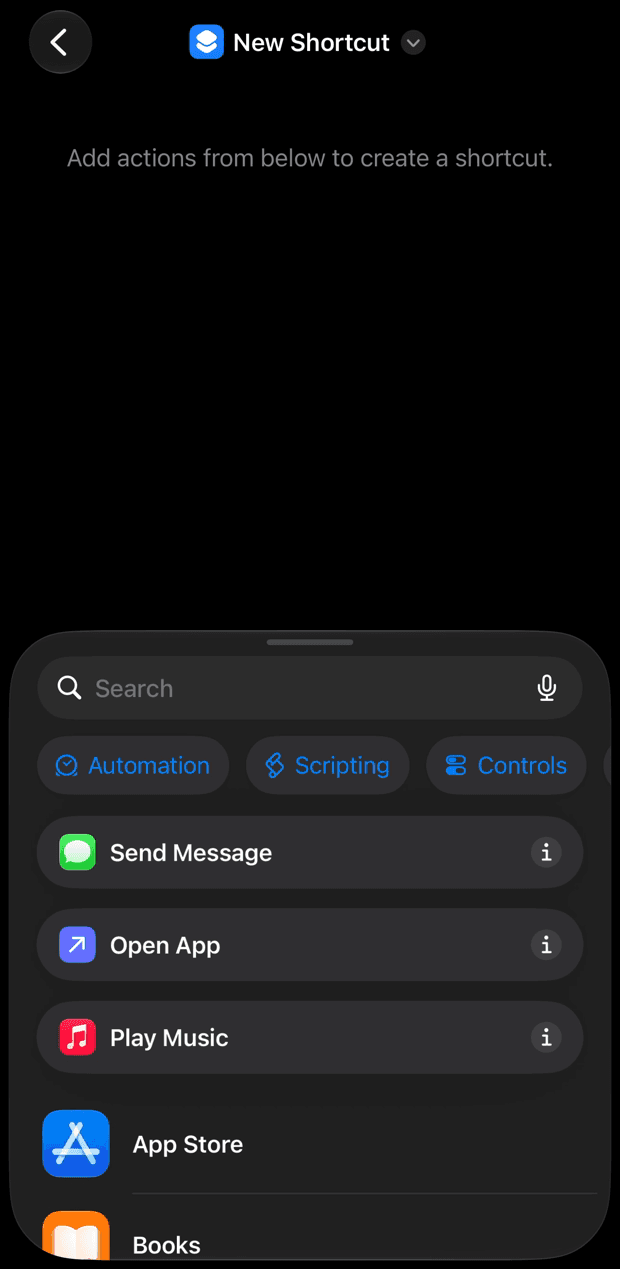
Choose the Wallet trigger
Scroll the list to Wallet — “When I tap a Wallet Card or Pass” and tap it.
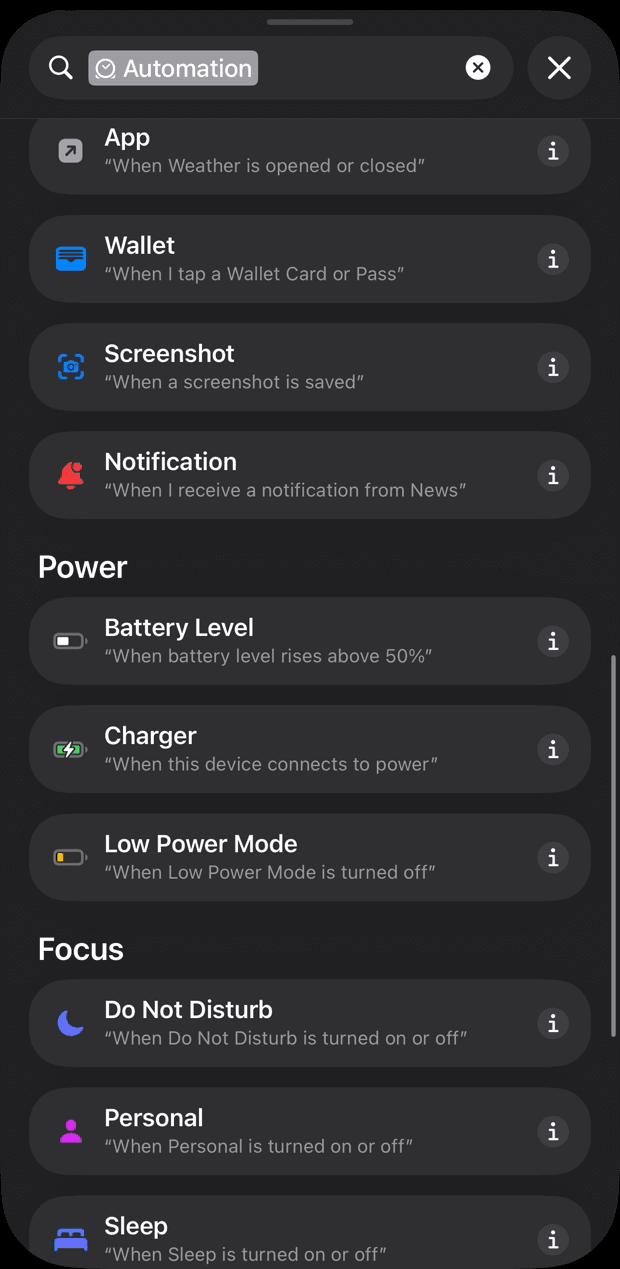
The shortcut now starts with When Any Card is tapped. Any Card means every card in your Wallet, so one shortcut covers them all. Tap Any Card only if you want particular cards.
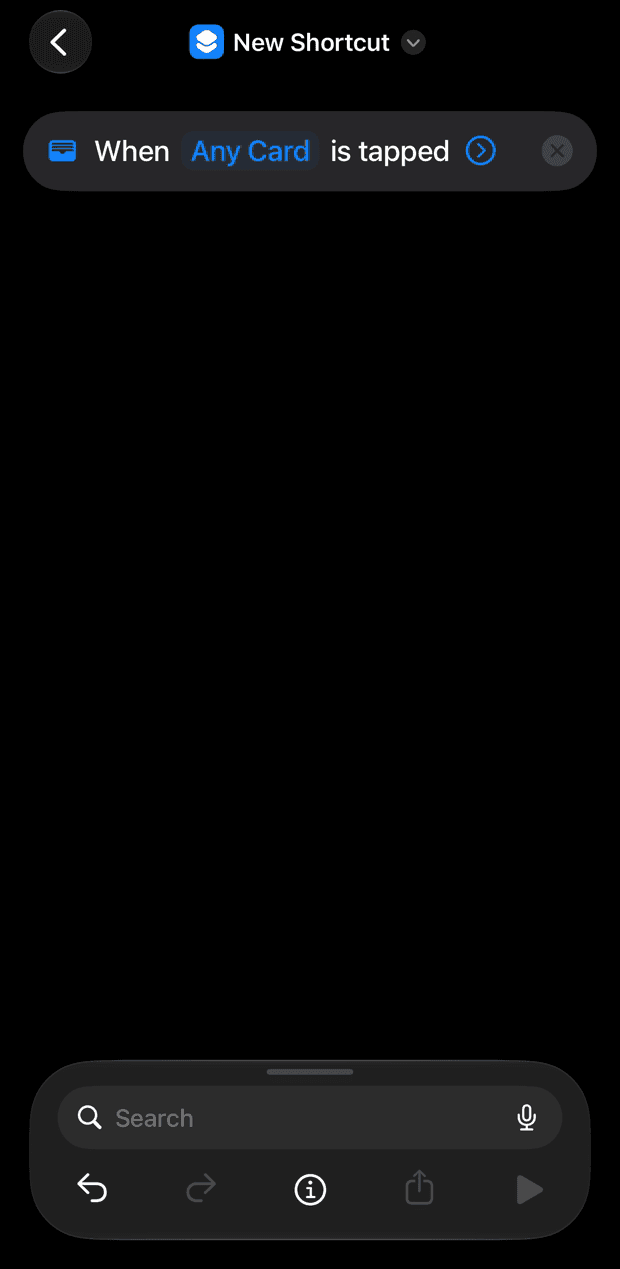
Add the Daybook action
Search Daybook. Choose Record an expense without opening. (Record an expense instead opens Daybook with the form filled in, for you to save yourself.)
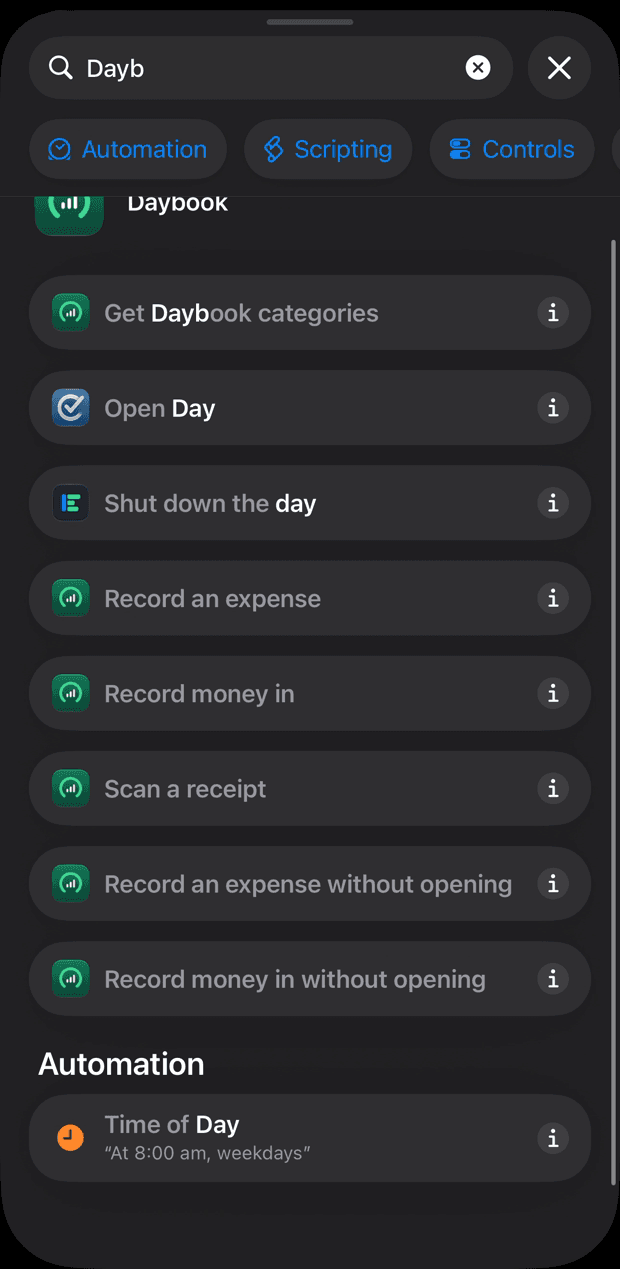
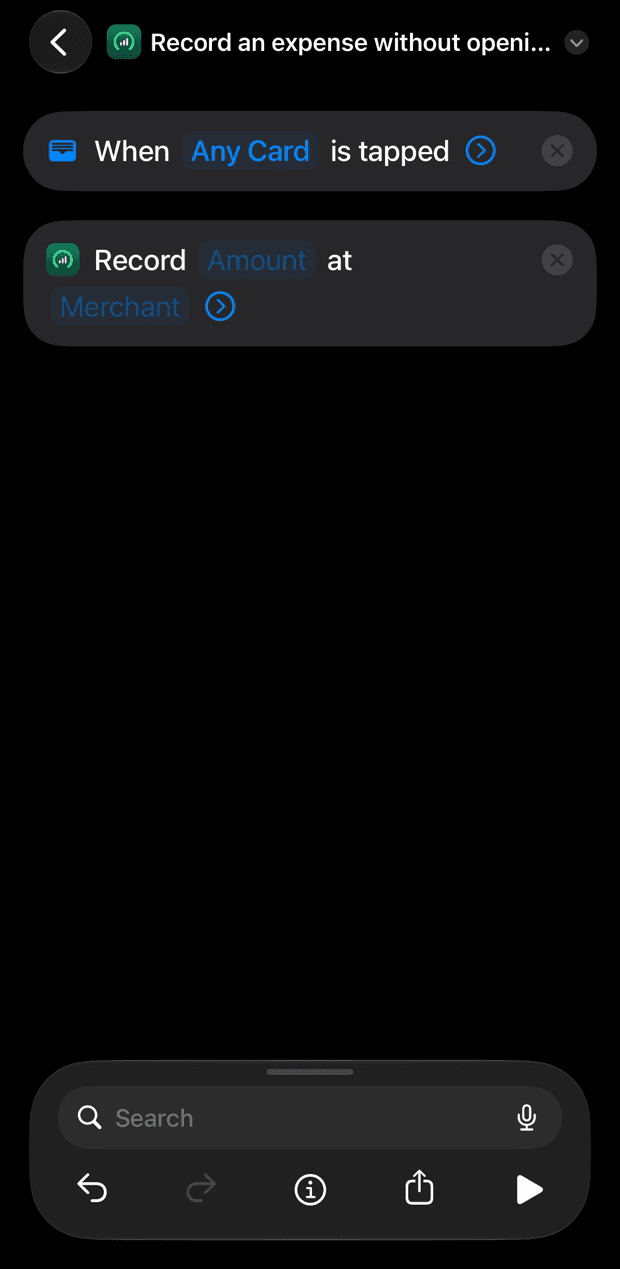
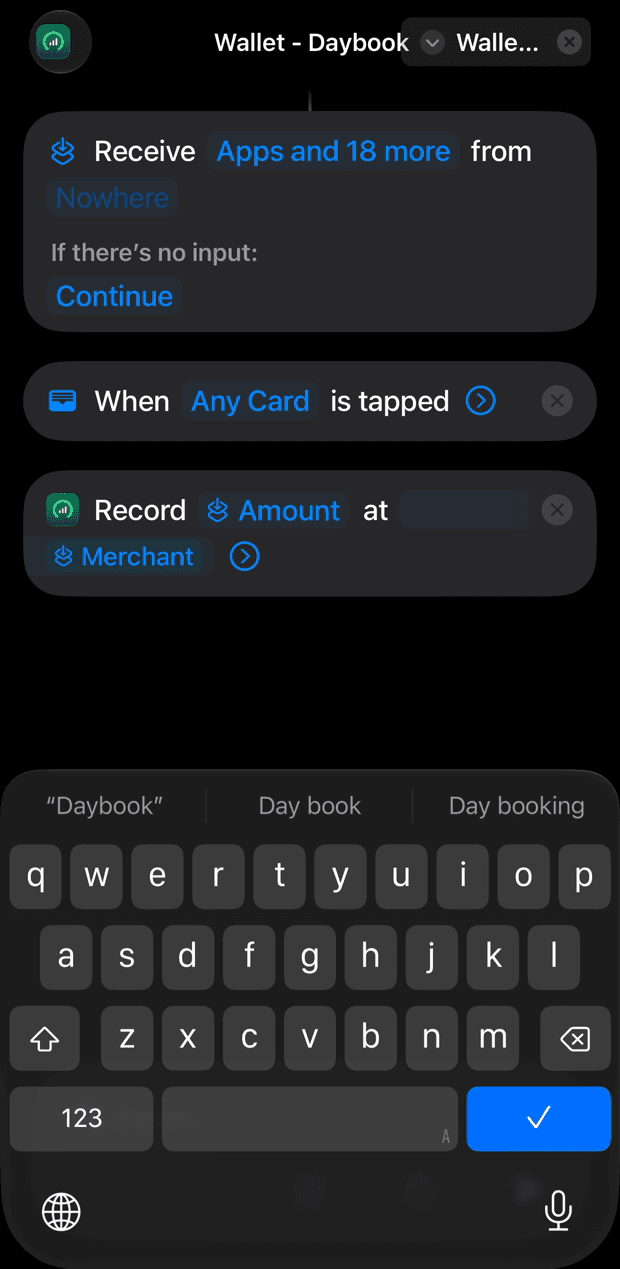
It appears as Record Amount at Merchant, with both blank. They are not filled in for you: the next two steps connect them to the payment.
Connect the amount
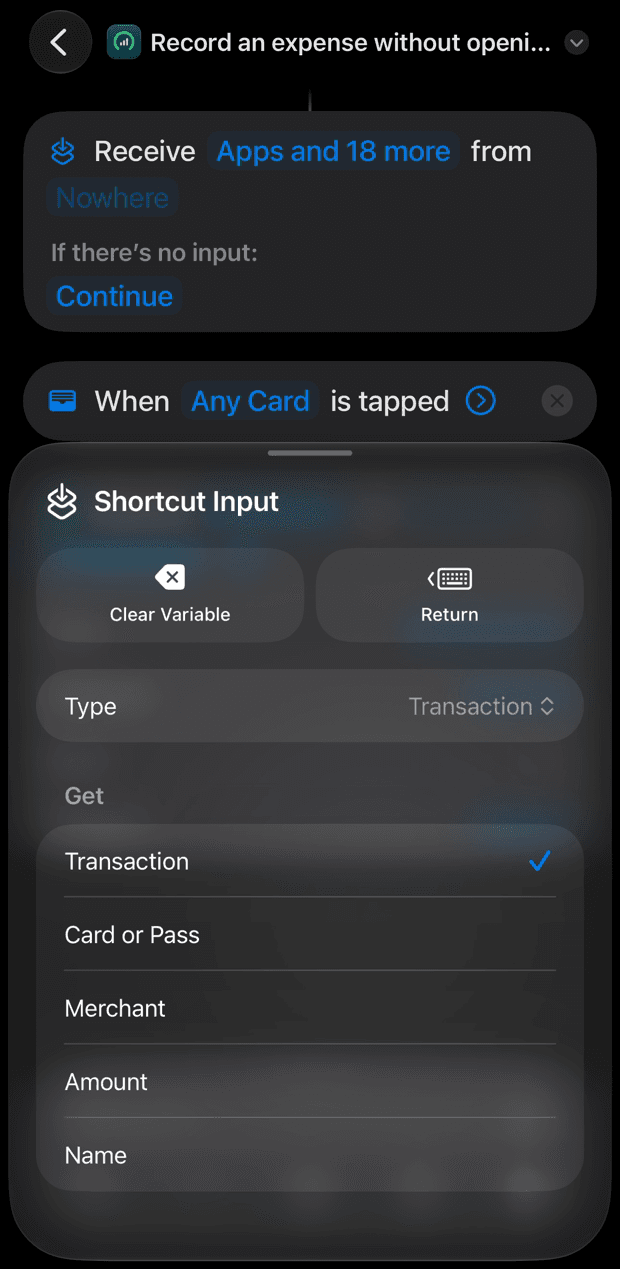
Tap Amount. At the bottom tap Select Variable, then choose Shortcut Input — the payment that started the shortcut.
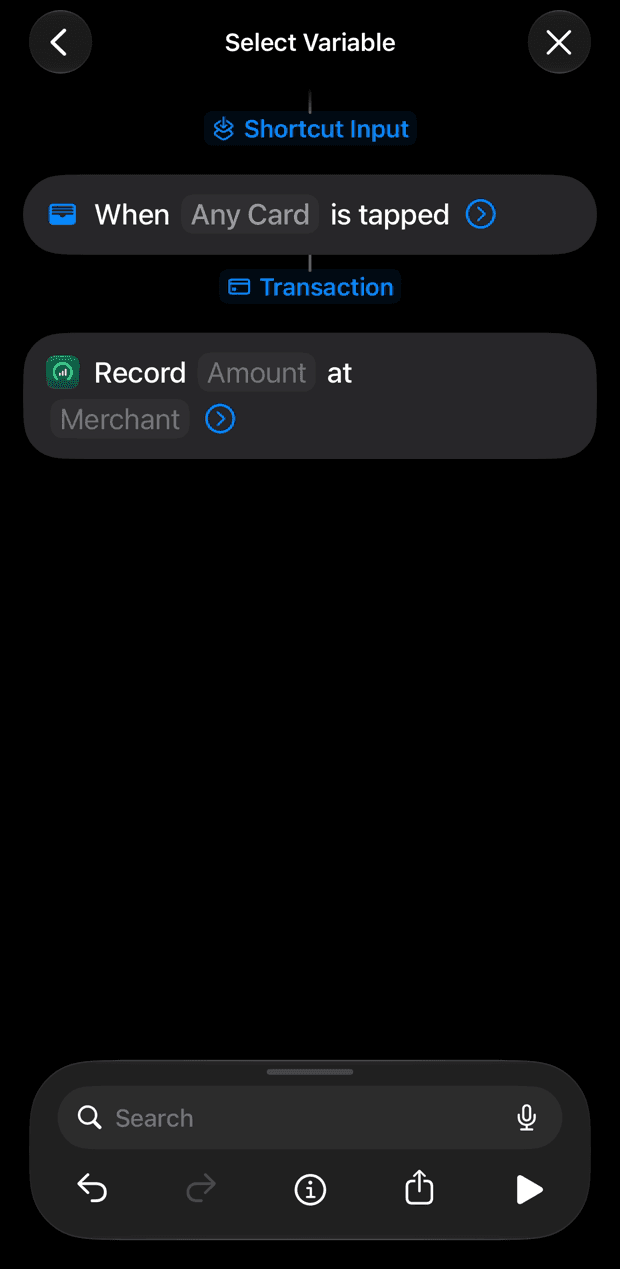
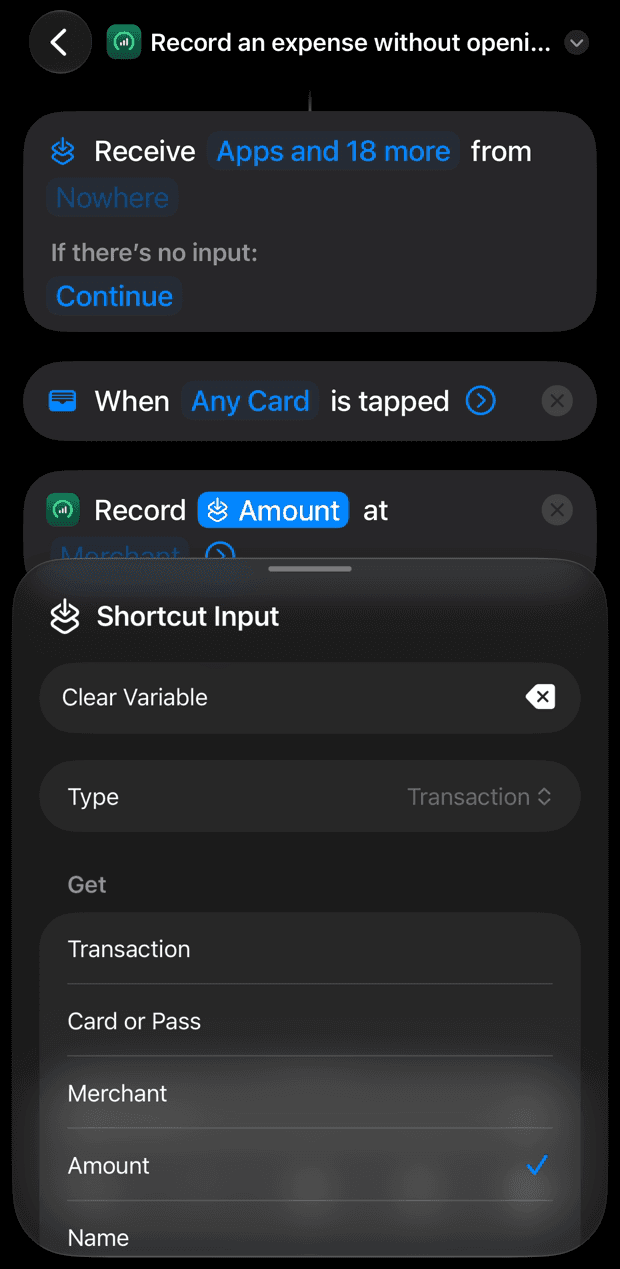
Tap the new Shortcut Input in the action. Set Type to Transaction, and under Get choose Amount. The field now reads Record Amount at.
Connect the shop
Do the same for Merchant: Select Variable › Shortcut Input › Type: Transaction › Get: Merchant.
Connect the card
Tap the small arrow beside Merchant to show the other fields: Note, Paid from, Card and Category.
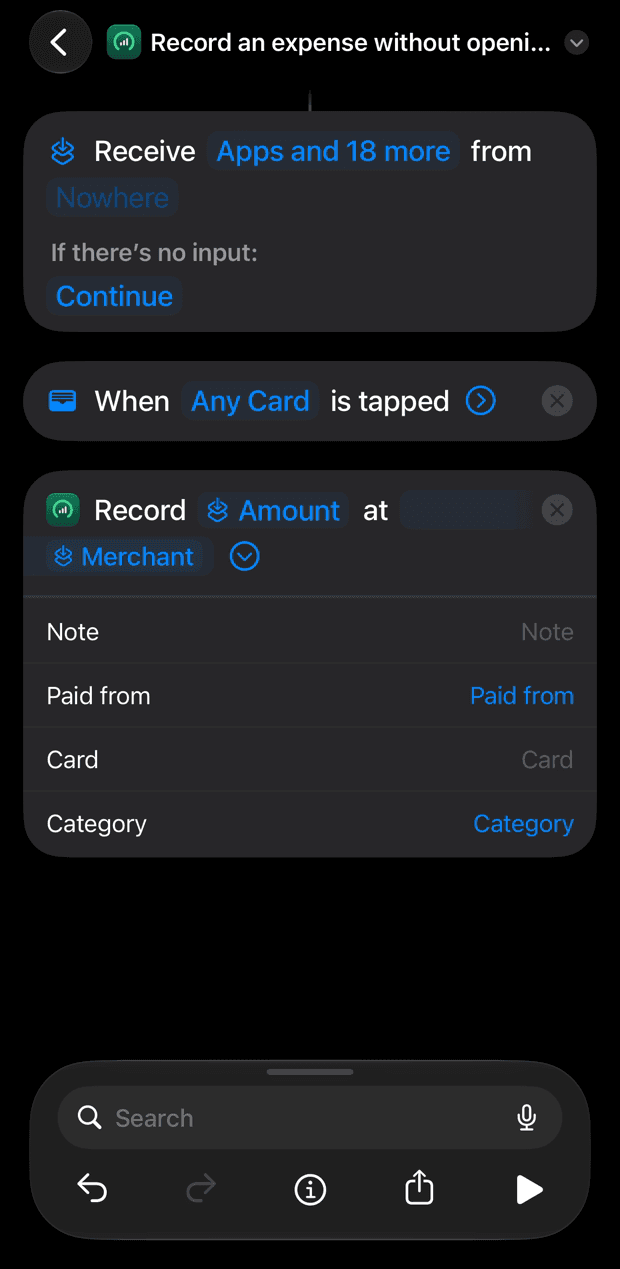
Set Card the same way: Select Variable › Shortcut Input › Type: Transaction › Get: Card or Pass. That is how Daybook tells your cards apart, so that it can ask once which account each one is.
Leave the rest as they are:
- Paid from — empty. Daybook asks you once for each card, then remembers.
- Note — empty. Do not connect it to Name or Merchant: the shop is recorded already, and the note ends up with its name twice.
- Category — empty for now. Daybook suggests one; here is how to set it yourself.
Name it
Tap the title at the top and give it a name you will recognise, such as Wallet - Daybook. Tap the tick, then the back arrow to save.
Make it run on its own
Tap the small arrow at the right of When Any Card is tapped to open the trigger’s options, and choose Run Immediately, so iOS does not ask you to confirm after every payment. Apple has moved this setting between iOS versions; if you cannot find it, Apple’s Shortcuts guide for personal automations shows where it is on your version.
Part 2 — Check that it works
Make a small payment
Pay for something small with your phone or watch. Within a few seconds iOS runs the shortcut.
Open Daybook
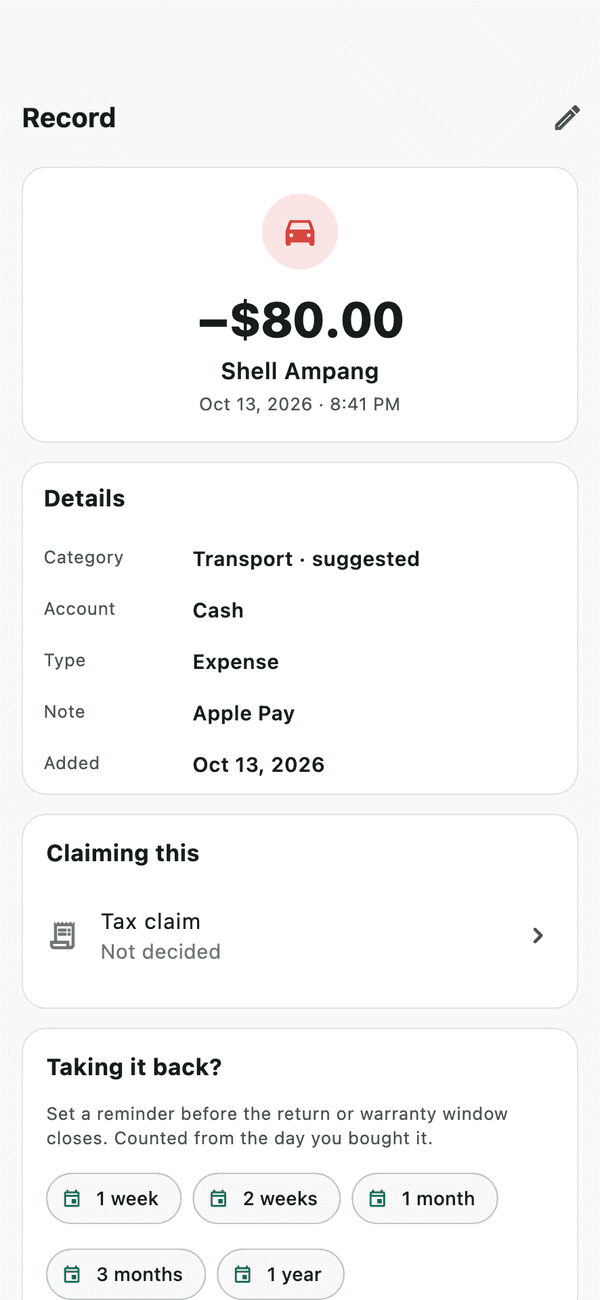
The payment is listed, marked to check, with the shop and amount. Daybook writes queued payments when it opens, so nothing appears until you do — even if the payment was hours ago.
Say which account the card is
The first payment from each card arrives with no account. Open it, pick the account, and save. That card’s payments go there from then on.
Check the category
Each payment comes with a category: the one you used for that shop before, a shop Daybook knows by name, or — on an iPhone with Apple Intelligence — a suggestion. It reads suggested until you check it. Change it if it is wrong, and Daybook files that shop correctly from then on.
Pause it, or turn it off
- Pause recording: Daybook › More › Settings › Record a card tap › switch off Record without opening. Payments stop being written down, and you do not have to touch Shortcuts.
- Delete it: in Shortcuts, touch and hold the shortcut › Delete.
Worth knowing
- A card in two shortcuts is recorded twice. If you set one up for a single card earlier, delete it, or leave that card out of this one.
- A card held in another currency needs a shortcut of its own with Paid from set to that account. Leave it out of this one.
- No amount? A payment that arrives without one is kept at zero and listed as missing its amount; you cannot confirm it until you enter one.
If something goes wrong
- Nothing appears in Daybook
- Open Daybook once — payments are written when it opens. Then check that Record without opening is on (Settings › Record a card tap), and that the shortcut’s trigger is set to Run Immediately.
- The amount is zero, or missing
- Amount was not connected. Open the shortcut, tap Amount, and connect Shortcut Input › Transaction › Amount (step 4).
- The same payment appears twice
- The card is in two shortcuts. Remove it from one.
- The shop name appears twice in the note
- Note is connected to Name or Merchant. Clear it. Records already saved keep their note; edit it in Daybook.
- Daybook does not appear when I search
- Make sure Daybook is installed and has been opened at least once, then search again. If it still is not listed, restart your iPhone.