English · Bahasa Melayu · 中文
How to track tax relief in Daybook, step by step
Updated 30 October 2026 · 6 min read
Tax claims is part of Daybook Pro (yearly starts with a free week), on iPhone and Android. Set it up once, and every receipt from then on takes a few seconds.
Open Tax claims
Go to More › Tax claims. At the top is the year, what you have marked for it, and how many records are still to look at. Your buckets are underneath.
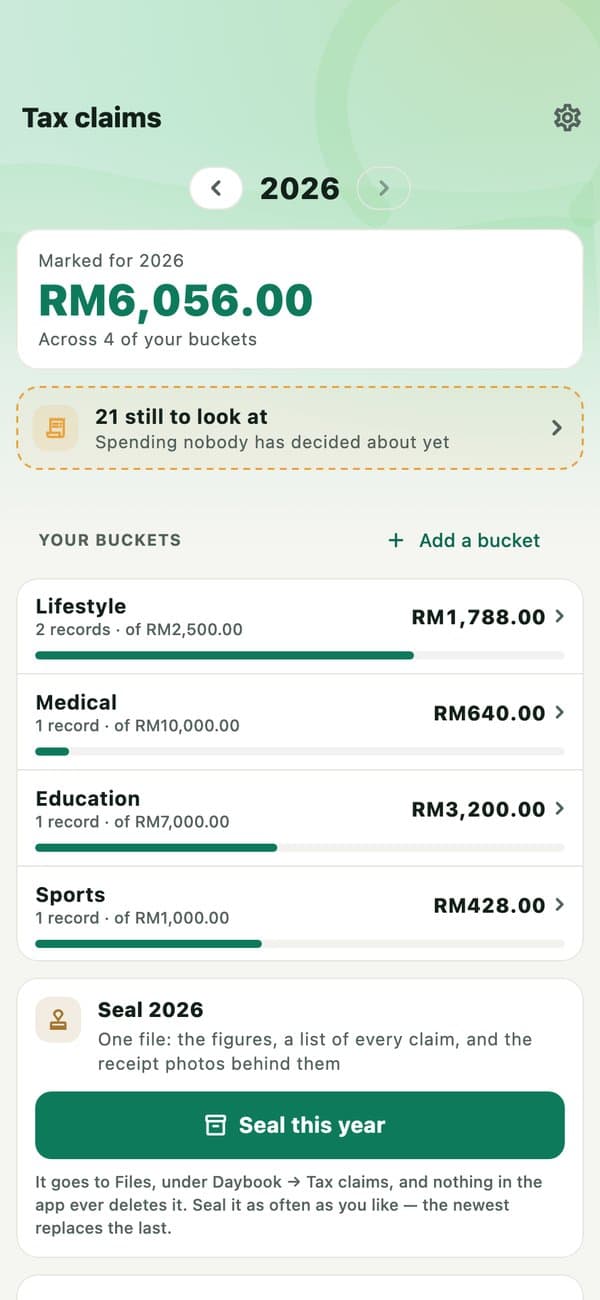
At the bottom, Your tax year starts shows when Daybook's year begins. In Malaysia the year of assessment is the calendar year, so 1 January.
Add your buckets
Tap Add a bucket. Name it after the relief (Lifestyle, Medical, Education…) and type its limit from LHDN's list for this year, or leave it without one. Daybook does not fill these in for you: the rules are yours to set and to check on hasil.gov.my.
Snap the receipt
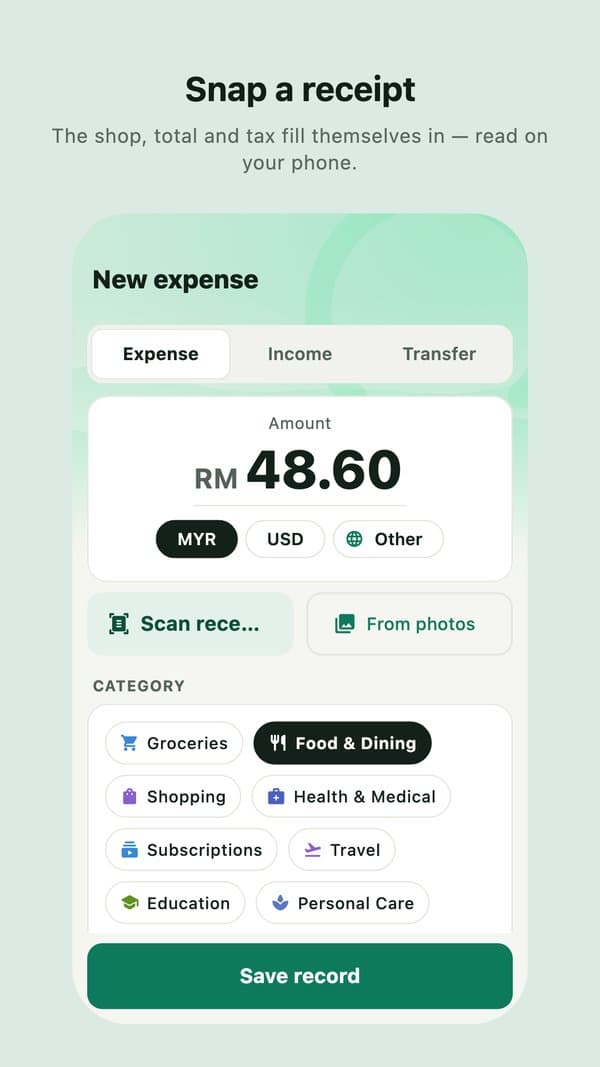
On New expense, tap Scan receipt, or From photos for a picture you already have. The shop, total and tax fill themselves in, read on your phone. Check them against the paper, then save.
Go through what is still to look at
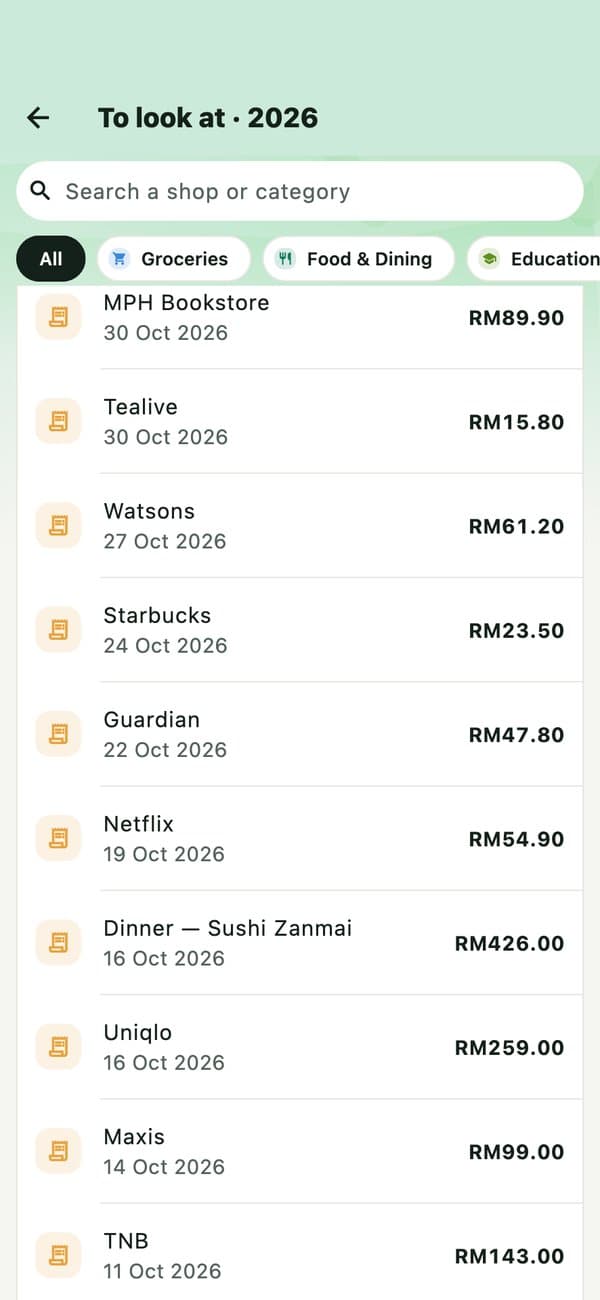
Tap the still to look at card. It lists the spending nobody has decided about yet. Search for a shop, or tap a category to narrow it down.
Claim it, or not
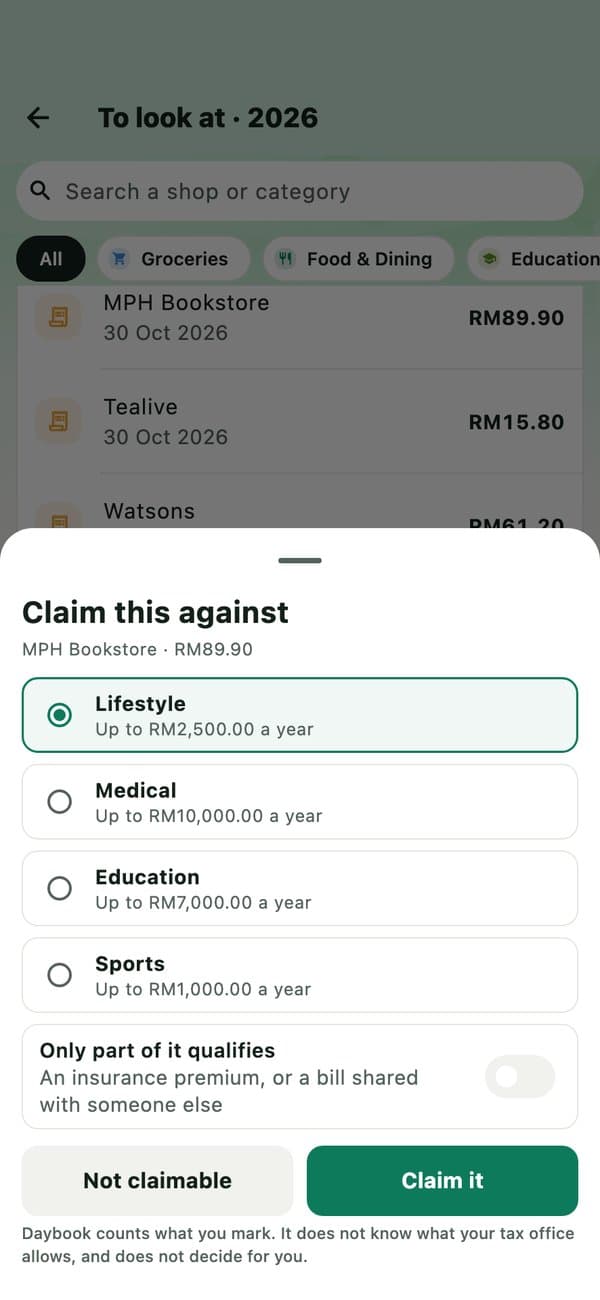
Tap a record, choose the bucket and tap Claim it. If only part of it qualifies, such as an insurance premium or a bill shared with someone, turn on Only part of it qualifies and type the part that does. If it does not qualify, tap Not claimable so it stops asking.
Watch each bucket fill
Each bucket shows what you have marked against its limit, so you can see what is left before 31 December.
Seal the year
Tap Seal this year. Daybook writes one file: a summary PDF with the figures, a list of every claim, and the receipt photos behind them. If any claim has lost its photo, Daybook says so right then, while you can still find it. Seal as often as you like; the newest replaces the last.
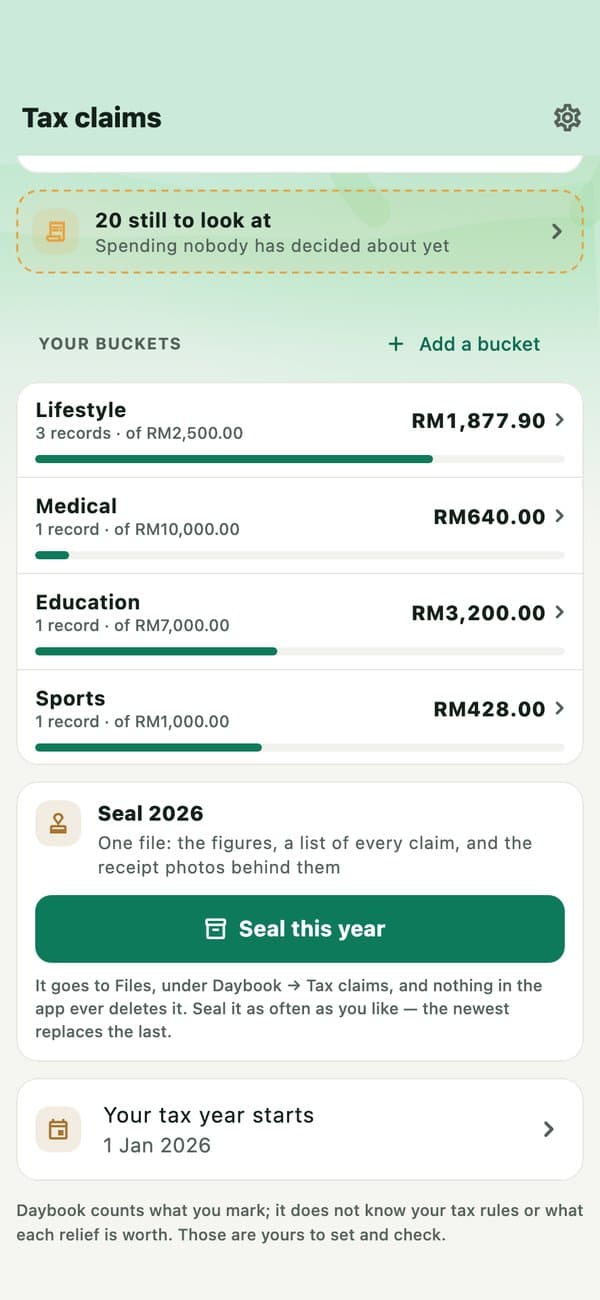
- iPhone: the file goes to Files, under Daybook › Tax claims, and nothing in the app ever deletes it.
- Android: the file is kept inside Daybook and goes if the app is removed. Tap Send after sealing to keep a copy in Google Drive, email or anywhere else.
Good to know
- Daybook counts what you mark. It does not decide what you may claim, and it does not file anything with LHDN; you still file in e-Filing yourself.
- Everything stays on your phone: no account and no Daybook server.
- Recording, receipt scanning, budgets, reminders, splitting bills, reports, CSV export and backups are free with no time limit. Tax claims is Pro.
A year-end checklist for tax relief receipts