How to plan your day around your meetings (without rebuilding it every morning)
You open your calendar and see three meetings. You open your to-do list and see eight tasks. Nothing connects the two. So you start the day guessing, and by 3 pm the meetings have eaten the hours you meant to use.
The fix is old and simple: put the tasks into the calendar. Doing it by hand every morning is the part that people stop doing. Here is the method, and how to make it cost almost nothing.
1. Start from the gaps, not the tasks
Most planning advice starts with the list. On a meeting-heavy day, start with the time you actually have.
- Look at today's calendar.
- Write down each gap between meetings and how long it is.
- Ignore any gap under 15 minutes. It is a breather, not a work block.
A day with a 9:00 stand-up and a 2:30 team sync has a 5-hour gap in the middle. That is your real capacity, and it is usually smaller than you think.
2. Give every task a size
A task without a size cannot be scheduled. Before you place anything, add a rough time: 15, 30, 45 or 60 minutes. Round up. If a task is longer than two hours, it is a project; pick its next step and size that instead.
3. Fit the biggest first, and let the rest wait
Put the most important task in the first good gap, while you are fresh. Then fill the remaining gaps, smallest tasks last. If the total is more than the time you have, do not squeeze. Choose what moves to tomorrow now, on purpose, instead of discovering at 5 pm that it slipped.
Seeing "this does not fit" at 9 am is the whole benefit of planning. It is a decision you can still make.
4. Put it in the calendar
A plan that lives only in a list gets ignored. A plan that sits in your calendar next to the meetings is treated like a meeting: you protect it, and colleagues see you are busy.
5. Expect it to change, and make changing cheap
A meeting runs over. Something urgent lands. The plan will move. What matters is that moving a block is one gesture, not a rewrite of the day. If it takes more than a few seconds, you will stop updating it, and the plan dies.
Doing this automatically in Dayward
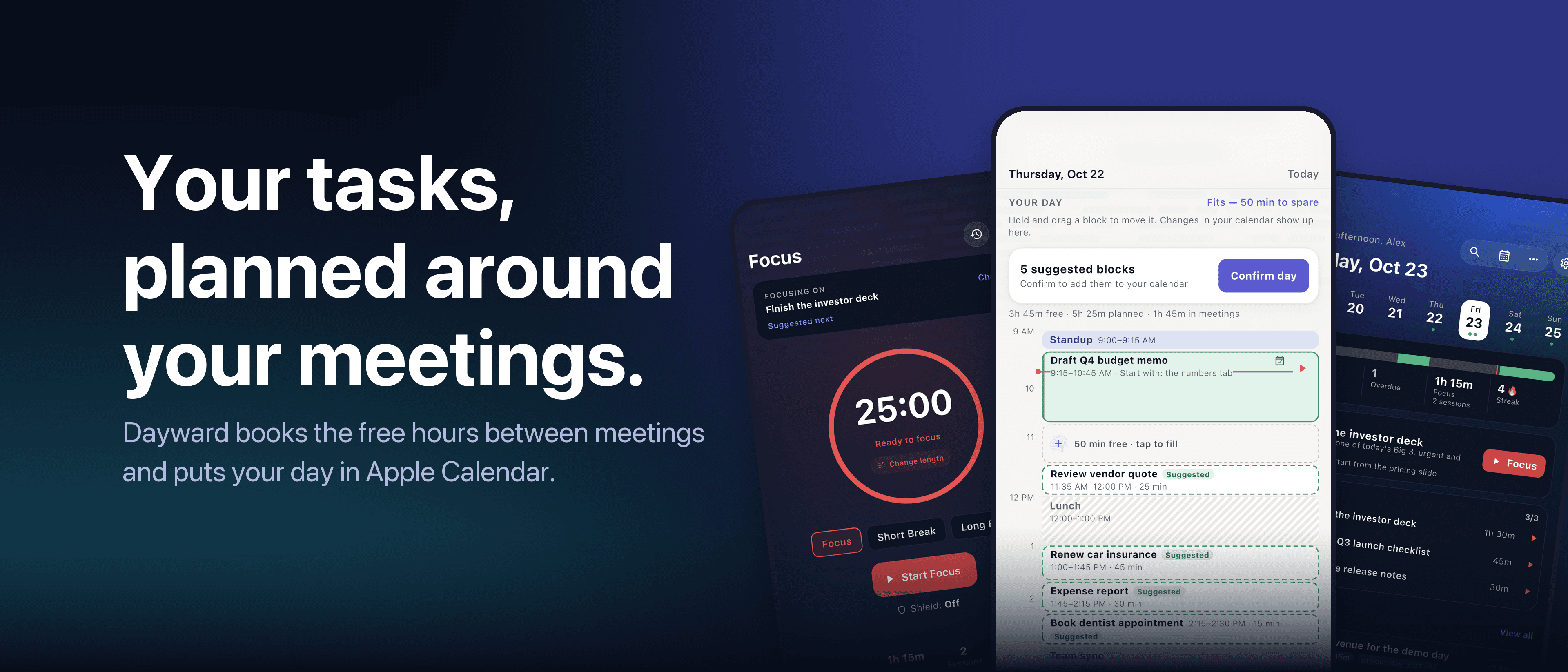
Dayward does steps 1 to 4 for you. It reads your calendar, finds the free hours between meetings, and places your tasks into them as blocks sized from your estimates. Tasks that do not fit are listed as such, not quietly dropped. When it looks right, Confirm day puts the blocks into Apple Calendar, and changes you make in Calendar show up in Dayward. Dragging a block moves it; swiping pushes it to tomorrow.
The planner, calendar sync and focus timer are free.
Read next: How to pick the three tasks that make a day a win
All articles · Dayward · Privacy · Terms
The Cortex Solution blog